Chrome extension side panels: build a UI that stays open while you browse
A hands-on Manifest V3 tutorial: build a Chrome extension side panel that persists across tabs, then make it per-site. Full runnable code, ~25 minutes.
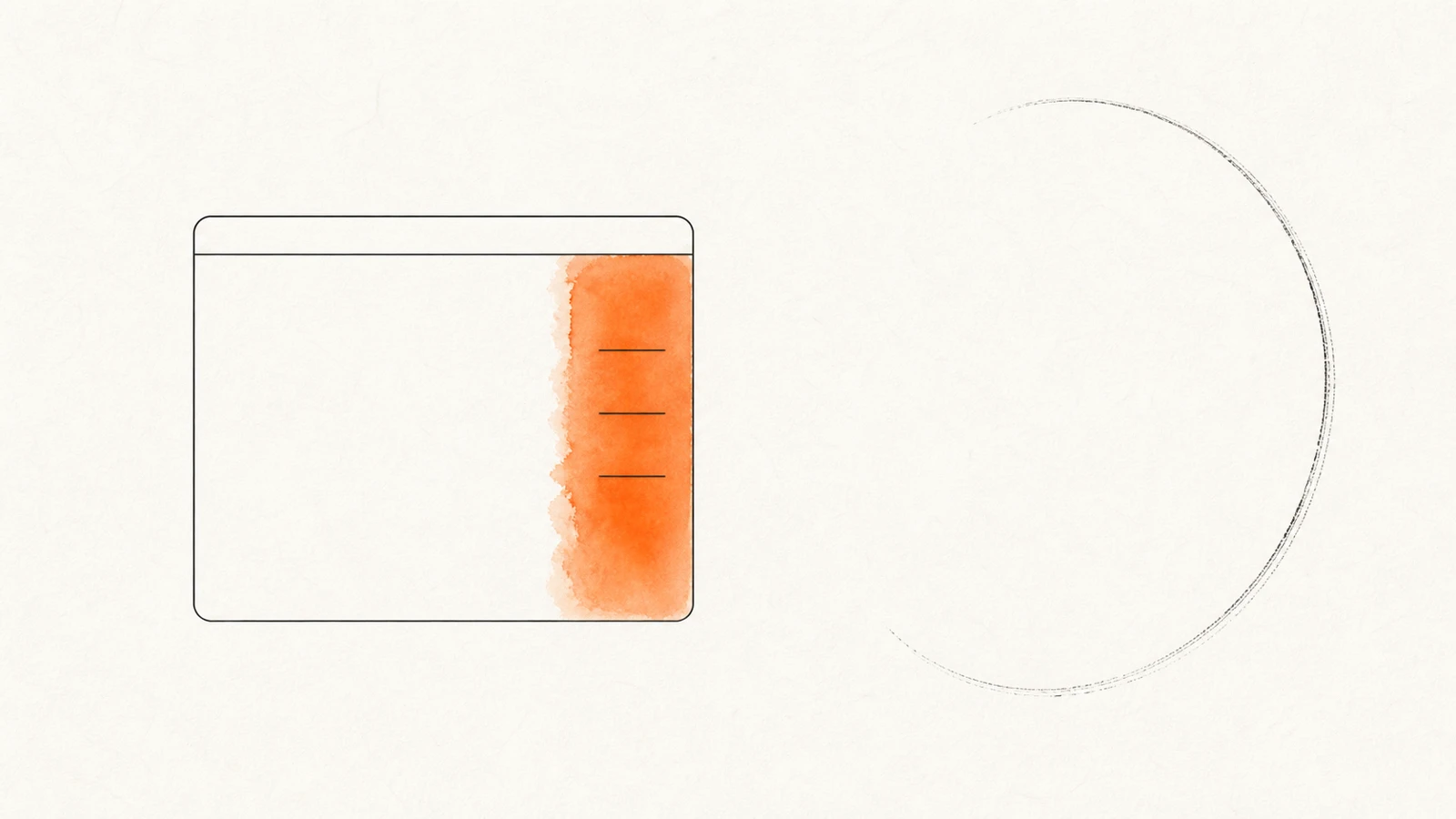
Popups are the wrong tool for half the things we build. You click the toolbar icon, a little window pops over the page, you glance at it, and the moment you click anywhere else it vanishes — taking whatever you were doing with it. That's fine for a quick toggle. It's miserable for anything the user wants to keep next to them while they browse: notes, a running checklist, a reading queue, a live log.
The fix is the side panel — a persistent, resizable pane that docks to the side of the browser and stays put as you switch tabs. In this tutorial you'll build one from an empty folder: first a global notepad that survives tab switches, then a smarter version that keeps separate notes per website. Everything here is copy-paste runnable.
What you'll build: a "browsing notepad" side panel, Manifest V3, Chrome/Edge. Difficulty: beginner-to-intermediate — you need Chrome and a text editor, nothing else. Time: ~25 minutes.
Why a side panel and not a popup
It helps to know exactly what you're choosing between, because the browser draws a hard line here. As Matt Frisbie lays out in Building Browser Extensions (Apress, 2025), a popup is a transient interface — it opens on a user action and closes the instant it loses focus, so the user can't interact with the page and the popup at the same time. The side panel is the opposite: a persistent container that stays open until the user explicitly closes it, and updates as the active tab changes.
There's a second distinction worth internalizing. The book frames every extension interface as either a plain managed page (an HTML file your extension serves, which happens to get access to the chrome.* APIs) or an extension UI (the browser-controlled container — popup, options, side panel — with rules about how and when it shows up). Your sidepanel.html is just a managed page. The side panel is the container the browser wraps around it. Keep those separate in your head and the API stops feeling magic.
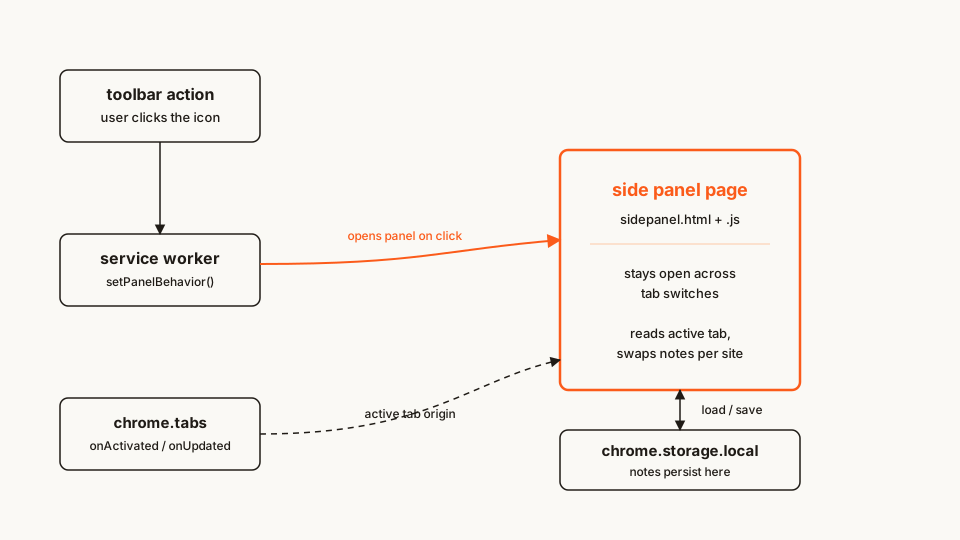
The API itself has been stable since Chrome 114, so there's no origin-trial or flag dance. Let's build.
The file tree
Here's everything we're going to create. It's small:
browsing-notepad/
├── manifest.json        # permissions + the side_panel key
├── service-worker.js    # opens the panel when the icon is clicked
├── sidepanel.html       # the panel's markup
├── sidepanel.css        # a little styling (panels are tall and narrow)
└── sidepanel.js         # load + save notes
Rather clone than type? The finished extension lives in our public samples repo — load it, then read on with this tutorial as the guided tour.
Make a folder called browsing-notepad and let's fill it in, one file per step.
Step 1: the manifest
Two things make a side panel exist: the sidePanel permission, and the side_panel manifest key pointing at your panel's HTML. The action key (even empty) gives you a toolbar icon to click.
manifest.json
{
  "manifest_version": 3,
  "name": "Browsing Notepad",
  "version": "1.0",
  "description": "A notepad that stays open in the side panel while you browse.",
  "permissions": ["sidePanel"],
  "background": {
    "service_worker": "service-worker.js"
  },
  "action": {
    "default_title": "Open notepad"
  },
  "side_panel": {
    "default_path": "sidepanel.html"
  }
}
Notice how little we're asking for. The only permission is sidePanel, which shows the user no scary warning string at install time. That restraint matters — every permission you add is a line of friction and a line of risk, and this build genuinely needs nothing more yet. If you're hand-writing manifests a lot, our free in-browser Manifest V3 generator will scaffold this block (permissions, keys, icons) without a sign-up.
Step 2: the panel document
The panel is a normal HTML page. Because panels are tall and narrow by default, design for that shape from the start — one column, room to grow.
sidepanel.html
<!doctype html>
<html>
  <head>
    <meta charset="utf-8" />
    <link rel="stylesheet" href="sidepanel.css" />
  </head>
  <body>
    <header>
      <h1>Notepad</h1>
      <span id="scope">All sites</span>
    </header>
    <textarea id="notes" placeholder="Jot something down…"></textarea>
    <footer><span id="status">Saved</span></footer>
    <script src="sidepanel.js"></script>
  </body>
</html>
sidepanel.css
* { box-sizing: border-box; }
body {
  margin: 0;
  height: 100vh;
  display: flex;
  flex-direction: column;
  font-family: system-ui, sans-serif;
}
header {
  padding: 12px 14px;
  border-bottom: 1px solid #e5e2dc;
}
header h1 { margin: 0; font-size: 15px; }
#scope { font-size: 12px; color: #8a8378; }
#notes {
  flex: 1;
  border: 0;
  resize: none;
  padding: 14px;
  font: inherit;
  outline: none;
}
footer {
  padding: 8px 14px;
  font-size: 12px;
  color: #8a8378;
  border-top: 1px solid #e5e2dc;
}
That's a complete, if plain, UI. It won't do anything yet — we haven't wired the open button or the saving. Next.
Step 3: open the panel on click
Here's the one part that surprises people: you don't wire the toolbar click in the manifest. Unlike the popup and options UIs, which you configure declaratively, the side panel's open-on-click behavior is set imperatively from the service worker with chrome.sidePanel.setPanelBehavior(). This is the exact line older tutorials get wrong, so verify it against the official chrome.sidePanel reference if you see conflicting advice.
service-worker.js
// Toolbar-icon click opens the panel. Set once, on install.
chrome.runtime.onInstalled.addListener(() => {
  chrome.sidePanel
    .setPanelBehavior({ openPanelOnActionClick: true })
    .catch((error) => console.error(error));
});
Setting it in onInstalled is enough — the behavior persists. (You can call it at the top level of the worker too; either works. I like onInstalled because it reads as a one-time setup.) This mirrors Google's official cookbook.sidepanel-global sample (source, Apache-2.0), just with error handling made explicit.
Load the extension now (Step "Load it and try it" below) and clicking the icon already opens an empty notepad that follows you across tabs. But close it and your text is gone — the panel document reloads. Let's fix persistence.
Step 4: make the notes survive
The panel is a managed page with its own lifecycle, separate from the service worker. State in a JavaScript variable dies when the panel unloads — the same lifecycle gotcha that trips people up all over MV3, which I dug into in why a disabled extension can't clean up after itself. The durable place to keep data is chrome.storage.local.
sidepanel.js
const notes = document.getElementById("notes");
const statusEl = document.getElementById("status");
const KEY = "notes:global";

// Load whatever we saved last time.
async function load() {
  const stored = await chrome.storage.local.get(KEY);
  notes.value = stored[KEY] ?? "";
}

// Save on every keystroke, debounced so we don't hammer storage.
let timer;
notes.addEventListener("input", () => {
  statusEl.textContent = "Saving…";
  clearTimeout(timer);
  timer = setTimeout(async () => {
    await chrome.storage.local.set({ [KEY]: notes.value });
    statusEl.textContent = "Saved";
  }, 300);
});

load();
The storage API does need its own permission — add "storage" to the manifest:
"permissions": ["sidePanel", "storage"],The good news: storage is one of the quiet permissions — it triggers no warning string at install time, so it costs you nothing in user trust. Reload the extension, type something, close the panel, reopen it — your text is there. You've got a working global notepad.
Step 5: one notepad per website
A single shared note is fine, but the useful version keeps a separate note for each site — a scratchpad for GitHub, another for your docs, another for wherever. To do that the panel needs to know the current tab's origin and swap notes when you switch tabs.
Reading a tab's URL requires the tabs permission, so add it. Be honest about the cost: tabs does show the user a broader access warning, and — a detail Frisbie calls out — the activeTab permission that popups lean on does not apply to the side panel, so there's no free-on-click shortcut here. If you need the URL, you ask for tabs (or a host permission). Update the permissions array:
"permissions": ["sidePanel", "storage", "tabs"],Then rewrite the panel script to key notes by origin and react to tab changes:
sidepanel.js (replacing Step 4)
const notes = document.getElementById("notes");
const statusEl = document.getElementById("status");
const scopeEl = document.getElementById("scope");

let currentKey = "notes:global";

async function activeOrigin() {
  const [tab] = await chrome.tabs.query({ active: true, currentWindow: true });
  if (!tab?.url) return null;
  try {
    return new URL(tab.url).origin;
  } catch {
    return null; // chrome:// pages, new-tab page, etc.
  }
}

// Point the editor at the note for whatever tab is active now.
async function syncToActiveTab() {
  const origin = await activeOrigin();
  currentKey = origin ? `notes:${origin}` : "notes:global";
  scopeEl.textContent = origin ? new URL(origin).hostname : "All sites";
  const stored = await chrome.storage.local.get(currentKey);
  notes.value = stored[currentKey] ?? "";
}

let timer;
notes.addEventListener("input", () => {
  // Capture the key NOW — if the user switches tabs during the 300 ms
  // debounce, currentKey moves on and the save would land under the
  // wrong site's key, silently overwriting that site's note.
  const keySnapshot = currentKey;
  statusEl.textContent = "Saving…";
  clearTimeout(timer);
  timer = setTimeout(async () => {
    await chrome.storage.local.set({ [keySnapshot]: notes.value });
    statusEl.textContent = "Saved";
  }, 300);
});

// Switch notes when the user changes tabs or the tab navigates.
chrome.tabs.onActivated.addListener(syncToActiveTab);
chrome.tabs.onUpdated.addListener((_id, info) => {
  if (info.url) syncToActiveTab();
});

syncToActiveTab();
Reload, open the panel, and browse. On github.com you get one note; flip to a docs site and the panel swaps to a different one, live. The panel never closed — it just re-pointed itself at the active tab's origin. That "stays open, updates with context" behavior is the whole reason the side panel exists.
Optional: only show the panel on some sites
Sometimes you don't want the panel available everywhere — only on the sites it's built for. chrome.sidePanel.setOptions() enables or disables the panel per tab, which you drive from the service worker on tab updates. This is Google's cookbook.sidepanel-site-specific pattern (source, Apache-2.0):
One framing note before you paste: this snippet extends your existing service-worker.js — merge it in below the onInstalled block from Step 3. Replace the whole file with just this and the panel loses openPanelOnActionClick, so clicking the icon will never open it.
// service-worker.js — enable the panel only on a chosen origin.
const ALLOWED = "https://github.com";

chrome.tabs.onUpdated.addListener(async (tabId, _info, tab) => {
  if (!tab.url) return;
  const enabled = new URL(tab.url).origin === ALLOWED;
  await chrome.sidePanel.setOptions({
    tabId,
    path: "sidepanel.html",
    enabled
  });
});
Now the panel is offered on GitHub and quietly unavailable elsewhere. Handy when your panel only makes sense in one place.
Load it and try it
- Open
chrome://extensions. - Flip on Developer mode (top-right).
- Click Load unpacked and pick your
browsing-notepadfolder. - Click the extension's toolbar icon. The notepad docks on the right.
- Type a note, switch tabs — the panel stays open. On the per-site version (Step 5), the note changes with the site.
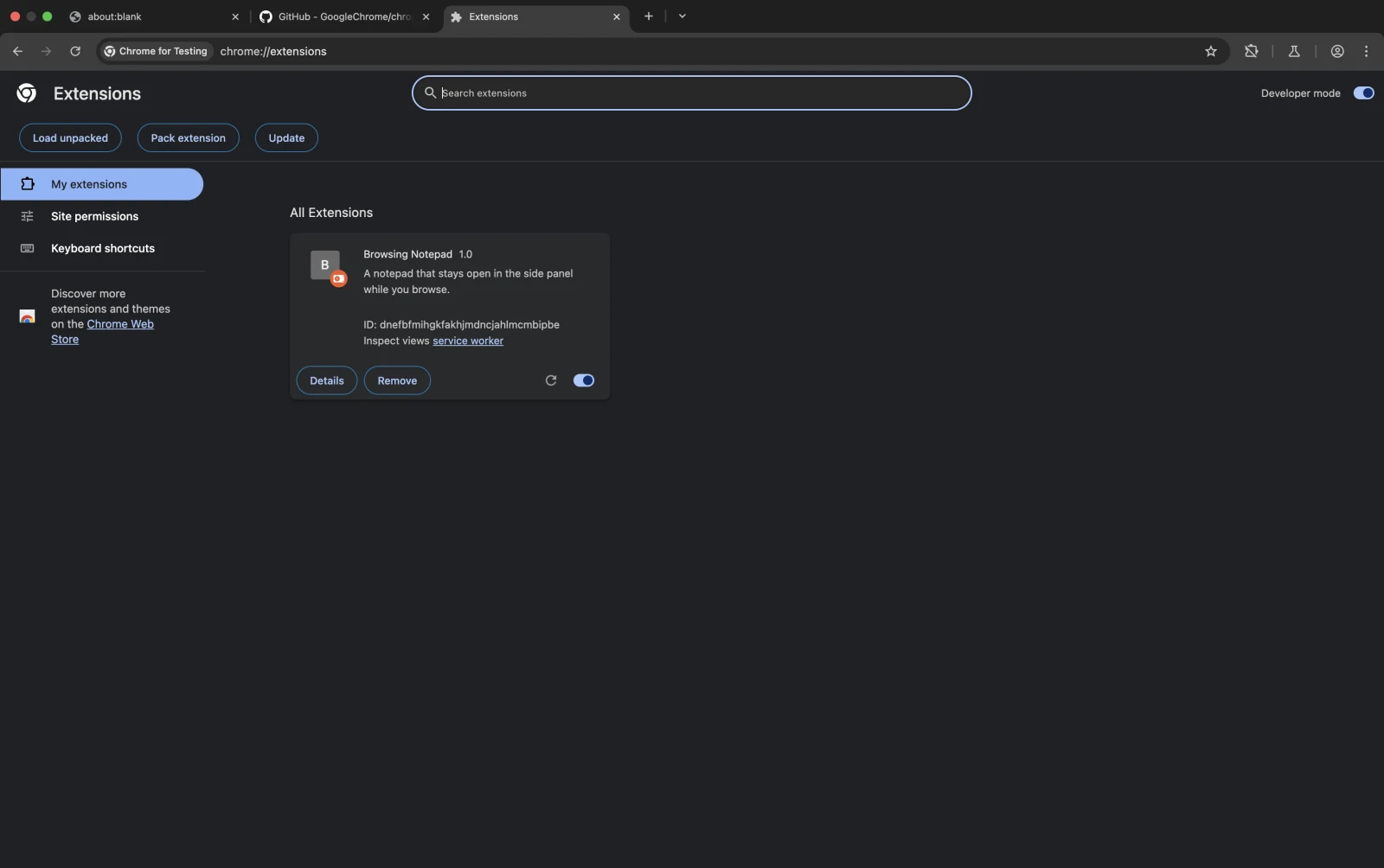 Load unpacked, and the extension shows up ready to pin.
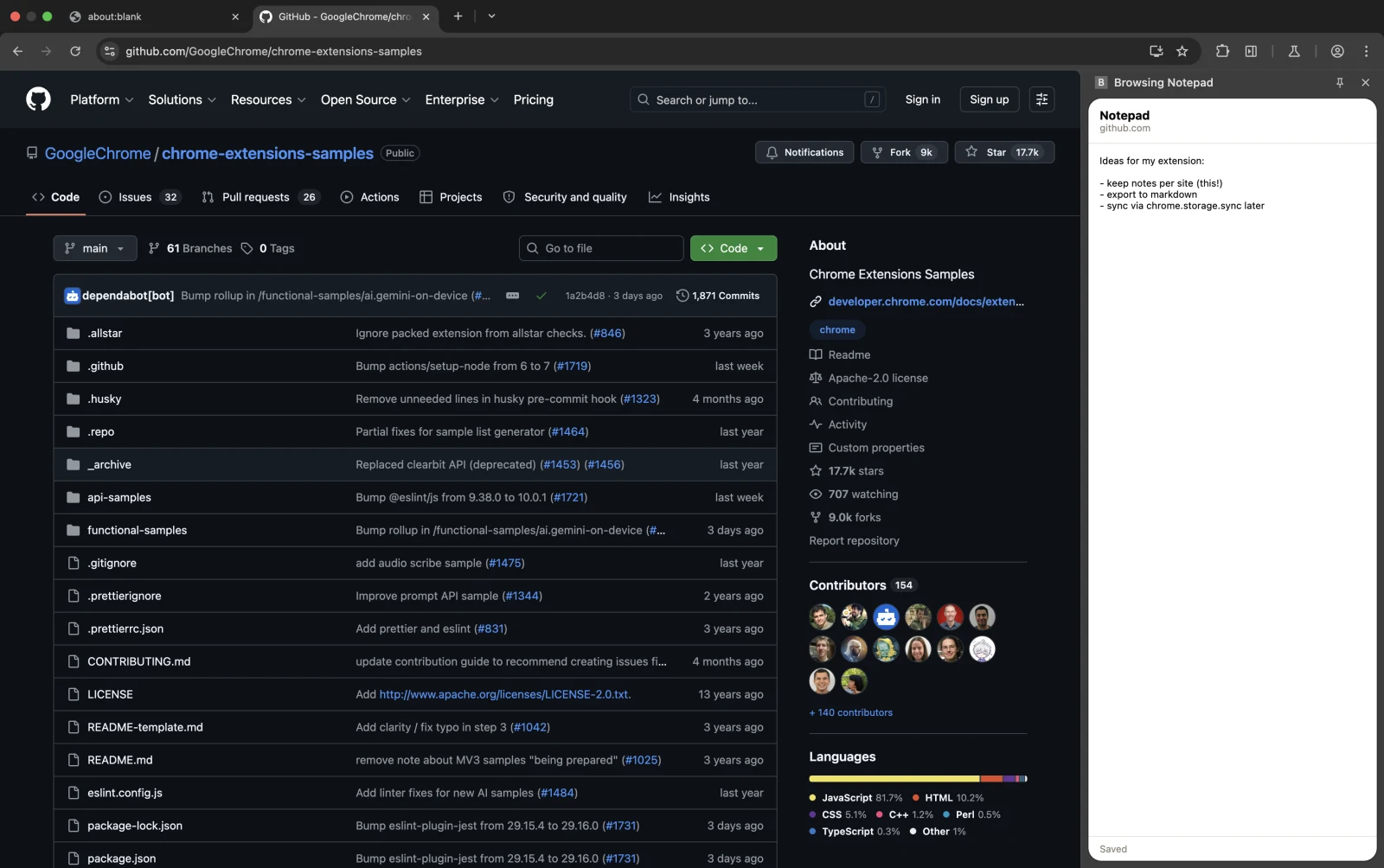 The panel persists as you switch tabs — and swaps notes per site. Note the hostname in the panel header.
If it doesn't work, check these first:
- Clicking the icon does nothing.
setPanelBehavior({ openPanelOnActionClick: true })didn't run — reload the extension soonInstalledfires again, and confirm the service worker has no red error inchrome://extensions. - Notes never persist. You forgot to add
"storage"topermissions(without itchrome.storageis undefined in the panel), you're saving to a variable instead ofchrome.storage.local, or you renamed the storage key between saves. - Per-site notes don't switch. You forgot to add
"tabs"topermissions, sotab.urlcomes backundefinedand every origin collapses to the same key.
One thing that trips people up: closing the panel with the X in its header is the only action that fully unloads the page. Navigating away or switching panels just hides it while keeping its state in memory, closer to a suspended tab than a closed one. Don't rely on a "fresh load" every time the panel reappears.
Cross-browser note
The chrome.sidePanel API is Chromium-only — it works in Chrome and Edge, but not Firefox. Firefox implements the same idea through a different model: the sidebar_action manifest key and the browser.sidebarAction API. So a truly cross-browser build ships both, branching on which API is present. (Firefox's sidebar is actually the older, more mature of the two designs; Chrome only caught up with sidePanel in 2023.) If you're targeting the browser.* namespace for cross-browser code, I wrote up what changed when Chrome adopted it. Don't assume one API covers every browser — it doesn't.
Before you publish
Two habits that save pain later. First, keep permissions minimal: we shipped Step 4 on sidePanel alone and only added tabs when a feature demanded it. Reviewers and users both punish over-asking. Second, scan your own build before it goes live — the same static analysis the stores should do but often don't. Our CLI does it in one command:
npx @extenshi/cli scan ./browsing-notepadIt flags risky API usage, permission bloat, and known-bad patterns before a reviewer (or an attacker) finds them. You get 3 scans and 10 reads free, one-time; past that, prepaid credit packs cover the rest and never expire. It's the cheapest bug you'll ever fix — the one you catch before shipping.
Wrapping up
You went from an empty folder to a side panel that stays open across tabs and keeps per-site notes, using nothing but chrome.sidePanel, chrome.tabs, and chrome.storage.local. The pattern generalizes: swap the notepad for a reading queue, a live scraper output, a chat UI, a checklist — anything whose job outlives a single click belongs in a panel, not a popup.
Building something real on top of this? Once your extension is live, seeing how users actually engage with it — installs, retention, the reviews landing on your listing — is its own thing. Explore extension analytics → and claim your extension to get verified install and uninstall data alongside the security scan.
Sources
- chrome.sidePanel API reference — Chrome for Developers (Google)
- chrome.tabs API reference — Chrome for Developers (Google)
- cookbook.sidepanel-global sample — GoogleChrome/chrome-extensions-samples (Apache-2.0)
- cookbook.sidepanel-site-specific sample — GoogleChrome/chrome-extensions-samples (Apache-2.0)
- sidebarAction (Firefox) — MDN Web Docs (Mozilla)
- How to create a sidebar Chrome extension in MV3 — stefanvd.net (further reading; verify API surface against the official docs)
Further reading
📚 Building Browser Extensions, 2nd Edition by Matt Frisbie — Amazon | Apress. Chapter 7 covers every extension UI (popup, options, side panel, devtools) and when to reach for each.
This article is a hands-on tutorial based on the official Chrome Extensions documentation and Google's Apache-2.0 sample code. Code is provided as-is for educational purposes; verify API behavior against the current developer.chrome.com reference before shipping. If you believe anything here is inaccurate, contact [email protected] and we'll review and update.
Related Articles
Can a disabled extension skip its own uninstall URL? In Chrome, no — here's why
A disabled extension can't clear its uninstall URL (setUninstallURL) before removal — the service worker is already dead. Here's why, and the server-side fix.
Chrome's native browser namespace: what cross-browser extension devs should do now
Chrome added a native, promise-based browser.* namespace in 148. Across the 235,887 Chrome extensions we track, here's what it changes — and what to do.
The extension that opens whatever tab its server tells it to
A malicious browser extension can let a remote server open any tab — an ad, a redirect, a fake login. How it works, and how to check and remove them fast.