The `sessions` permission explained: what browser extensions can see after you close a tab
Chrome shows no warning for the sessions permission alone. Here's what extensions can really see in your recently closed tabs — and how to check yours.
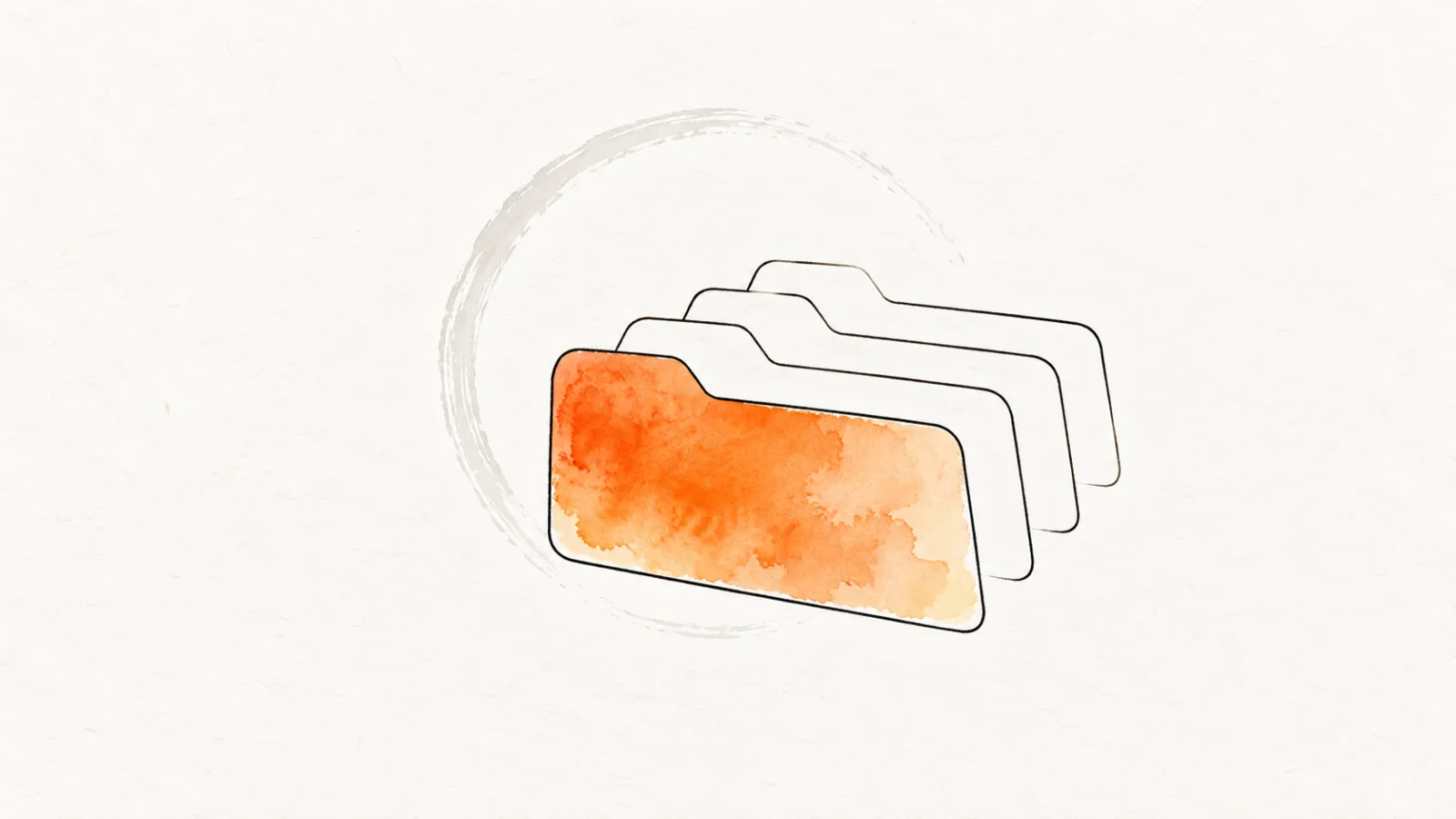
Close a tab and it's gone, right? Not exactly. Chrome keeps a small recycle bin of your browsing — a running list of your most recently closed tabs and windows, 25 entries deep — and Ctrl+Shift+T is just the keyboard shortcut into it. That bin has an API attached, chrome.sessions, and any extension that declares the sessions permission gets a key to it.
Here's the part I find genuinely surprising: in Chrome, that key comes with no warning at all unless the extension also asks for something else. No install dialog line, no scary red text. The permission is invisible at exactly the moment you'd want to see it.
I've been working through Chrome's permission list one entry at a time — tabs, history, cookies, the rest. This one deserves its own post, because its real capabilities barely show up in any warning string.
What the API actually hands an extension
The chrome.sessions reference is short — four moving parts, and every one of them matters for privacy.
getRecentlyClosed() returns the list of recently closed tabs and windows, capped at 25 entries (the API even exports the cap as MAX_SESSION_RESULTS). Each entry carries a lastModified timestamp — seconds since the epoch — telling the extension exactly when you closed it.
onChanged fires whenever that list changes. In practice: every time you close a tab or window, and every time something gets restored.
Note what the event does not carry — the callback signature is empty. It's a doorbell, not a delivery. An extension that hears it re-queries getRecentlyClosed() to see what you just closed.
restore(sessionId?) reopens a closed tab or window — the most recent one if you don't pass an ID. That's the "undo close tab" feature you love, exposed as an API any holder of this permission can call.
getDevices() is the one that raised my eyebrow. If you're signed into Chrome with sync enabled, it returns your other devices — by name — along with their open window sessions. Your phone's tabs, your laptop's windows, reachable from an extension running on this machine.
Put together, the whole "log your closes in real time" pattern is four lines:
// manifest: "permissions": ["sessions"]
chrome.sessions.onChanged.addListener(async () => {
	const closed = await chrome.sessions.getRecentlyClosed({ maxResults: 25 });
	console.log(closed.map((s) => [s.lastModified, s.tab?.url, s.tab?.title]));
});
Closed tabs come back as Tab objects — with a catch
Each closed tab arrives as a standard tabs.Tab object, and here Chrome's documented rules do some quiet work for you. Per the tabs API reference, a closed tab's url, title, and favIconUrl are only present "if the extension has the tabs permission or has host permissions for the page."
So sessions alone gets an extension the skeleton: how many tabs you closed, when, which were windows, and the IDs needed to restore them. The URLs and titles — the part that says what you were reading — require the tabs permission or host access on top.
That distinction is real, but don't take too much comfort in it. A session manager that uses sessions needs tabs (or host access) alongside it, because restoring your tabs means showing you what they were. The combination — which is how this permission is used in practice — yields a live feed of everything you close: URL, title, and timestamp, refreshed the instant each tab dies.
And closing a tab is a signal. "I'm done with this" clicks are exactly the ones that reveal the job search you're hiding from your employer, the medical symptom checker, the engagement ring store, the shopping cart you abandoned on purpose. With restore(), an extension can also pop a closed page back open — usually a feature, occasionally an annoyance, and in the wrong hands a way to walk you back to a page you deliberately left.
The sessions permission warning you won't see
Several very different permissions — tabs and webNavigation among them — hide behind one install-time string, "Read your browsing history." The sessions permission goes one step further: as Matt Frisbie documents in the full permissions list in Building Browser Extensions, 2nd Edition (Apress, 2025), it has no Chrome warning message of its own at all. Chrome's own permissions list confirms it: the sessions entry gives warning text only for combinations — pair it with tabs and Chrome shows "Read your browsing history on all your signed-in devices"; pair it with history and you get "Read and change your browsing history on all your signed-in devices" (the same line history triggers on its own).
Firefox, to its credit, says the quiet part out loud: it shows a dedicated warning, "Access recently closed tabs," for the sessions permission alone (per Mozilla's permission strings; the API itself is documented on MDN, where Firefox also adds its own extras like getTabValue/setTabValue for stashing custom data on tabs).
To be fair to Chrome's design: the logic holds. sessions alone can't read your URLs — that's gated behind permissions which do trigger warnings. The browser isn't hiding data access; it's hiding capability.
Nothing in the install flow tells you "this extension can reopen your closed tabs" or "this extension can list your other synced devices by name" — the closest you get is a vague "on all your signed-in devices." Those abilities simply don't map to any sentence a user ever reads. Chrome's permission declaration docs explain the warning system, and the gaps in it are the point worth remembering: warnings are a summary, not an inventory.
Who actually uses this — and what healthy looks like
The legitimate home for sessions is session and tab management. Chrome's own History → Recently closed menu is the same data the API exposes; extensions just build richer UIs on top. Crash recovery tools, workspace savers, "never lose my 40 tabs" utilities — all reasonable holders.
I reviewed the category earlier this year. Session Buddy is a useful reference point, though not the one you'd expect: it doesn't declare sessions at all. Its manifest asks for tabs, storage, unlimitedStorage and alarms; it saves sessions itself, and its privacy policy says that data stays on your device and its usage data excludes your tab URLs and history. A session manager can do its job without the browser's closed-tab list — so when an extension does ask for sessions, it's fair to ask what for.
Which leads to the test I apply to every permission in this series: the mismatch question. Does this extension's actual job require knowing what you closed?
- A session manager restoring your windows after a crash — yes, obviously.
- A coupon finder, a volume booster, a note clipper that saves pages you're currently on — no. Closed tabs have nothing to do with its stated purpose.
- Anything pairing
sessionswith broad<all_urls>host access — now it can reopen a closed page and read its contents. That combination deserves a real reason.
Two more flags from experience. An abandoned extension holding this permission is a future liability — no updates means no response when the account gets sold or compromised. And if you browse signed into Chrome sync, remember getDevices(): an extension with sessions on your work laptop can at minimum see your other device names and window sessions. On a managed account, that's worth a policy conversation, not just a personal one.
How to check your extensions
- Find who has it. Open
chrome://extensionsand click Details on each extension. That page lists warning sentences, not API names, sosessionson its own never shows up there; the tell is "Read your browsing history on all your signed-in devices," which meanssessionsplustabs. For the full declared list, look the extension up in the catalog, wheresessionsappears as "Access session data." - Ask the mismatch question for every holder: is restoring or managing closed tabs part of what this thing does? If the answer is no and the developer can't explain why, remove it.
- Audit the whole set at once. For the extensions you installed from a store,
npx @extenshi/guard scanchecks them against the catalog and flags the ones worth a second look — free account needed, Guard docs here. - Vetting a new one before installing? Paste its store link into the checker and read the permission breakdown first: Check an extension →. Shopping for a session manager? Browse what's in the catalog and open each one to compare their permissions.
The sessions permission isn't evil. It's the browser's own undo stack, and the extensions that need it are the ones you'd miss immediately if they disappeared. But it's also a permission Chrome never announces by name, whose full shape — close-event doorbell, restore button, cross-device reach — only shows up if you go looking. Now you know to look.
Sources
- chrome.sessions API reference — Chrome for Developers (Google)
- chrome.tabs API reference — Chrome for Developers (Google), for the
url/titleexposure rules - Declare permissions — Chrome for Developers (Google)
- Permissions list — Chrome for Developers (Google), for the per-permission warning text
- Firefox extension permission strings — Mozilla, for "Access recently closed tabs"
- browser.sessions — MDN Web Docs (Mozilla)
- Session Buddy privacy policy — sessionbuddy.com
Further reading
📚 Building Browser Extensions, 2nd Edition by Matt Frisbie — Amazon | Apress. Chapter 10 contains the full permissions list with the per-permission warning messages quoted above.
This article is based on publicly available security research and news reporting. Extenshi does not independently verify all claims made by third-party researchers. References to specific companies or products reflect the findings of cited sources and do not constitute accusations of intentional wrongdoing. If you believe any information is inaccurate, please contact us at [email protected].
Related Articles
The `tabs` permission explained: what browser extensions can really see in your open tabs
The tabs permission lets Chrome extensions log every URL you visit in real time — no history permission needed. Here's what it does and how to audit yours.

The `history` permission explained: what an extension can dig out of your past
The history permission lets a browser extension read every site you visited — even before you installed it. Here's what it exposes and how to check yours.
Tab manager extensions reviewed: OneTab, Toby, Workona & Session Buddy privacy compared
I compared four popular tab manager extensions on permissions, data sync, and privacy. Here's which keep your tab list local and which ship it to the cloud.
Abandoned browser extensions: how to check the add-ons that stopped getting security updates
Two-thirds of Edge extensions and half of Firefox add-ons sit abandoned — no security update in a year. Why stale extensions are risky and how to check yours.