chrome.commands in browser extensions: keyboard shortcuts that make your extension feel native
Build chrome extension keyboard shortcuts into an MV3 manifest: declare commands, handle chrome.commands.onCommand, go global, and survive the 4-key cap.
Watch a power user work and count how often their hand leaves the keyboard. It's almost never — and every trip to hunt down your 16-pixel toolbar icon among nine other icons costs you a second of their flow and a sliver of goodwill. Good chrome extension keyboard shortcuts are the cheapest perceived-quality upgrade you can ship: same code, same permissions, but suddenly your tool behaves like part of the browser instead of a guest in it.
They're also one of the few extension features that directly helps keyboard-only users. Not as a compliance checkbox — as a genuine "this person can now use my thing at all" win.
Chrome gives you all of this through one manifest key and one event: chrome.commands. Today I'll build a small extension that uses the whole surface — custom commands, the reserved _execute_action, a global shortcut that fires when Chrome isn't even focused, and an install-time check that catches shortcut collisions before your users do.
What we're building
Tab Tamer, a four-file extension that asks for zero permissions and does three things from the keyboard:
- Alt+Shift+P pins or unpins the current tab.
- Alt+Shift+M mutes or unmutes it — the meeting tab that started talking during your focus block dies in one chord.
- Ctrl+Shift+0 does the same mute globally: it works while you're typing in another app entirely.
- Ctrl+Shift+Y opens a popup that lists every shortcut as it's actually bound — including the ones Chrome refused to register because something else already owns the keys.
That last part matters more than it sounds. Shortcut collisions fail silently: your handler just never fires. We'll build the detector in.
On a Mac, Alt is Option and Ctrl becomes Command, so the four chords read ⌥⇧P, ⌥⇧M, ⌘⇧0 and ⌘⇧Y — exactly how Chrome prints them back to you.
Difficulty: beginner — you need to know what a promise is, nothing more. Time: ~20 minutes. You need Chrome (or Edge) and a text editor.
How chrome.commands actually works
The mental model: you don't listen for keystrokes. You declare chords in the manifest, and the browser itself matches them — before any page script, before any popup exists, even (for global commands) before Chrome has focus. When a chord matches, one of two things happens:
- Custom commands wake your service worker and fire
chrome.commands.onCommandwith the command's name. Whatever the command does is entirely your code. - Reserved commands —
_execute_actionin MV3 — are handled by the browser itself, as if the user clicked your toolbar icon. Your worker is never involved, andonCommandnever fires for them.
As Matt Frisbie explores in Building Browser Extensions (Apress, 2025), that declarative route is the whole point: a hand-rolled keydown listener only works while your page has focus, while a manifest chord belongs to the browser and shows up in its shortcut manager, where users can rebind it. The same chapter flags the detail that bites everyone once — reserved commands skip onCommand entirely, as the official chrome.commands reference also says.
Three rules from that reference shape everything below:
- A chord must include
CtrlorAlt(on macOS,Ctrlis auto-translated toCommand;MacCtrlgets you the real Control key).Ctrl+Altcombos are banned outright to avoid eatingAltGron international layouts — suggest one and Chrome won't load the extension. - You may suggest at most four shortcuts. Declare as many commands as you want — only four can carry a
suggested_key. Users bind the rest themselves atchrome://extensions/shortcuts. - Suggestions are suggestions. If the browser or another extension already owns the chord, yours simply doesn't register. No error, no warning — the command just comes back with an empty shortcut.
Here's the whole flow in one picture:
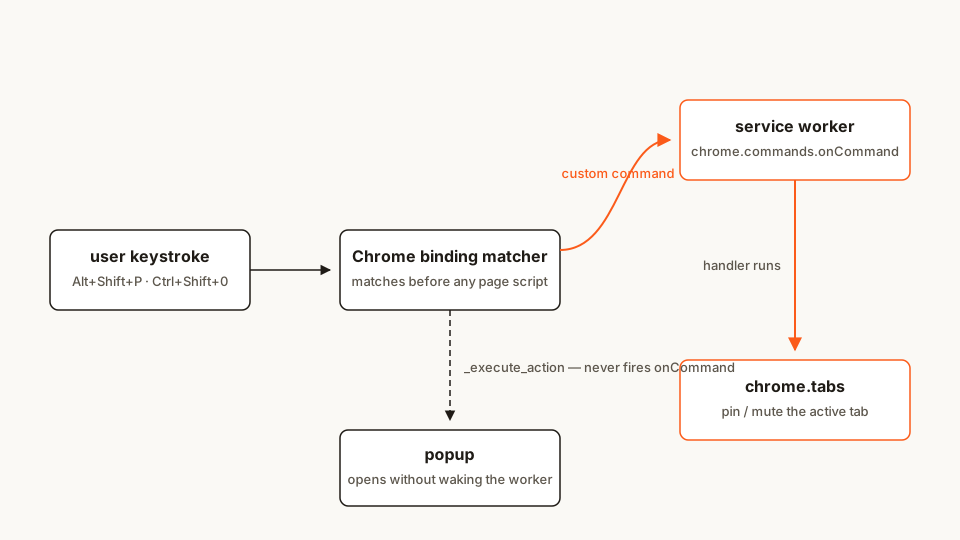
One chord, two routes: custom commands go through your worker; _execute_action skips it.
And the file tree — every file appears in full below:
tab-tamer/
├── manifest.json
├── background.js
├── popup.html
└── popup.js
Rather clone than type? The finished extension lives in our public samples repo — load it, then read on with this tutorial as the guided tour.
Step 1: the manifest — four chords, zero permissions
The commands key maps command names (the property keys — you'll match on them in Step 2) to bindings. Each entry takes a suggested_key, a description, and optionally "global": true.
manifest.json
{
	"name": "Tab Tamer",
	"description": "Keyboard shortcuts that pin and mute the current tab — plus one global binding that works when Chrome is in the background.",
	"version": "1.0",
	"manifest_version": 3,
	"background": {
		"service_worker": "background.js"
	},
	"action": {
		"default_popup": "popup.html",
		"default_title": "Tab Tamer — shortcut cheat sheet"
	},
	"commands": {
		"toggle-pin": {
			"suggested_key": {
				"default": "Alt+Shift+P"
			},
			"description": "Pin or unpin the current tab"
		},
		"mute-tab": {
			"suggested_key": {
				"default": "Alt+Shift+M"
			},
			"description": "Mute or unmute the current tab"
		},
		"mute-tab-global": {
			"suggested_key": {
				"default": "Ctrl+Shift+0"
			},
			"description": "Mute or unmute the current tab from any app",
			"global": true
		},
		"_execute_action": {
			"suggested_key": {
				"default": "Ctrl+Shift+Y",
				"mac": "Command+Shift+Y"
			}
		}
	}
}
Walk the interesting parts:
- Four suggested keys — exactly the cap, and
_execute_actioncounts toward it. A fifth command without asuggested_keyis fine; it ships unbound for the user to assign. A fifth suggestion fails hard — I tried it, and Chrome refused to load the extension:Too many shortcuts specified for 'commands': The maximum is 4. global: truecomes with a straitjacket: global suggestions are limited toCtrl+Shift+[0-9], because Chrome is now borrowing keyspace from every other app on the system and refuses to hijack, say,Alt+Pthat some other program's print dialog might own. Suggest anything else and that command silently comes back unbound. ChromeOS doesn't support global commands at all.descriptionis required for standard commands — it's the label users see in the rebind UI, and leaving it off fails the manifest load. For_execute_actionit's ignored, which is why that entry has none.- Per-platform keys:
"default"covers everything,"mac"overrides macOS. Here it's belt-and-braces —Ctrl+Shift+Yauto-translates toCommand+Shift+Yanyway. TheAltchords become Option chords on a Mac and still work inside text fields: ⌥⇧M muted the tab without typing a strayÂ.
One thing to notice, because readers copy manifests wholesale: there is no permissions key at all. commands needs no permission, and neither do our actions — pinned and mutedInfo are not among the four sensitive tabs.Tab properties (url, pendingUrl, title, favIconUrl) that the "tabs" permission gates, per the chrome.tabs reference. The moment your command wants to read a URL, that changes and you're back in permission-territory.
Zero permissions is a nice property for an honest tool — Tab Tamer installs with no warning dialog. It's not a virtue by itself, though: I've written about zero-permission extensions being weaponized as malware droppers, so "asks for nothing" is a fact about a manifest, never a verdict about an extension.
Scaffolding a real project rather than a tutorial folder? My manifest generator builds MV3 manifests in the browser and explains each key as you toggle it — including this one.
Step 2: the service worker — catch the command, act on the tab
Two jobs live here: route commands to handlers, and detect at install time whether every suggested chord actually registered.
background.js
// Tab Tamer — service worker.
//
// Listener registration happens top-level and synchronously, before any
// await: Chrome kills this worker when it idles out, and a fresh worker
// only receives the event if its listeners existed on the very first turn.

chrome.commands.onCommand.addListener((command) => {
	if (command === 'toggle-pin') {
		togglePin();
	} else if (command === 'mute-tab' || command === 'mute-tab-global') {
		toggleMute();
	}
	// '_execute_action' never arrives here — reserved commands are handled
	// by the browser itself, which opens the popup without waking this file.
});

async function togglePin() {
	const [tab] = await chrome.tabs.query({ active: true, currentWindow: true });
	if (!tab) return;
	await chrome.tabs.update(tab.id, { pinned: !tab.pinned });
}

async function toggleMute() {
	const [tab] = await chrome.tabs.query({ active: true, currentWindow: true });
	if (!tab) return;
	const muted = !(tab.mutedInfo && tab.mutedInfo.muted);
	await chrome.tabs.update(tab.id, { muted });
}

// A chord the browser or another extension already owns fails to register
// silently — the command just ends up with an empty shortcut. Check once,
// at install, and flag it on the badge so the popup can explain.
chrome.runtime.onInstalled.addListener((details) => {
	if (details.reason !== 'install') return;
	chrome.commands.getAll().then((commands) => {
		const unbound = commands.filter((c) => !c.shortcut);
		if (unbound.length > 0) {
			chrome.action.setBadgeBackgroundColor({ color: '#FB5B1A' });
			chrome.action.setBadgeText({ text: '!' });
		}
	});
});
The pin toggle comes from Google's api-samples/tabs/pin sample (Apache-2.0) — query the active tab, flip the boolean. The collision check adapts the "Verify commands registered" example from the chrome.commands docs. Both are reworked here; credit where it's due.
Four details worth pausing on:
- One handler, two command names.
mute-tabandmute-tab-globaldo the same thing; only when Chrome may fire them differs. Separate names keep the rebind UI honest and let you diverge later. onCommand's callback also receives the active tab as a second argument in current Chrome, but the official samples still querychrome.tabs— and so do I. The query behaves identically whether the worker was woken by an in-browser chord or a global one: I pressed ⌘⇧0 with Finder in front, and it muted the active tab of the Chrome window I'd used last.- The collision check runs on
installonly. Commands added in a later version aren't re-checked; add'update'to the condition if you ship new chords often. - Top-level listener registration is not style, it's survival. A worker killed at idle is reborn for the next event; register after an
awaitand the event can arrive before the listener exists. Chrome 154 shipped an opt-in fix for that race — I covered exactly what it does and why you shouldn't flip it on yet. Top-level registration never needed the flag.
Step 3: the popup — a cheat sheet that tells the truth
The popup answers the one question users can't answer themselves: "what are my shortcuts right now, after three extensions and an OS update fought over them?" chrome.commands.getAll() returns every command with its live binding — empty string means unbound.
popup.html
<!doctype html>
<html>
<head>
	<meta charset="utf-8" />
	<style>
		body {
			width: 320px;
			margin: 0;
			padding: 14px;
			background: #ffffff;
			color: #1f1b16;
			font-family: system-ui, sans-serif;
			line-height: 1.45;
		}
		h1 { font-size: 16px; margin: 0 0 10px; }
		ul { list-style: none; margin: 0 0 12px; padding: 0; }
		li {
			display: flex;
			justify-content: space-between;
			align-items: center;
			gap: 10px;
			padding: 6px 0;
			border-bottom: 1px solid #faf9f5;
			font-size: 13px;
		}
		kbd {
			font-family: ui-monospace, monospace;
			font-size: 12px;
			border: 1px solid #e3ded4;
			border-radius: 6px;
			padding: 2px 7px;
			background: #faf9f5;
			white-space: nowrap;
		}
		kbd.missing { border-color: #fb5b1a; color: #fb5b1a; }
		button {
			width: 100%;
			padding: 8px;
			border: 1px solid #fb5b1a;
			border-radius: 8px;
			background: #ffffff;
			color: #fb5b1a;
			font-size: 13px;
			font-weight: 600;
			cursor: pointer;
		}
		button:hover { background: #fb5b1a; color: #ffffff; }
		.hint { font-size: 11px; color: #777; margin: 10px 0 0; }
	</style>
</head>
<body>
	<h1>Tab Tamer shortcuts</h1>
	<ul id="command-list"></ul>
	<button id="rebind">Rebind in Chrome's shortcut settings</button>
	<p class="hint">
		Orange means Chrome refused the binding or nobody assigned one yet —
		the rebind page fixes both.
	</p>
	<script src="popup.js"></script>
</body>
</html>
popup.js
// getAll() returns an empty description for the reserved _execute_action,
// so it needs a label of its own. Custom commands use their manifest text.
const NAMES = {
	_execute_action: 'Open this popup'
};

const listEl = document.getElementById('command-list');

async function init() {
	const commands = await chrome.commands.getAll();
	for (const cmd of commands) {
		const row = document.createElement('li');

		const label = document.createElement('span');
		label.textContent = cmd.description || NAMES[cmd.name] || cmd.name;

		const key = document.createElement('kbd');
		key.textContent = cmd.shortcut || 'not set';
		if (!cmd.shortcut) key.classList.add('missing');

		row.append(label, key);
		listEl.append(row);
	}

	// The "!" badge did its job the moment this popup explained the situation.
	chrome.action.setBadgeText({ text: '' });
}

document.getElementById('rebind').addEventListener('click', () => {
	// chrome:// URLs can't be opened by a plain link from an extension page,
	// but tabs.create() may navigate to them — no permission needed.
	chrome.tabs.create({ url: 'chrome://extensions/shortcuts' });
});

init();
Two API notes hiding in plain sight. getAll() has returned promises since Chrome 96, and it includes _execute_action in the list since Chrome 110 — before that, reserved commands were invisible to it. And the rebind button exists because Chrome has no API to change shortcuts programmatically: MDN's write-up of the commands key says it outright, and the escape hatch is exactly this — open chrome://extensions/shortcuts for the user with tabs.create() and let them drive. I checked the alternatives: a plain <a href> or location.href to that URL dies with Not allowed to load local resource; tabs.create() works. Also note that shortcut comes back in platform notation — ⌥⇧P on a Mac — so display it as-is rather than parsing it.
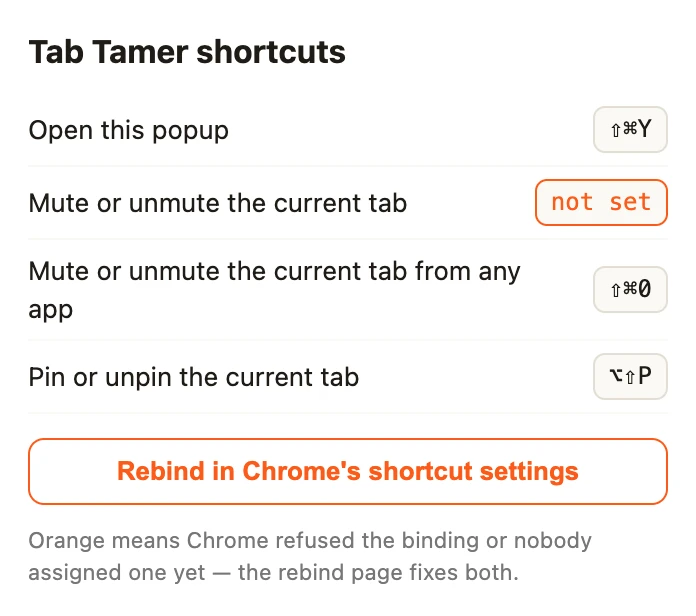
Live bindings, including a refused one: another extension installed first owned ⌥⇧M, so mute-tab came back unbound
Load it and try it
- Open
chrome://extensions, toggle Developer mode (top right), click Load unpacked, and select thetab-tamer/folder. - Pin your icon from the puzzle menu so you can see its badge, then press Alt+Shift+P on any tab. The tab shrinks to an icon at the far left of the strip — pinned tabs get no pin glyph. Press it again to release.
- Start any video, press Alt+Shift+M — the speaker icon on the tab grows a slash. Now switch to another application entirely and press Ctrl+Shift+0 (⌘⇧0 on a Mac): same toggle, Chrome unfocused. That's the
globalbinding earning its keep. - Press Ctrl+Shift+Y (⌘⇧Y on a Mac). The popup lists all four commands with their live bindings.
- Click Rebind in Chrome's shortcut settings in the popup (or open
chrome://extensions/shortcutsyourself), click the pencil next to any command, press a new chord, then reopen the popup — the cheat sheet reflects it immediately, becausegetAll()reads reality, not your manifest.
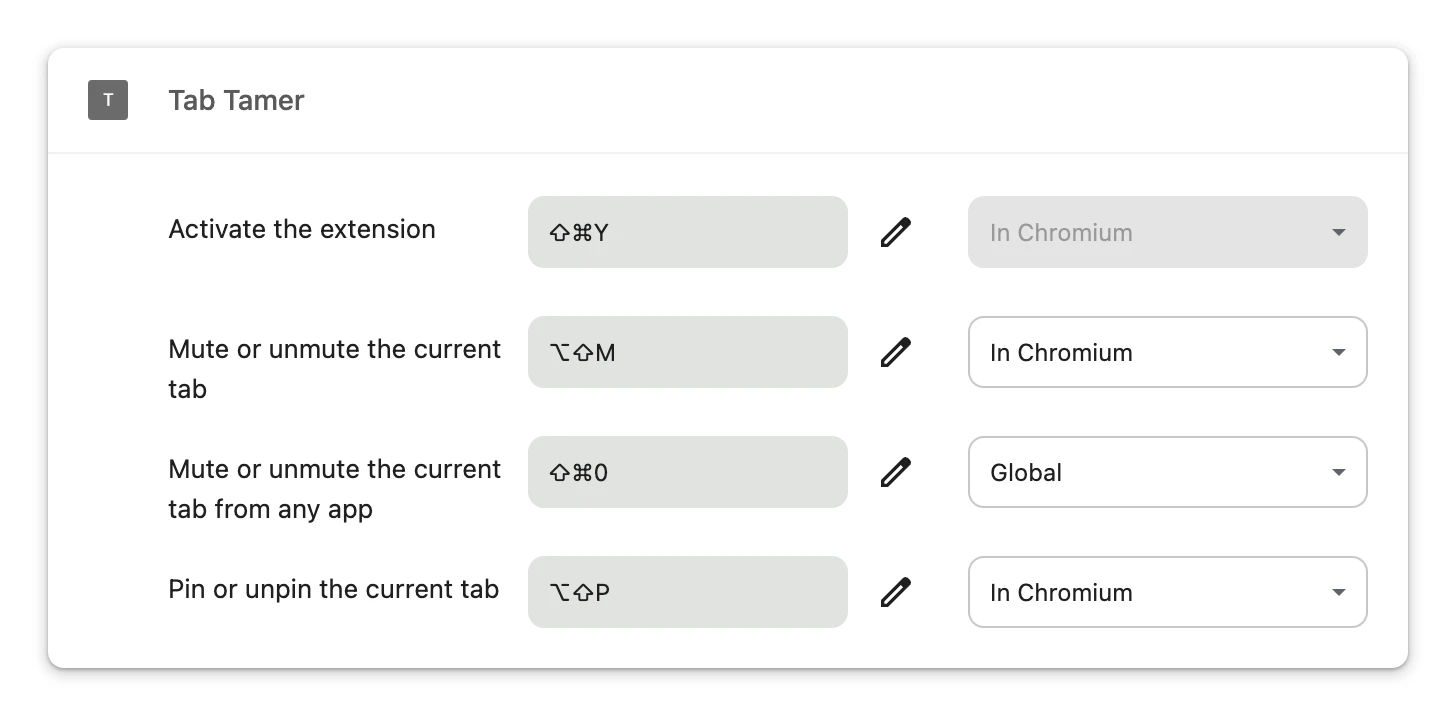
Chrome's own rebind UI: every suggestion lands here, and global: true arrives preset to Global (Chrome for Testing says "In Chromium" where Chrome says "In Chrome")

Pinned and muted with zero permissions: the pinned tab shrinks to an icon, which Chrome swaps for a crossed-out speaker while it plays sound
If it doesn't work, it's nearly always one of these:
- A chord does nothing at all → something else owns it. Another extension grabbed the keys first, or it collides with a browser/OS shortcut that always wins (
Ctrl+Ris reload, forever — suggest it and the command just comes back unbound). Openchrome://extensions/shortcuts— an unbound command sits there with an empty field. This is exactly the collision our install-timegetAll()check badges. onCommandnever fires even though the shortcut is bound → youraddListenercall ended up inside an async function or after anawait, so the freshly woken worker missed the dispatch. Keep registration top-level and synchronous. Also check the obvious:"service_worker"in the manifest must point at the real filename.- Ctrl+Shift+Y opens nothing →
_execute_actionneeds anactionkey in the manifest. Withdefault_popupset it opens the popup; without one it fireschrome.action.onClicked. YouronCommandhears nothing either way — by design.
And the classic time-eater: after editing manifest.json, click the reload icon on the extension card at chrome://extensions. Chrome doesn't watch your editor.
Cross-browser: Firefox plays almost the same game
The commands manifest key is WebExtensions-standard, so Firefox and Edge run nearly all of this unchanged — with the differences clustered in exactly two places, per MDN's commands documentation:
global: trueis Chromium-only. MDN documents no such property for Firefox. If out-of-browser shortcuts are load-bearing for your product, that's a platform decision, not a polyfill problem.- Firefox goes further on rebinding:
browser.commands.update()lets your extension change shortcuts programmatically — Chrome has no equivalent, where only the user can rebind. Firefox ≥ 63 also allows any secondary modifier (Chrome onlyShift), and from Firefox 135 users can assignF13–F19. - Reserved commands match —
_execute_actionin MV3 on both, and neither firesonCommandfor it. Firefox adds its own_execute_sidebar_actionand keeps_execute_page_actionalive. Safari supports shortcuts too; since Safari 26 users can rebind them in Safari's extension settings, but nothing programmatic.
Porting Tab Tamer to Firefox takes two edits: background.scripts instead of service_worker (Firefox has no extension service workers), and browser.commands.openShortcutSettings() (Firefox 137+) behind the Rebind button.
Edge is Chromium, so Tab Tamer runs there byte-identical. The chrome.* namespace works in Firefox as well; if you'd rather write browser.* everywhere, Chrome has shipped it as a native alias since 148 — see my notes on the namespace going GA.
Common pitfalls and best practices
- Budget your four suggested keys like landing-page real estate. Suggest the essential chords, leave the rest unbound, and tell users where to bind them — the popup above is the whole trick.
- Assume collisions, detect them at install. One
getAll()pass on install turns a silent dead feature into a visible "not set". - Don't fight the browser. Chords owned by Chrome or the OS always win,
Ctrl+Altanything is banned (AltGr), and media keys can't take modifiers at all. - macOS is a translation layer.
CtrlmeansCommand,MacCtrlthe actual Control key,Altis Option — spell out a"mac"binding when that reads wrong. - Treat global shortcuts as borrowed system keyspace. One per extension is already generous, and never for anything destructive — the user might hit it from inside another app without looking.
- Keep the accessibility angle honest. Shortcuts serve keyboard-only and motor-impaired users when they're discoverable and rebindable; "WCAG compliant" is not a claim this one feature earns.
Before you ship it
Tab Tamer skips icons to stay code-only — the Chrome Web Store requires a 128px icon, so add an icons block before submitting anywhere. The natural next builds are in Google's sample repo: api-samples/commands adds notification feedback per command, default_command_override flips tabs with Ctrl+Shift+arrows, and tutorial.focus-mode wires a shortcut to a full mode toggle — all Apache-2.0, linked in Sources.
Shortcuts are the keyboard half of quick actions; the mouse half is the right-click menu, which I built out in my context-menu tutorial — the two together cover about 90% of "make my extension feel fast".
And before the store sees it, run the same checks I run: the Extenshi CLI (npx @extenshi/cli) scans your manifest and permission footprint — three scans free, one-time, then prepaid credit packs that never expire. Curious how shipped extensions handle this? Browse keyboard-shortcut extensions in the catalog or scan your own build and see exactly what it declares.
Sources
- chrome.commands API reference — Chrome for Developers
- chrome.tabs API reference — Chrome for Developers
- commands manifest key — MDN Web Docs (Mozilla)
- api-samples/commands — GoogleChrome/chrome-extensions-samples (Apache-2.0)
- api-samples/tabs/pin — GoogleChrome/chrome-extensions-samples (Apache-2.0)
- api-samples/default_command_override — GoogleChrome/chrome-extensions-samples (Apache-2.0)
- functional-samples/tutorial.focus-mode — GoogleChrome/chrome-extensions-samples (Apache-2.0)
Further reading
📚 Building Browser Extensions, 2nd Edition by Matt Frisbie — Amazon | Apress. Chapter 5 walks the full manifest surface, including the commands key's reserved names and global-command limits.
- Adding shortcuts to your Chrome extension — Paula Santamaria on dev.to, a short code-first walkthrough that matches the official guidance
- How to Add Keyboard Shortcuts In a Chrome Extension — Shahed Nasser's take on the same manifest shape
This article is a hands-on tutorial based on the official Chrome and Mozilla extension documentation and Google's Apache-2.0 sample code. Code is provided as-is for educational purposes; verify API behavior against the current developer.chrome.com reference before shipping. Extenshi does not independently verify all claims made by third-party authors, and references to specific products reflect cited documentation, not accusations of wrongdoing. If you believe any information is inaccurate, contact [email protected] and we will review and update.
Related Articles
chrome.contextMenus in browser extensions: build a right-click clip saver
Build a Chrome extension context menu with selected text, saved links and a popup. Get full MV3 code, real screenshots and fixes for missing or duplicate menus.
chrome.notifications in browser extensions: action buttons that survive the MV3 service worker
Build a Chrome extension whose notification buttons still work minutes later, after the MV3 service worker died. Full runnable code and the lifecycle rules.
Chrome 154 landed MV3's lost-event fix — for up to 276,820 Chrome extensions that can't use it yet
Chrome 154 shipped the async_listener_registration manifest key for MV3 service workers. Here's what landed, who it covers, and why you shouldn't switch yet.