chrome.contextMenus in browser extensions: build a right-click clip saver
Build a Chrome extension context menu that saves any selected text or link: a hands-on chrome.contextMenus tutorial with full runnable MV3 code. ~20 minutes.
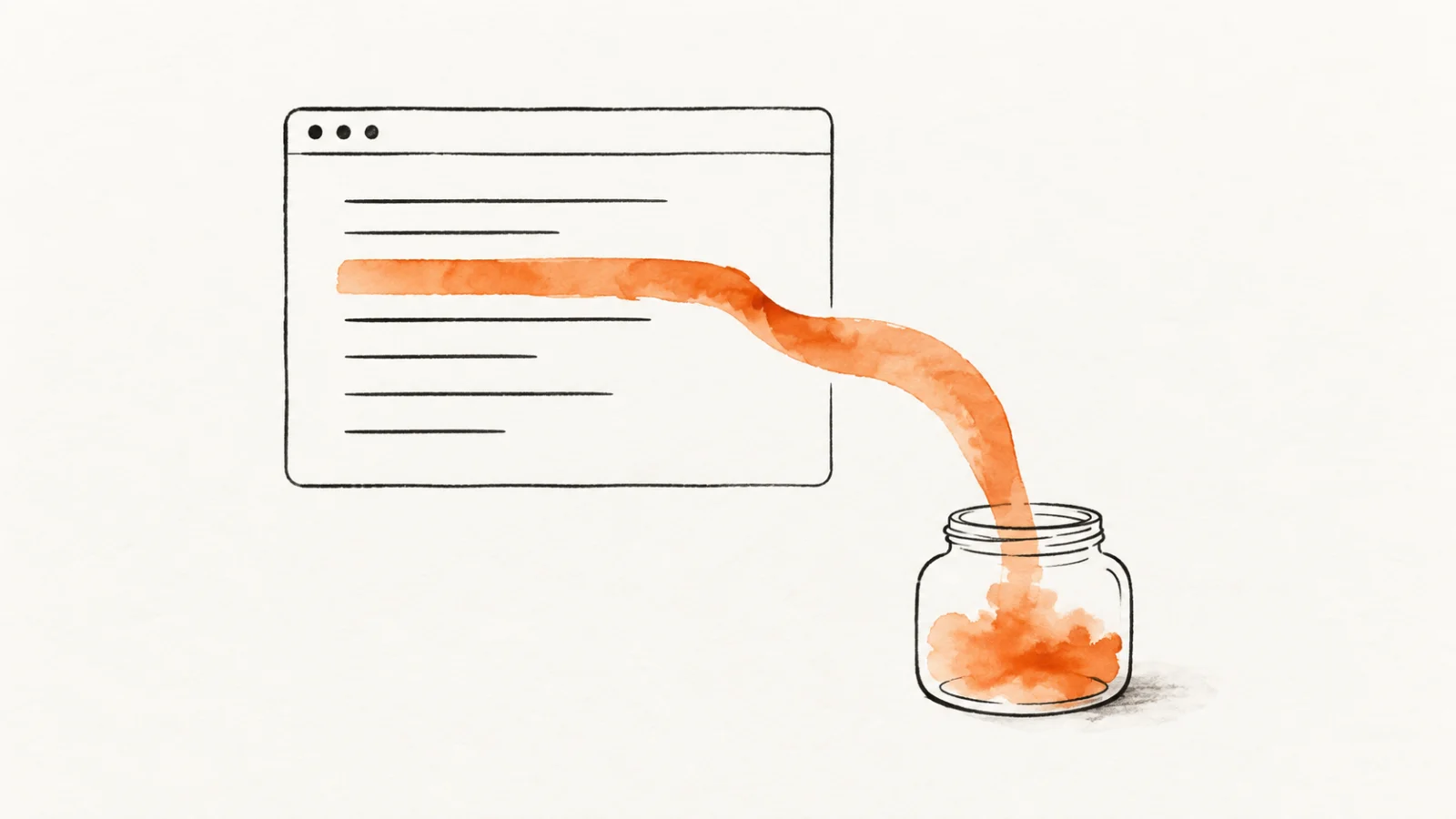
Your popup competes with everything else on the screen. The right-click menu doesn't — it only appears when the user is already pointing at something and asking "what can I do with this?" That's attention you get for free, and it's where every dictionary lookup, every save-to-clipper flow, and every quick-translate action you've ever used already lives.
A Chrome extension context menu takes less code than you'd think: one chrome.contextMenus.create() call per item, one click listener, and a Manifest V3 service worker that knows the difference between setup and handling. The last part is where tutorials hand-wave, and it's the part that bites you in production.
What you'll build: "Clip Jar" saves selected text and links with a right-click. A badge counts what's in the jar. The popup lists your clips, copies them back to the clipboard, and lets you delete or empty the lot.
Difficulty: beginner — if you've loaded an unpacked extension once, you're set. Time: ~20 minutes. You need Chrome and a text editor.
One promise up front, because it's the design constraint that makes this extension polite: the whole thing asks for contextMenus and storage, and nothing else. No host permissions, no tabs permission, no content scripts. The selected text arrives in the click event's payload — Chrome hands it to you, so you never have to reach into the page for it.
Menus are browser state, your worker is not
Before any code, the one mental model this whole feature stands on.
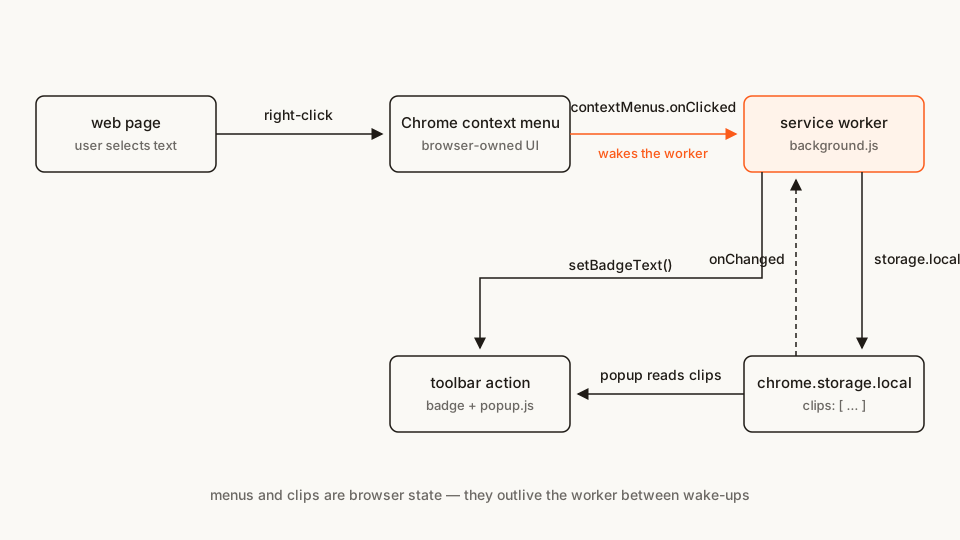
In MV3, your background script is a service worker: it goes idle after roughly 30 seconds and gets terminated, then re-executed from the top the next time an event needs it. Matt Frisbie's Building Browser Extensions (Apress, 2025) draws the consequence sharply — the browser wakes the worker, lets it run one turn of the event loop, and only then dispatches the queued event. A handler that isn't registered by the end of that turn never sees the click.
Your context menu items, meanwhile, are not stored in your script. Chrome itself owns them, and they survive worker termination, browser restarts, all of it. Two rules fall out:
- Create menus once, in
chrome.runtime.onInstalled. If you callcreate()at the top level, it re-runs on every worker wake-up — and re-registering the sameidis an error. Frisbie's framing again: treatonInstalledas the one-time setup hook, and assume everything else in the file runs many times. - Register
onClickedat the top level, synchronously. That's the handler the browser needs to find in the worker's first turn, because the menu click is often the very event that woke it.
I went through the full sleep/wake cycle — and how to schedule work across it — in the chrome.alarms piece. Same physics, different event.
The file tree
No build step, no dependencies:
clip-jar/
├── manifest.json
├── background.js   # menus, click handling, badge
├── popup.html
├── popup.css
└── popup.js
Rather clone than type? Download the complete Clip Jar sample, then load its folder as an unpacked extension. The sample contains the same five files shown below.
Make a folder called clip-jar and let's fill it in. Write every file before loading it — the manifest references popup.html from the start, and Chrome won't load an extension whose popup file doesn't exist yet.
Step 1: the manifest
manifest.json
{
  "manifest_version": 3,
  "name": "Clip Jar",
  "description": "Save text selections and links from any page with a right-click, then copy them back later.",
  "version": "1.0.0",
  "permissions": ["contextMenus"],
  "background": {
    "service_worker": "background.js"
  },
  "action": {
    "default_popup": "popup.html",
    "default_title": "Open the Clip Jar"
  }
}
Three keys matter here. permissions: ["contextMenus"] grants the menu API, as the API reference requires. Chrome's permission list shows no install warning for it.
background.service_worker points at the file that owns your menus. action gives you the toolbar icon; default_popup means clicking it opens your page instead of firing an event.
The docs also recommend a 16×16 icon to display next to your menu item. I've skipped icons entirely to keep the file tree text-only — Chrome falls back to a default, and adding a PNG later is pure polish.
Step 2: build the Chrome extension context menu
This file is the whole extension brain, so it's worth seeing complete before I pull it apart.
background.js
// ── Handlers first: top-level, registered in the worker's first turn ──

chrome.contextMenus.onClicked.addListener(async (info) => {
  if (info.menuItemId === 'save-selection') {
    const text = (info.selectionText ?? '').trim();
    if (text) await saveClip(text, info.pageUrl ?? '');
  } else if (info.menuItemId === 'save-link') {
    const url = info.linkUrl ?? '';
    if (url) await saveClip(url, info.pageUrl ?? '');
  }
});

chrome.storage.onChanged.addListener((changes, area) => {
  if (area === 'local' && changes.clips) {
    updateBadge(changes.clips.newValue ?? []);
  }
});

// ── One-time setup: menus are browser state, created exactly once ──

chrome.runtime.onInstalled.addListener(async () => {
  // onInstalled fires on updates too — clear first so ids never collide.
  await chrome.contextMenus.removeAll();

  chrome.contextMenus.create({
    id: 'save-selection',
    title: 'Save "%s" to Clip Jar',
    contexts: ['selection']
  });

  chrome.contextMenus.create({
    id: 'save-link',
    title: 'Save this link to Clip Jar',
    contexts: ['link']
  });
});

// ── Helpers ──

const MAX_CLIPS = 50;

async function saveClip(text, source) {
  const { clips = [] } = await chrome.storage.local.get('clips');
  clips.unshift({
    id: `${Date.now().toString(36)}-${Math.random().toString(36).slice(2, 7)}`,
    text,
    source,
    savedAt: new Date().toISOString()
  });
  await chrome.storage.local.set({ clips: clips.slice(0, MAX_CLIPS) });
}

function updateBadge(clips) {
  // The action docs recommend four characters or fewer of badge text.
  chrome.action.setBadgeBackgroundColor({ color: '#FB5B1A' });
  chrome.action.setBadgeText({ text: clips.length ? String(clips.length) : '' });
}

// Re-sync the badge every time the worker starts. Cheap insurance: one line,
// and you never have to reason about which lifecycle events reset it.
chrome.storage.local.get('clips').then(({ clips = [] }) => updateBadge(clips));
saveClip touches chrome.storage, which needs a permission — there's no free tier on that API, even for local. Update the permissions line in manifest.json:
"permissions": ["contextMenus", "storage"]Neither permission currently adds an install warning in Chrome, but both belong in the manifest. The storage permission deep-dive covers the difference between an API grant and a warning.
Now the details that matter.
Registration: onInstalled, removeAll, and the mandatory id
The onInstalled listener is the simplest place to create these fixed menus. It fires on first install and on every update, which is why the first line inside is removeAll(): clear whatever's registered, then create fresh. With that pair, re-registration cannot collide with a leftover id, no matter how many times the extension updates.
Each create() call passes an id. In MV3 that field is effectively mandatory — it was optional in MV2, and older snippets may omit it. You'll also see %s in the selection item's title: when the context is selection, Chrome substitutes the selected text into the label. For a long selection, Chrome shortens the visible label; info.selectionText still contains the full text.
contexts decides when an item appears. The default is ['page'], which is almost never what you want — always be explicit. Here: selection for highlighted text, link for right-clicks on an anchor.
Handling: the payload already has the selected text
The onClicked listener sits at the top of the file, outside everything — first-turn registration, per the rule above. Note what it doesn't do: no chrome.scripting.executeScript, no window.getSelection() injection, no host permission. The event's info object (an OnClickData) carries selectionText, linkUrl, and pageUrl with it, because Chrome captured them at right-click time. That's the privacy-friendly shape of this API — you get exactly what the user pointed at, and nothing more.
One gotcha the reference spells out: the onclick property on create() does not exist inside a service worker. contextMenus.onClicked is the only route in MV3. And the pageUrl ?? '' guard is deliberate — the source line is decoration in the popup; the clip itself should save even if that field ever arrives empty.
The .trim() on the selection is from experience: double-clicking a word usually drags a trailing space or newline into selectionText, and untrimmed clips look sloppy in a list.
The badge: react to storage, not to your own writes
saveClip never touches the badge. It writes to chrome.storage.local, and the storage.onChanged listener updates the badge from the new value. That indirection is the same pattern Google's own global_context_search sample uses to add and remove its menu items when settings change, and it buys you two things: every writer stays in sync automatically (the popup's delete button will move the badge too, with zero extra code), and the update works even when the change came from a different context that woke this worker up.
The MAX_CLIPS cap keeps the jar honest — 50 ordinary clips are well within storage.local's default quota. This is local extension storage, not a vault: avoid saving passwords or other secrets. The storage API reference covers its quota and access rules.
Step 3: the popup shell
popup.html
<!doctype html>
<html>
  <head>
    <meta charset="utf-8" />
    <link rel="stylesheet" href="popup.css" />
  </head>
  <body>
    <header>
      <h1>Clip Jar</h1>
      <button id="clear" title="Empty the jar">Clear all</button>
    </header>
    <ul id="clips"></ul>
    <p id="empty" hidden>The jar is empty. Select some text on any page, right-click, and save it.</p>
    <script src="popup.js"></script>
  </body>
</html>
popup.css
:root {
  color-scheme: light dark;
  font-family: system-ui, sans-serif;
}

body {
  margin: 0;
  padding: 12px;
  width: 320px;
}

header {
  display: flex;
  justify-content: space-between;
  align-items: baseline;
  margin-bottom: 8px;
}

h1 {
  font-size: 14px;
  margin: 0;
}

#clear {
  background: none;
  border: none;
  color: #fb5b1a;
  cursor: pointer;
  font-size: 12px;
  padding: 0;
}

#clips {
  list-style: none;
  margin: 0;
  padding: 0;
  max-height: 320px;
  overflow-y: auto;
}

#clips li {
  border-left: 3px solid #fb5b1a;
  border-radius: 0 6px 6px 0;
  background: rgba(251, 91, 26, 0.06);
  padding: 6px 8px;
  margin-bottom: 6px;
}

.clip-text {
  display: block;
  width: 100%;
  padding: 0;
  border: 0;
  background: none;
  color: inherit;
  font: inherit;
  font-size: 13px;
  cursor: pointer;
  text-align: left;
  overflow-wrap: anywhere;
}

.clip-text:focus-visible, .clip-delete:focus-visible, #clear:focus-visible {
  outline: 2px solid #fb5b1a;
  outline-offset: 2px;
}

.clip-meta {
  display: flex;
  justify-content: space-between;
  gap: 8px;
  margin-top: 2px;
  font-size: 11px;
  opacity: 0.6;
}

.clip-delete {
  background: none;
  border: none;
  color: inherit;
  cursor: pointer;
  font-size: 11px;
  opacity: 0.85;
  padding: 0;
}

#empty {
  font-size: 12px;
  opacity: 0.7;
}
Nothing exotic: a fixed-width popup (Chrome sizes it from the body), a scrollable list capped at 320px, and color-scheme: light dark so the thing doesn't flash white at midnight.
Step 4: the popup logic
popup.js
const list = document.getElementById('clips');
const empty = document.getElementById('empty');
const clearButton = document.getElementById('clear');

function render(clips) {
  list.replaceChildren();
  empty.hidden = clips.length > 0;

  for (const clip of clips) {
    const li = document.createElement('li');

    const text = document.createElement('button');
    text.type = 'button';
    text.className = 'clip-text';
    text.textContent = clip.text;
    text.title = 'Click to copy';
    text.addEventListener('click', async () => {
      await navigator.clipboard.writeText(clip.text);
      text.textContent = 'Copied ✓';
      setTimeout(() => {
        text.textContent = clip.text;
      }, 800);
    });

    const meta = document.createElement('div');
    meta.className = 'clip-meta';

    const when = document.createElement('span');
    when.textContent = new Date(clip.savedAt).toLocaleString();

    const del = document.createElement('button');
    del.type = 'button';
    del.className = 'clip-delete';
    del.textContent = 'Delete';
    del.addEventListener('click', async () => {
      const { clips: current = [] } = await chrome.storage.local.get('clips');
      await chrome.storage.local.set({
        clips: current.filter((c) => c.id !== clip.id)
      });
    });

    meta.append(when, del);
    li.append(text, meta);
    list.append(li);
  }
}

async function refresh() {
  const { clips = [] } = await chrome.storage.local.get('clips');
  render(clips);
}

clearButton.addEventListener('click', () => chrome.storage.local.remove('clips'));

// Live updates: saving from the page while the popup is open re-renders the list.
chrome.storage.onChanged.addListener((changes, area) => {
  if (area === 'local' && changes.clips) render(changes.clips.newValue ?? []);
});

document.addEventListener('DOMContentLoaded', refresh);
Two things deserve a comment.
The clipboard copy needs no permission. navigator.clipboard.writeText() works here for the same reason it works on any web page: the popup is a real document, and the click is a real user gesture, which is all the async Clipboard API asks for. clipboardWrite is for the gesture-free cases — and notably, a service worker can't touch the clipboard at all, DOM-less as it is. The clipboard permission deep-dive walks through both halves, including the offscreen-document workaround for background writes. Doing the copy in the popup sidesteps all of it.
Every mutation goes through storage, and every view follows storage. Delete and Clear don't re-render anything directly — they write, onChanged fires in both the popup and the worker, and each context reacts. That keeps the badge and list in sync after each write. The clip text is a real button, so Enter and Space copy it too.
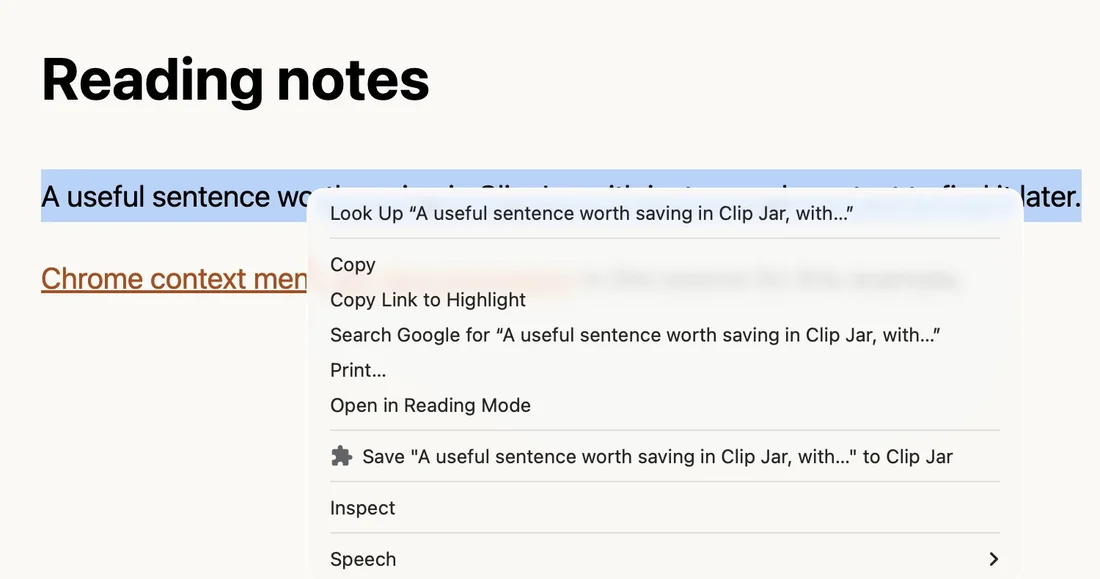
The %s placeholder previews the selection; Chrome shortens long labels.
Load it and try it
Open chrome://extensions, turn on Developer mode, click Load unpacked, and pick the clip-jar folder.
Now take it through its paces:
- Open any article, select a sentence, right-click. Your item should read Save "your sentence" to Clip Jar (shortened if the selection is long). Click it. The toolbar badge flips to 1.
- Right-click a link (without selecting anything) → Save this link to Clip Jar. Badge: 2.
- Select text inside a link and right-click. Both of your items now match, and Chrome collapses them into a single submenu named after the extension — per the docs, more than one visible item from the same extension always gets collapsed into one parent. That's Chrome's decision, not yours.
- Click the toolbar icon. Both clips are there. Click one — "Copied ✓" — and paste it somewhere to confirm. Delete the other, then Clear all; the badge empties.
- The restart test: hit the reload button on
chrome://extensionsthree times, then right-click a selection again. Exactly one Clip Jar submenu, no duplicates. That'sonInstalled+removeAllearning their keep — do this once now and you'll never debug a duplicate-menu mystery later.
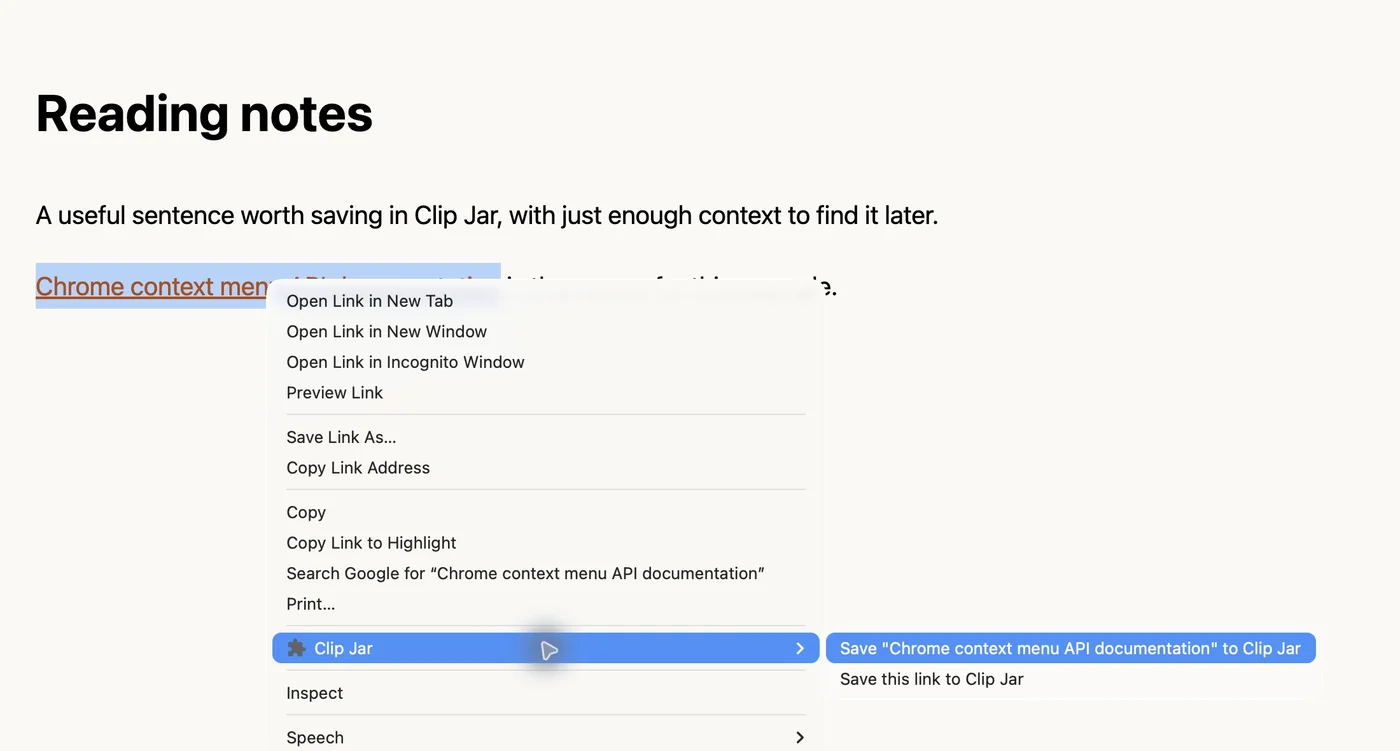
Both commands match text selected inside a link, so Chrome groups them under Clip Jar.
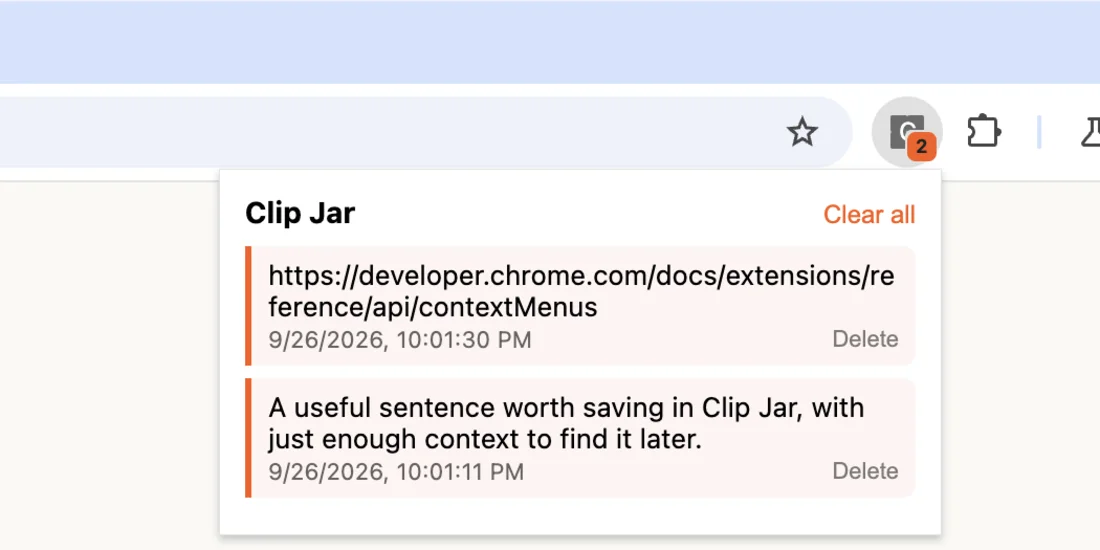
The popup lists both clips while the toolbar badge counts them. Click or press Enter on a clip to copy it.
If it doesn't work:
- The menu item never appears — you edited
background.jsbut didn't reload the extension onchrome://extensions.onInstalledfires on load/reload/update, not on save. - The menu item appears but clicks do nothing — the
onClickedlistener isn't registered in the worker's first turn. Check you didn't nest it insideonInstalledor inside an async callback: the browser runs one turn of the event loop, then fires the event that woke the worker, and a handler that isn't in place by then is invisible to it. Open the worker's DevTools console fromchrome://extensionsand look for a registration error. - "Cannot create item with duplicate id" in the worker console — menus are being created outside
onInstalled(top level, or in some other repeatedly-running code), or theremoveAll()is missing. - Clips save but the badge never moves — the
storagepermission is missing from the manifest, sostorage.localcalls throw. Check the permissions block from Step 2.
Cross-browser note
This one ports cleanly. Firefox implements the same surface as browser.menus — a small superset of the Chrome API — and keeps browser.contextMenus working as the Chrome-compatible alias, so background.js runs as-is. The WebExtensions-standard pieces (storage, action, badges) behave the same. Edge is Chromium; identical.
The only decision is the namespace. chrome.* works in Firefox too, and browser.* has worked in Chrome since 148, which I wrote about when it shipped — on older Chrome you'd still want the polyfill.
Pitfalls and best practices
The failure modes of this API are few and repetitive. Burn these in:
- Listeners at the top, always. Anything inside
onInstalledexists only during that one run. After the first idle timeout kills the worker, clicks go nowhere — silently. This is the single most common contextMenus bug in the wild, and Kent Brewster's learning-manifest-v3 log hits it in episode 5 like everyone else does. - A top-level throw kills the extension, not just the handler. If the worker throws during its first turn of the event loop, it fails to register at all — the extension installs and then never does anything. Frisbie flags this as MV3's quietest killer; keep top-level code to listener registration and cheap reads.
- The title is display, the payload is data. Never parse your own
%slabel to recover the selection; readinfo.selectionText. Chrome may shorten the label, but hands the full string to your handler. contextsdefaults to['page']. Omit it and your carefully-worded selection item shows up on plain background right-clicks with an undefined selection.- Read-modify-write on
storage.localisn't atomic. Two saves racing in the same tick could drop one clip. Fine for a jar; if you build something where every record counts, serialize your writes through a single queue. - Want a real submenu? Chrome's auto-collapse only triggers when multiple items are visible at once. For a permanent parent menu, create an item and give the children a
parentId— Google'sbasicsample shows that, plus checkbox and radio item types whose state arrives asinfo.checked.
Where to take it next
A few directions that stay inside the same API:
- Site-scoped items.
documentUrlPatternsrestricts an item to matching pages — a "Save clip to the team wiki" entry that only appears on your wiki. - Settings-driven menus. Let the popup toggle which items exist, then add/remove them from a
storage.onChangedhandler in the worker — exactly the patternglobal_context_searchuses for its list of search locales, and the same reactive shape as our badge.
Before you ship it
The permission footprint is the pitch of this extension — "saves what you select, stores it locally, talks to nobody" — so make sure the manifest still says that after your last edit:
npx @extenshi/cli scan ./clip-jarThe CLI reports what you declared and flags permission warnings if there are any. For Clip Jar it should list contextMenus and storage, with no install warnings. If another capability appears, check the last snippet you added.
You get 3 scans and 10 reads free, one-time; past that, prepaid credit packs cover it and never expire. Run the scan before upload, since publishing takes work. You can also compare what other extensions declare and review the permission scan that future users will see.
Wrapping up
Four things carry the weight:
- Menus are browser state; create them in
onInstalledafter aremoveAll(). Everything else about duplicate items follows from that. onClickedlives at the top level. The worker's first turn of the event loop is your only window to be listening.- The payload is the feature.
selectionText,linkUrl,pageUrlarrive with the event — no injection, no host permissions, no privacy debt. - One source of truth. Storage writes drive the badge and the popup through
onChanged, and nothing can drift.
Right-click is the most underpriced real estate in the browser: users already know the gesture, and Chrome already captured what they pointed at. If you build something on top of Clip Jar and put it in the store, explore extension analytics → and claim your extension — verified install data next to the security scan is a lot more useful than guessing which menu items people actually click.
Sources
- chrome.contextMenus API reference — Chrome for Developers (Google)
- Permissions reference list — Chrome for Developers (Google)
- chrome.storage API reference — Chrome for Developers (Google)
- Build a context menu — Chrome for Developers (Google)
- chrome.action API reference — Chrome for Developers (Google)
- Extension service workers — Chrome for Developers (Google)
- browser.menus — WebExtensions API — MDN Web Docs (Mozilla)
- api-samples/contextMenus/basic — GoogleChrome/chrome-extensions-samples (Apache-2.0; the pattern for parent/child, checkbox and radio items cited above)
- api-samples/contextMenus/global_context_search — GoogleChrome/chrome-extensions-samples (Apache-2.0; the storage-driven dynamic-menu pattern cited above)
- learning-manifest-v3, episode 5: context menus — Kent Brewster, GitHub
Further reading
📚 Building Browser Extensions, 2nd Edition by Matt Frisbie — Amazon | Apress. Chapter 6 is the one to read for this tutorial: service-worker lifecycle, first-turn event registration, and why onInstalled is the only setup hook you get.
This article is a hands-on tutorial based on the official Chrome Extensions documentation and Google's Apache-2.0 sample code. Code is provided as-is for educational purposes; verify API behavior against the current developer.chrome.com reference before shipping. If you believe anything here is inaccurate, contact [email protected] and we'll review and update.
Related Articles
chrome.alarms in Manifest V3: background jobs that outlive the service worker
MV3 kills setInterval. Build a Chrome extension background job with chrome.alarms that survives service worker termination — full runnable code, ~20 min.

The `storage` permission explained: what browser extensions keep, and where it actually lives
The storage permission is the most-requested thing extensions ask for — 62% claim it, with no install warning. Here's what it keeps, where, and how to check.
The `clipboardRead` permission explained: what an extension sees when you copy and paste
The clipboardRead permission lets an extension read your clipboard with no prompt and no click. Here's what it allows — and the trick that needs no permission.
Offscreen documents in Chrome extensions: how to use the DOM from an MV3 service worker
MV3 service workers have no DOM. Build a Chrome extension that parses HTML and writes to the clipboard from an offscreen document — runnable code, ~25 min.