chrome.storage.sync in browser extensions: settings that follow the user to every device
Build an MV3 extension whose settings follow the user to every device — chrome.storage.sync quotas, onChanged, and the sync vs local split, with full code.
Every extension developer gets this bug report eventually: "works great on my desktop, but on my laptop it forgot everything." The usual suspect is a storage area that never leaves the machine — localStorage, or chrome.storage.local holding something the user thinks of as theirs, not this computer's.
The second suspect is sneakier. Under Manifest V3 your background script is a service worker, Chrome kills it after roughly 30 seconds of idleness, and it can't touch localStorage at all — the Web Storage API simply doesn't exist in a worker. As Matt Frisbie explores in Building Browser Extensions (Apress, 2025), the MV3 transition stripped the background page of localStorage, sessionStorage, and cookies in one move, which makes chrome.storage not just the recommended persistence layer but the only one a worker has. Chrome's own docs list the case against localStorage in extensions in three bullets: service workers can't use it, content scripts share it with the host page, and it evaporates when the user clears browsing history.
chrome.storage fixes all three — and its sync area goes one step further: it rides the browser profile's sync, so a setting written on one machine shows up on every other Chrome signed into the same account. That's what we're building today.
What we're building
SyncPad, a scratchpad extension in six small files, which draws the line most tutorials skip:
- Settings — theme, font size, a badge toggle — go into
chrome.storage.syncand follow the user to every device. - The note itself — potentially thousands of characters — stays in
chrome.storage.local, because sync storage caps every item at 8 KB. - A service worker watches both areas and paints a character-count badge on the toolbar icon. It dies on idle and wakes up with amnesia; storage is its memory.
- Open windows update live through
chrome.storage.onChanged. Change the theme on the options page and an already-open popup repaints without a reload — and the exact same event fires when the change arrives from another device.
Difficulty: beginner — comfortable with JavaScript promises, no extension experience needed. Time: about 25 minutes. You need Chrome (or Edge) and a text editor.
chrome.storage.sync vs local: why the split matters
One API, four areas. Three you'll actually touch:
| Area | Lives until | Syncs? | Budget |
|---|---|---|---|
local |
uninstall | no | 10 MB (more with unlimitedStorage) |
sync |
uninstall | yes, with the browser profile | ~100 KB total, 8 KB per item, 512 items max |
session |
browser restart | no | 10 MB, in memory only |
(The fourth, managed, is read-only and set by enterprise policy — out of scope here.)
Four facts that shape everything below, all straight from the chrome.storage reference:
- Quotas count JSON-stringified bytes, not characters. Keys and punctuation count too. Frisbie's storage chapter makes the same point from the developer's side: an 8 KB item budget disappears faster than you'd think once key names and escaping are tallied — which is exactly how the reference defines
QUOTA_BYTES_PER_ITEM. - Sync writes are rate-limited: 120
set/remove/clearoperations per minute, 1,800 per hour. Blow the budget and the write fails immediately with a rejected promise. This is why our font-size slider debounces. syncwith sync turned off behaves likelocal. Signed-out profile? Writes succeed, nothing travels. Offline? Chrome queues the writes and syncs when the connection returns. Keep this in mind when "it doesn't sync" turns out to be documented behavior.- It is not encrypted. Settings ride Google's servers tied to the profile. Chrome's docs route sensitive user data to
storage.sessioninstead — in-memory, gone at restart.
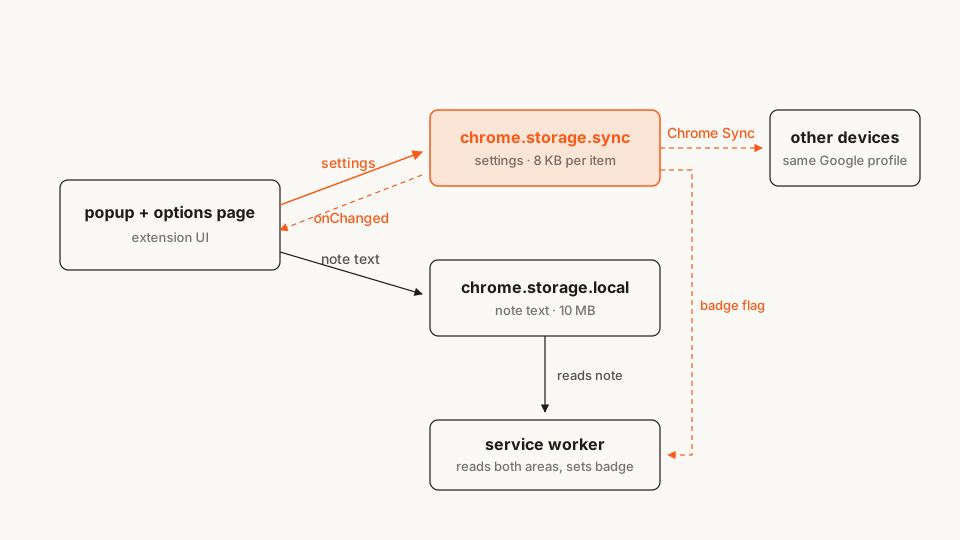
The whole design in one picture: small, JSON-friendly, yours-everywhere goes to sync; big or device-bound stays in local.
Here's the file tree — every file appears in full below:
syncpad/
├── manifest.json
├── background.js
├── popup.html
├── popup.js
├── options.html
└── options.js
Rather clone than type? The finished extension lives in our public samples repo — load it, then read on with this tutorial as the guided tour.
Step 1: the manifest — one permission, and it's the quiet one
The entire chrome.storage API — all areas, onChanged, the quota constants — sits behind a single "storage" permission. No host permissions, no install-time warning: it's the same permission 62% of cataloged Chrome extensions declare, which is precisely why I gave it its own explainer. The manifest also wires the three surfaces SyncPad has: a toolbar popup, an options page, and the background worker.
manifest.json
{
	"name": "SyncPad",
	"description": "A scratchpad whose settings follow you to every signed-in Chrome. chrome.storage.sync vs local, live updates, quota-aware.",
	"version": "1.0",
	"manifest_version": 3,
	"permissions": ["storage"],
	"background": {
		"service_worker": "background.js"
	},
	"action": {
		"default_popup": "popup.html",
		"default_title": "SyncPad"
	},
	"options_ui": {
		"page": "options.html",
		"open_in_tab": true
	}
}
Two things to notice. The badge APIs we'll use in Step 5 (chrome.action.setBadgeText, setBadgeBackgroundColor) need no permission at all — the action key itself unlocks them. And options_ui with open_in_tab: true renders settings as a normal tab, which makes it easy to see the popup and the options page react to each other at the same time.
Starting a real project from scratch? My manifest generator scaffolds MV3 manifests in the browser and explains each key as you toggle it.
Step 2: the options page — where sync earns its name
Settings are the classic sync payload: small, JSON-friendly, and something the user expects to be theirs. The options page offers a theme, a font size, a badge toggle — and a live quota readout, because watching the byte counter move teaches the 8 KB limit better than any paragraph.
options.html
<!doctype html>
<html>
<head>
	<meta charset="utf-8" />
	<title>SyncPad settings</title>
	<style>
		body {
			max-width: 560px;
			margin: 40px auto;
			padding: 0 16px;
			color: #1f1b16;
			font-family: system-ui, sans-serif;
			line-height: 1.5;
		}
		h1 { font-size: 20px; }
		fieldset {
			border: 1px solid #e3ded4;
			border-radius: 8px;
			margin: 16px 0;
			padding: 12px 16px;
		}
		legend { font-weight: 600; padding: 0 6px; }
		label { display: block; margin: 10px 0; }
		.quota { font-variant-numeric: tabular-nums; margin: 6px 0; }
		.hint { font-size: 12px; color: #777; }
		code { background: #faf9f5; padding: 1px 4px; border-radius: 4px; }
	</style>
</head>
<body>
	<h1>SyncPad settings</h1>
	<p>
		Everything on this page lives in <code>chrome.storage.sync</code>. Change it
		here and every Chrome signed into the same profile picks it up — including
		the popup, if it happens to be open.
	</p>

	<fieldset>
		<legend>Appearance (synced)</legend>
		<label>Theme
			<select id="theme">
				<option value="light">Light</option>
				<option value="sepia">Sepia</option>
				<option value="dark">Dark</option>
			</select>
		</label>
		<label>Font size: <span id="font-size-value">14</span>px
			<input type="range" id="font-size" min="12" max="22" step="1" />
		</label>
		<label>
			<input type="checkbox" id="badge" />
			Show a character-count badge on the toolbar icon
		</label>
	</fieldset>

	<fieldset>
		<legend>Quota usage</legend>
		<p class="quota" id="quota-sync">sync: measuring…</p>
		<p class="quota" id="quota-local">local: measuring…</p>
		<p class="hint">
			The sync area caps items at 8 KB each and ~100 KB total. The local area
			gets 10 MB. That asymmetry is the whole design: settings sync, data stays.
		</p>
	</fieldset>

	<script src="options.js"></script>
</body>
</html>
options.js
const DEFAULTS = { theme: 'light', fontSize: 14, badge: true };

const themeEl = document.getElementById('theme');
const fontSizeEl = document.getElementById('font-size');
const fontSizeValueEl = document.getElementById('font-size-value');
const badgeEl = document.getElementById('badge');

function render(settings) {
	themeEl.value = settings.theme;
	fontSizeEl.value = String(settings.fontSize);
	fontSizeValueEl.textContent = settings.fontSize;
	badgeEl.checked = settings.badge;
}

/* ---------- save: every control writes straight to sync ---------- */

themeEl.addEventListener('change', () => {
	chrome.storage.sync.set({ theme: themeEl.value });
});

badgeEl.addEventListener('change', () => {
	chrome.storage.sync.set({ badge: badgeEl.checked });
});

// The slider fires far faster than the sync write budget (120 ops/minute),
// so the label updates per tick and storage only hears about it 400ms
// after the user stops dragging.
let fontTimer;
fontSizeEl.addEventListener('input', () => {
	fontSizeValueEl.textContent = fontSizeEl.value;
	clearTimeout(fontTimer);
	fontTimer = setTimeout(() => {
		chrome.storage.sync.set({ fontSize: Number(fontSizeEl.value) });
	}, 400);
});

/* ---------- quotas you can see ---------- */

async function refreshQuotas() {
	const [syncBytes, localBytes] = await Promise.all([
		chrome.storage.sync.getBytesInUse(null),
		chrome.storage.local.getBytesInUse(null)
	]);
	const fmt = (n) => n.toLocaleString('en-US');
	document.getElementById('quota-sync').textContent =
		`sync: ${fmt(syncBytes)} of ${fmt(chrome.storage.sync.QUOTA_BYTES)} bytes`;
	document.getElementById('quota-local').textContent =
		`local: ${fmt(localBytes)} of ${fmt(chrome.storage.local.QUOTA_BYTES)} bytes`;
}

/* ---------- mirror changes made elsewhere: another window, another device ---------- */

chrome.storage.onChanged.addListener((changes, areaName) => {
	if (areaName === 'sync') {
		if (changes.theme) themeEl.value = changes.theme.newValue;
		if (changes.fontSize) {
			fontSizeEl.value = String(changes.fontSize.newValue);
			fontSizeValueEl.textContent = changes.fontSize.newValue;
		}
		if (changes.badge) badgeEl.checked = changes.badge.newValue;
	}
	refreshQuotas();
});

/* ---------- load: get() with defaults, render once ---------- */

async function init() {
	// get() with a defaults object fills in every missing key — nothing is
	// written on first run, so there is nothing to seed and nothing to race.
	render(await chrome.storage.sync.get(DEFAULTS));
	refreshQuotas();
}

init();
Three teaching points live in this file:
get(DEFAULTS)is the whole defaults strategy. Pass an object of fallbacks and every key comes back filled — stored value where one exists, default where it doesn't. NoonInstalledseeding, no migration ceremony on first run.getBytesInUse(null)returns total bytes in use (null= all keys), and the quota constants (chrome.storage.sync.QUOTA_BYTES,chrome.storage.local.QUOTA_BYTES) hang off the API object itself. Read your limits from the API, never hardcode them.- The slider debounces on purpose. Dragging fires an
inputevent per pixel-ish; each one becoming aset()would sprint straight into the 120-writes-per-minute cap, and over-budget writes don't queue — they reject immediately.
Step 3: the popup — two areas on one screen
The popup is where the sync/local split becomes visible: the settings come from sync, the note comes from local. The note autosaves as you type — to local, because a 9,000-character note has no business meeting an 8 KB-per-item quota. (Yes, people chunk big blobs across many sync items; you then fight MAX_ITEMS and the write-rate cap instead. The honest answer is local.)
popup.html
<!doctype html>
<html>
<head>
	<meta charset="utf-8" />
	<style>
		body {
			--bg: #ffffff;
			--fg: #1f1b16;
			--field: #faf9f5;
			--accent: #fb5b1a;
			width: 320px;
			margin: 0;
			padding: 12px;
			background: var(--bg);
			color: var(--fg);
			font-family: system-ui, sans-serif;
		}
		body[data-theme="sepia"] { --bg: #f6eeda; --fg: #4a3b28; --field: #fbf5e6; --accent: #b06a2c; }
		body[data-theme="dark"] { --bg: #1f1b16; --fg: #f0ece4; --field: #2a251e; --accent: #ff8a4c; }
		textarea {
			width: 100%;
			box-sizing: border-box;
			min-height: 200px;
			padding: 8px;
			background: var(--field);
			color: var(--fg);
			border: 1px solid var(--accent);
			border-radius: 8px;
			resize: vertical;
			font-family: inherit;
		}
		.row {
			display: flex;
			justify-content: space-between;
			align-items: center;
			margin-top: 8px;
			font-size: 12px;
		}
		.row a { color: var(--accent); }
		#status { opacity: 0.75; }
	</style>
</head>
<body data-theme="light">
	<textarea id="note" placeholder="Type — this saves as you go (locally)."></textarea>
	<div class="row">
		<span id="status">Loading…</span>
		<a href="#" id="open-options">Settings</a>
	</div>
	<script src="popup.js"></script>
</body>
</html>
popup.js
// Settings live in chrome.storage.sync; the note lives in chrome.storage.local.
const DEFAULTS = { theme: 'light', fontSize: 14, badge: true };
const settings = { ...DEFAULTS };

const noteEl = document.getElementById('note');
const statusEl = document.getElementById('status');

function applySettings() {
	document.body.dataset.theme = settings.theme;
	noteEl.style.fontSize = `${settings.fontSize}px`;
}

/* ---------- the note: autosave, debounced, local ---------- */

let saveTimer;
noteEl.addEventListener('input', () => {
	clearTimeout(saveTimer);
	saveTimer = setTimeout(async () => {
		await chrome.storage.local.set({ note: noteEl.value });
		statusEl.textContent = `Saved · ${noteEl.value.length} chars`;
	}, 400);
});

document.getElementById('open-options').addEventListener('click', (e) => {
	e.preventDefault();
	chrome.runtime.openOptionsPage();
});

/* ---------- live updates from any window — or any device ---------- */

chrome.storage.onChanged.addListener((changes, areaName) => {
	if (areaName !== 'sync') return; // the note changes constantly; ignore local
	for (const key of Object.keys(DEFAULTS)) {
		if (key in changes) settings[key] = changes[key].newValue;
	}
	applySettings();
	statusEl.textContent = 'Settings updated — another window or device';
});

/* ---------- load both areas ---------- */

async function init() {
	Object.assign(settings, await chrome.storage.sync.get(DEFAULTS));
	applySettings();
	const { note = '' } = await chrome.storage.local.get('note');
	noteEl.value = note;
	statusEl.textContent = `${note.length} chars · kept on this device`;
}

init();
The status line tells the truth about where the note lives — "kept on this device" — because users will expect a synced extension to sync everything, and the UI is the only place that expectation gets corrected.
Step 4: onChanged — one event for every kind of "elsewhere"
You already have the code; here's the idea. chrome.storage.onChanged hands you (changes, areaName), where changes maps each touched key to { oldValue, newValue }. The same event fires whether the write came from:
- another surface of your extension (options page → open popup),
- a service-worker revival,
- or a different device, once Chrome Sync delivers the write.
There is no separate "remote changes" API to learn — cross-device is just onChanged with extra latency. Filter on areaName first (our popup ignores local because the note changes on every keystroke), then check each key's presence before reading newValue: a remove() fires the event with an oldValue and no newValue at all.
One subtlety for the options page: it both writes and listens, so your own save echoes back through onChanged. Mirroring it into the controls is harmless — the values match — and it's what makes two options tabs on two monitors stay consistent.
Step 5: the service worker — a badge that survives amnesia
The badge shows the note's character count, gated by the synced badge setting. The worker that maintains it is killed after ~30 seconds of idleness and reborn with zero memory on the next event, so it keeps exactly one source of truth: storage itself.
background.js
// The badge shows the note's character count while the synced "badge"
// setting is on. Both halves live in storage, never in variables: this
// worker is killed after ~30s idle and reborn with zero memory.

// Registration is synchronous and top-level — before any await — so Chrome
// can route the very first event to a freshly spawned worker.
chrome.storage.onChanged.addListener((changes, areaName) => {
	if (areaName === 'local' && changes.note) {
		updateBadge(changes.note.newValue ?? ''); // remove() has no newValue
	}
	if (areaName === 'sync' && changes.badge) {
		chrome.storage.local.get('note').then(({ note = '' }) => updateBadge(note));
	}
});

function compactCount(n) {
	return n >= 1000 ? `${(n / 1000).toFixed(1)}k` : String(n);
}

async function updateBadge(note) {
	const { badge } = await chrome.storage.sync.get({ badge: true });
	const text = badge && note.length > 0 ? compactCount(note.length) : '';
	await chrome.action.setBadgeText({ text });
	await chrome.action.setBadgeBackgroundColor({ color: '#FB5B1A' });
}

// Cold start (install, browser launch, worker revival): restore the badge
// from storage, because the worker's own memory did not survive.
chrome.storage.local.get('note').then(({ note = '' }) => updateBadge(note));
Worth pausing on the shape of this file. The addListener call is the first thing that executes — no await before it, no init function wrapping it. Frisbie's worker-lifecycle chapter demonstrates the failure mode directly: spawn the worker, let it idle out, and watch its global state reset to nothing, which is why event routing depends on listeners being registered during the worker's first synchronous turn. Chrome 154 relaxed the rules enough that late registration can survive in some cases — I covered exactly what changed — but top-level registration is still the habit that never bites.
Notice also what the worker does not do: it doesn't cache badge or the note in module-scope variables. Every event re-reads what it needs. One small get() per wake-up costs next to nothing, and it makes the worker stateless — restart-proof by construction. I checked this the unglamorous way: loaded SyncPad, left it idle until the worker had shut down (about 30 seconds), then saved a note from an extension page — the worker spun back up on the onChanged event and the badge updated.
Load it and try it
- Open
chrome://extensions, toggle Developer mode (top right), click Load unpacked, and select thesyncpad/folder. - Click the toolbar icon and type a few lines. The badge counts up as you pause between keystrokes. Close the popup, reopen it — the text is still there, saved to
localmid-typing. - Click Settings in the popup, switch the theme to Sepia, drag the font size. Arrange the windows so both are visible and watch the open popup repaint with no reload — that's
onChangeddoing its whole job. - Signed in to Chrome with sync enabled? Load the same folder on a second machine (or a second profile on the same account) and the settings are already there. The note is not — by design.
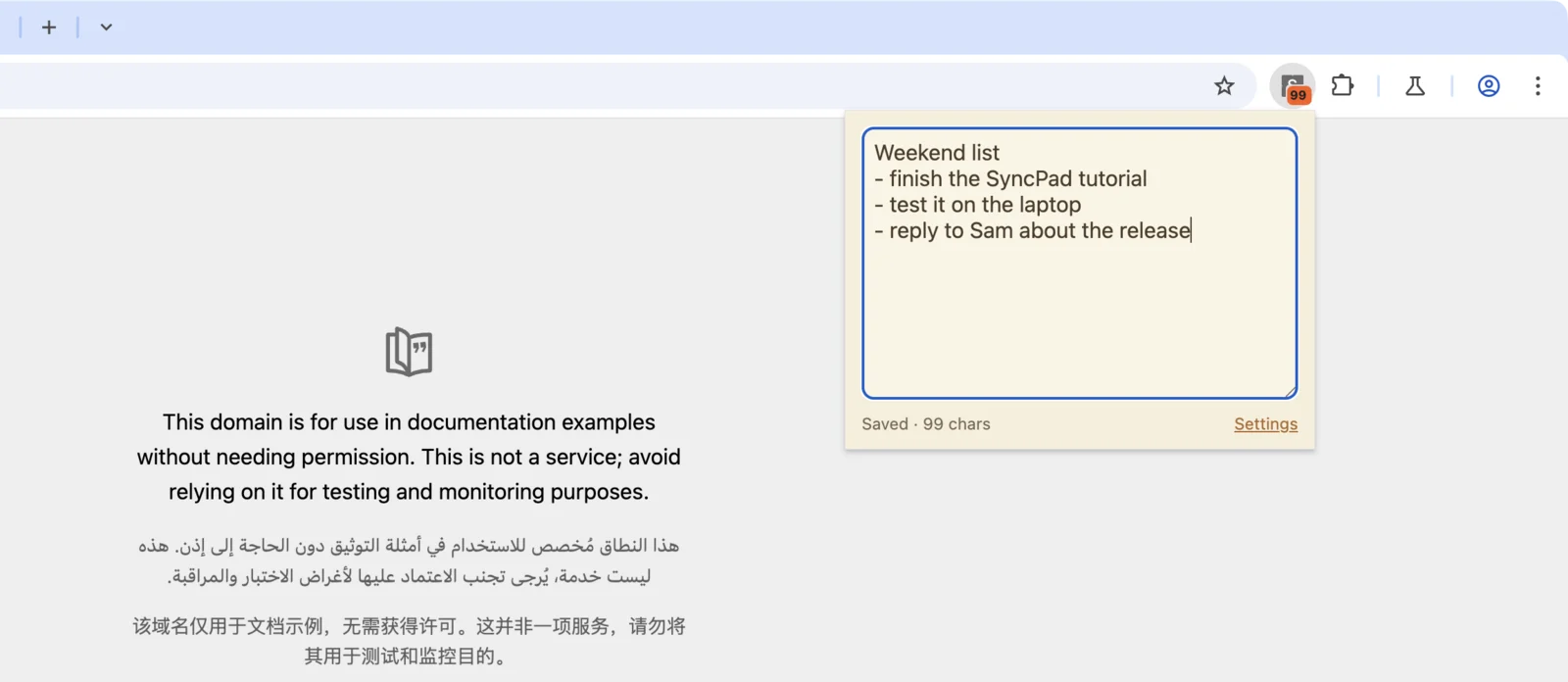
The theme comes from storage.sync, the note from storage.local, the badge from the service worker
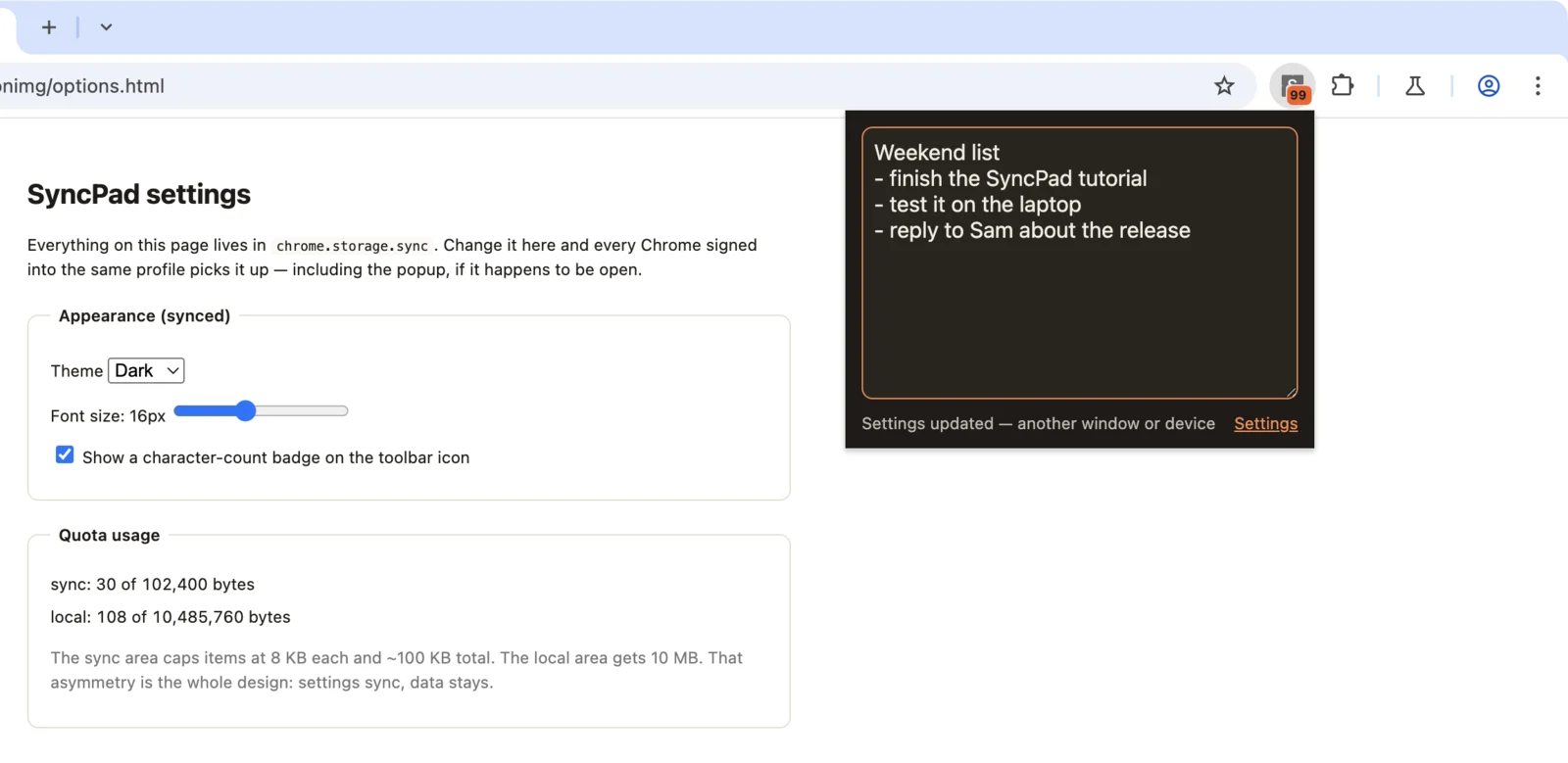
onChanged repaints the open popup the moment the options page writes
Want to watch storage itself? Right-click the popup (or the options page) → Inspect → Application panel → Extension storage: DevTools lists the sync and local areas separately and lets you edit values live — change theme there and every open surface reacts. The DevTools extension-storage docs cover the pane in detail.
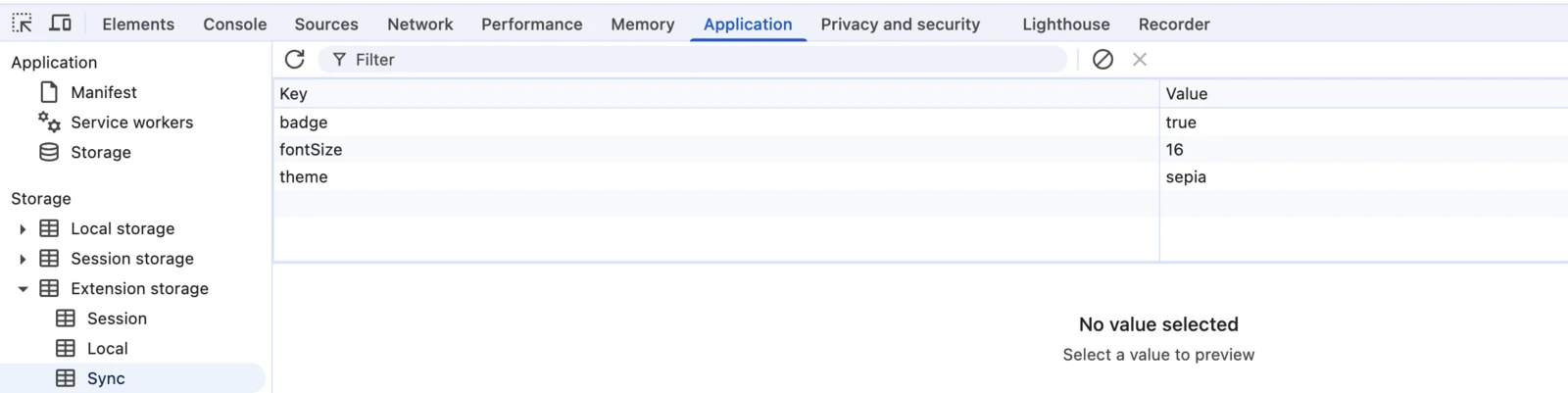
Each area is its own entry under Extension storage: this is sync holding the three settings, while the note sits one click away under local
If it doesn't work, it's almost always one of these three:
chrome.storageisundefined("Cannot read properties of undefined (reading 'get')") → the"storage"permission is missing frompermissions. After editing the manifest, hit the reload icon on the extension card — an open popup keeps running against the old manifest until you close and reopen it.- Settings save but the badge never appears, or windows don't live-update → an
addListenercall ended up inside an async function or after anawaitinbackground.js. The worker can be torn down before the registration line runs, and Chrome then has nothing to wake. Keep registration synchronous and top-level. set()rejects withQUOTA_BYTES_PER_ITEM quota exceeded→ something over 8 KB is being written tosync. In this project only the note qualifies — check you didn't swap the areas inpopup.js. The quota panel on the options page shows which area holds what.
And one non-bug that eats hours: on a signed-out profile (or with sync disabled), storage.sync behaves exactly like storage.local. Writes succeed, nothing travels, no error is raised. Testing cross-device sync requires a profile that's actually signed in and syncing.
Cross-browser: same API, different account
Firefox ships storage.sync as part of the WebExtensions baseline, with identical quota numbers — 102,400 bytes total, 8,192 per item, 512 items. The differences are plumbing, per MDN's storage.sync page:
- Sync rides a Mozilla account, not a Google one — the user must have Add-ons checked in the Sync section of
about:preferences. - The extension must declare an ID in
browser_specific_settings.gecko.id; without one, Firefox won't sync its storage at all. - Firefox for Android doesn't synchronize —
storage.syncthere behaves likelocal.
Everything in this tutorial runs unchanged in Firefox, and Edge is Chromium, so it's byte-identical there. The chrome.* namespace works in Firefox too; if you'd rather write browser.*, Chrome has shipped it as an alias since 148 — see my notes on the namespace going GA.
Common pitfalls and best practices
- Read with defaults; never seed on install.
get(DEFAULTS)covers first run for free. Seeding inonInstalledburns write quota and can clobber values that arrived from another device at exactly the wrong moment. - JSON-serializable values only. No
Date,Map,Set, or functions — storedate.toISOString()and rehydrate on read. - Budget your writes. 120 ops/minute, 1,800/hour on
sync, and over-budget writes reject immediately rather than queue — in a quick loop, write 121 failed withThis request exceeds the MAX_WRITE_OPERATIONS_PER_MINUTE quota.Debounce anything keystroke-driven; batch related keys into oneset({...}). - No secrets, ever.
chrome.storageis not encrypted at rest, andsyncadditionally transits Google's servers. Frisbie's secret-management discussion makes the adjacent point that a content script'slocalStorageis the host page's localStorage, readable by any script on that page — extension-side storage at least isolates you from the page, but isolation isn't encryption. For sensitive ephemeral state, the docs themselves point atstorage.session. - Settings outlive a history wipe. Per Chrome's docs, extension storage is not cleared when a user clears browsing data. That's a durability feature and a privacy-policy line item at the same time.
- Handle the removal case.
onChangedfor aremove()carriesoldValueand nonewValue— coalesce with??likebackground.jsdoes, or you'll badgeundefined.
Before you ship it
This build borrows its skeleton from Google's official api-samples/storage/stylizr (Apache-2.0): stylizr stores a CSS snippet in storage.local from an options page and injects it into the active tab from the popup via chrome.scripting. SyncPad inverts the split — settings sync, payload stays — and adds the onChanged and service-worker halves stylizr doesn't have. My code is reworked and re-explained, but credit where it's due. For more angles on the same API, the use-chrome-storage React hook wires onChanged into state for you, and Serhii Kokhan's Data Synchronization in Chrome Extensions builds the same idea by hand.
When your version graduates from tutorial to listing, run it through the same checks I run before any store submission: the Extenshi CLI (npx @extenshi/cli) scans your manifest and declared permissions — three scans free, one-time, then prepaid credit packs that never expire at dojo.extenshi.io/billing. Curious what shipped extensions actually store? Browse notepad-style extensions in the catalog, or scan your own build and see its full permission footprint. And if you're still deciding what deserves sync at all, my runtime optional-permissions tutorial shows how to ask for storage-adjacent access only when the user actually needs it.
Sources
- chrome.storage API reference — Chrome for Developers
- Storage and cookies — Chrome for Developers
- View and edit extension storage — Chrome for Developers (DevTools)
- storage.sync — MDN Web Docs (Mozilla)
- api-samples/storage/stylizr — GoogleChrome/chrome-extensions-samples (Apache-2.0)
Further reading
📚 Building Browser Extensions, 2nd Edition by Matt Frisbie — Amazon | Apress. Chapter 6 covers what MV3 took from the background page and the secret-management patterns that followed; Chapter 9 goes deep on the storage data model and how quotas are counted.
- Storing and Retrieving Data — webextensiontutorial.com, a framework-free get/set walkthrough
This article is a hands-on tutorial based on the official Chrome and Mozilla extension documentation and Google's Apache-2.0 sample code. Code is provided as-is for educational purposes; verify API behavior against the current developer.chrome.com reference before shipping. If you believe anything here is inaccurate, contact [email protected] and we'll review and update.
Related Articles

The `storage` permission explained: what browser extensions keep, and where it actually lives
The storage permission is the most-requested thing extensions ask for — 62% claim it, with no install warning. Here's what it keeps, where, and how to check.
Optional permissions in Chrome extensions: ask at the click, not at install
Chrome extension optional permissions, end to end: install with no warning, then request topSites and a single host at runtime. Full MV3 code, ~25 minutes.
chrome.notifications in browser extensions: action buttons that survive the MV3 service worker
Build a Chrome extension whose notification buttons still work minutes later, after the MV3 service worker died. Full runnable code and the lifecycle rules.