Omnibox keywords in Chrome extensions: a command palette without permission warnings
Build a Chrome extension omnibox command palette with one keyword, live suggestions and saved shortcuts. Get full MV3 code with no install permission warnings.
Some extension features add install warnings; others need a permission without showing one. Broad access to websites warns. Temporary access through activeTab doesn't.
Storage needs a manifest permission, but it adds no install warning in Chrome. That's the distinction we'll keep throughout this tutorial: the full example declares storage, while the omnibox feature itself needs no permissions entry.
The omnibox API is the odd one out. It gives your extension its own prompt inside Chrome's address bar — live suggestions, keyboard-driven, no popup, no injected UI — and it costs exactly nothing. No permissions entry, no warning string. You add one manifest key and the address bar starts routing keystrokes to your service worker.
What you'll build: "Jump" — type go, press space, and the address bar becomes your own command line. Type a shortcut name and you get filtered suggestions with native-looking highlighting; press Enter and the tab navigates. Anything that isn't a shortcut falls through to a web search. Difficulty: beginner — if you've loaded an unpacked extension once, you're fine. Time: ~25 minutes. Chrome and a text editor, nothing else.
How a keyword session works
Three events, in a fixed order, all delivered to your service worker.
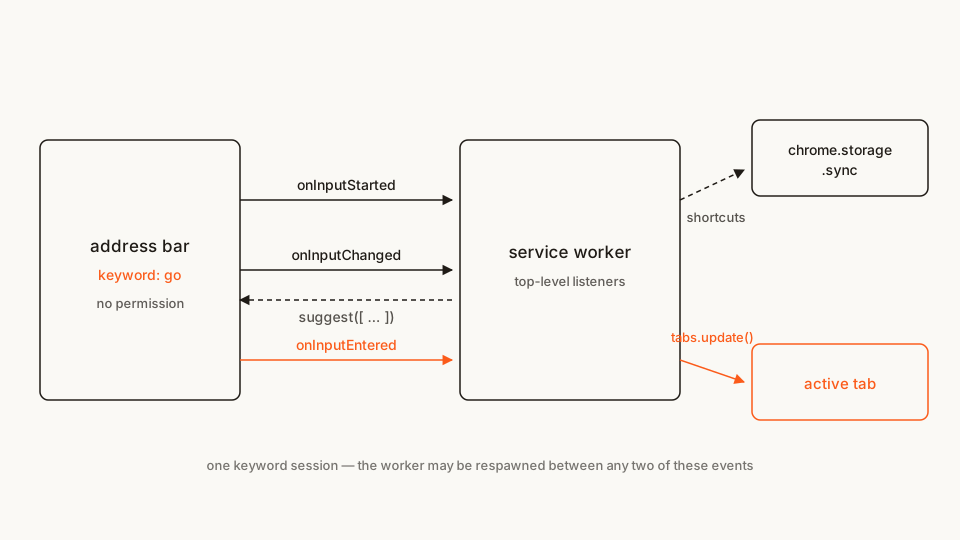
onInputStarted fires once, the moment the user commits to your keyword. onInputChanged fires on every keystroke after that, and hands you a suggest() callback to answer with. onInputEntered fires when the user picks something. Between any two of those, Chrome is free to shut your service worker down and respawn it — which is why every listener has to be registered at the top level of the file, not inside an init() you await.
The API calls have different jobs:
| Mechanism | When to use it | In Jump |
|---|---|---|
onInputStarted |
The keyword session begins | Set the initial prompt. |
onInputChanged |
The user edits the query | Filter saved shortcuts. |
setDefaultSuggestion() |
Update the first, default row | Explain what Enter will do with the typed text. |
suggest() |
Return extra rows for the current query | Offer matching shortcut destinations. |
onInputEntered |
The user accepts a row or the default input | Navigate using the supplied disposition. |
The file tree
No build step, no dependencies:
jump/
├── manifest.json        # one key unlocks the omnibox
├── service-worker.js    # the three events
├── options.html         # where the user edits their shortcuts
└── options.js
Rather clone than type? The finished extension lives in our public samples repo — load it, then read on with this tutorial as the guided tour.
Make a folder called jump and let's fill it in.
Step 1: the manifest, with nothing in it
manifest.json
{
  "manifest_version": 3,
  "name": "Jump — address bar shortcuts",
  "short_name": "Jump",
  "version": "1.0",
  "description": "Type go in the address bar to jump straight to your own shortcuts.",
  "omnibox": { "keyword": "go" },
  "background": { "service_worker": "service-worker.js" }
}
Look at what isn't there: no permissions array. The "omnibox" key is the whole authorization story — declaring a keyword is what grants access to chrome.omnibox, and it produces no install-time warning at all. In a category where permission prompts are the main cause of install drop-off, that's worth knowing.
Two things about the keyword itself. It only activates after the user presses space or tab, which surprises everyone the first time. And it competes with real navigation: pick go and a user who owns go.example.com will fight your extension every day. Short, memorable, and not a domain they type.
short_name isn't decoration either. As Matt Frisbie notes in Building Browser Extensions, 2nd Edition (Apress, 2025), Chrome falls back to it in the surfaces where the full name doesn't fit — the omnibox being one of them — and truncates your name if you didn't supply one. Keep it under about 12 characters.
(If you write manifests more often than you'd like, our free in-browser Manifest V3 generator scaffolds this file, no sign-up.)
Step 2: the three listeners
service-worker.js
// Jump — step 2. A working keyword with a hardcoded list.
// Every listener is registered at the top level: MV3 respawns this worker to
// deliver an event, and only top-level registrations survive that.

const SHORTCUTS = [
  { key: "mail", url: "https://mail.google.com/", title: "Gmail" },
  { key: "cal", url: "https://calendar.google.com/", title: "Calendar" },
  { key: "gh", url: "https://github.com/", title: "GitHub" }
];

chrome.omnibox.onInputStarted.addListener(() => {
  chrome.omnibox.setDefaultSuggestion({
    description: "Jump to a shortcut, or search the web"
  });
});

chrome.omnibox.onInputChanged.addListener((text, suggest) => {
  const q = text.trim().toLowerCase();
  suggest(
    SHORTCUTS.filter((s) => s.key.includes(q)).map((s) => ({
      content: s.url,
      description: `${s.key} — ${s.title}`
    }))
  );
});

chrome.omnibox.onInputEntered.addListener((text) => {
  chrome.tabs.update({ url: text });
});
That's already a working extension — the "Load it and try it" section below walks through loading it if you've never done that. Type go, space, ma, and Gmail shows up in the dropdown.
The part worth slowing down on is content versus description. description is what the user reads in the dropdown. content is what actually comes back to you in onInputEntered when they pick that row. Getting those backwards is the single most common way this API confuses people: you show a nice label, the user hits Enter, and your handler receives the label instead of the URL you expected.
And chrome.tabs.update({ url }) with no tab ID navigates the active tab — no tabs permission required. That permission buys you the right to read a tab's URL, title and favicon; sending one somewhere is free. I went through where that line sits in the tabs permission deep dive.
Step 3: make the suggestions look native
Suggestion descriptions accept three XML-ish tags, and they are not HTML — improvising with <b> or a style attribute gets you nothing. <match> highlights the part the user typed, <dim> renders helper text quietly, and <url> styles a literal address.
The catch: because the string is parsed as markup, any &, <, >, " or ' in your data has to be escaped, or a shortcut called Deals & More will silently drop out of the dropdown.
function esc(s) {
return String(s)
.replace(/&/g, "&") // must come first
.replace(/</g, "<")
.replace(/>/g, ">")
.replace(/"/g, """)
.replace(/'/g, "'");
}Escape the ampersand first, or you'll re-escape the ampersands you just wrote. Then wrap only the matched slice, so the highlight tracks what the user is typing instead of shouting the whole row:
function highlight(label, query) {
  const i = label.toLowerCase().indexOf(query);
  if (!query || i === -1) return esc(label);
  return (
    esc(label.slice(0, i)) +
    `<match>${esc(label.slice(i, i + query.length))}</match>` +
    esc(label.slice(i + query.length))
  );
}
Both of those go into the final file in Step 5.

Keyword mode. Everything after the keyword goes to the extension, not to Google — and Chrome labels the chip with your extension's name, not the keyword itself.
Step 4: respect the disposition
onInputEntered gets a second argument nobody uses on their first attempt: disposition, one of currentTab, newForegroundTab or newBackgroundTab. It's Chrome telling you how the user asked for the result — plain Enter, Ctrl/Cmd+Enter, Alt+Enter. Ignore it and your extension is the one that stomps the current tab when the user clearly asked for a new one.
if (disposition === "currentTab") {
  chrome.tabs.update({ url });
} else {
  chrome.tabs.create({ url, active: disposition === "newForegroundTab" });
}
There's a second reason to handle Enter properly, and it's a security-adjacent one. Chrome's activeTab documentation lists exactly four user gestures that grant the permission: executing an action, executing a context-menu item, executing a keyboard shortcut from the commands API, and accepting a suggestion from the omnibox API. Frisbie catalogues the same list in the permissions chapter.
So an extension with "permissions": ["activeTab"] can, right after the user picks your suggestion, run chrome.scripting.executeScript() on that tab without ever having asked for host permissions. We don't need it here, but it's the cheapest legitimate route to "do something to the page the user is looking at" — and worth recognising in someone else's manifest, which is what the activeTab explainer is for.
Step 5: real shortcuts, from storage
Now the list stops being hardcoded. This is the step that finally costs a permission — chrome.storage needs "storage" declared even for local, and we're using sync so the user's shortcuts follow their profile.
manifest.json
{
  "manifest_version": 3,
  "name": "Jump — address bar shortcuts",
  "short_name": "Jump",
  "version": "1.0",
  "description": "Type go in the address bar to jump straight to your own shortcuts.",
  "omnibox": { "keyword": "go" },
  "permissions": ["storage"],
  "background": { "service_worker": "service-worker.js" },
  "options_ui": { "page": "options.html", "open_in_tab": true }
}
service-worker.js
// Jump — final. Shortcuts live in chrome.storage.sync; the omnibox reads them.
const DEFAULTS = [
{ key: "mail", url: "https://mail.google.com/", title: "Gmail" },
{ key: "cal", url: "https://calendar.google.com/", title: "Calendar" },
{ key: "gh", url: "https://github.com/", title: "GitHub" }
];
// Cached per worker lifetime. The first keystroke of a session pays for the
// read; the rest are answered from memory.
let cache = null;
function loadShortcuts() {
if (!cache) {
cache = chrome.storage.sync
.get({ shortcuts: DEFAULTS })
.then((res) => (res.shortcuts?.length ? res.shortcuts : DEFAULTS));
}
return cache;
}
chrome.storage.onChanged.addListener((changes, area) => {
if (area === "sync" && changes.shortcuts) cache = null;
});
chrome.omnibox.onInputStarted.addListener(() => {
chrome.omnibox.setDefaultSuggestion({
description: "Jump to a shortcut, or <dim>press Enter to search the web</dim>"
});
loadShortcuts(); // warm the cache before the first keystroke arrives
});
chrome.omnibox.onInputChanged.addListener(async (text, suggest) => {
const q = text.trim().toLowerCase();
const list = await loadShortcuts();
const rows = list
.filter((s) => s.key.toLowerCase().includes(q) || s.title.toLowerCase().includes(q))
.slice(0, 5)
.map((s) => ({
content: s.url,
description:
`${highlight(s.key, q)} <dim>${esc(s.title)}</dim> <url>${esc(s.url)}</url>`
}));
if (q) {
rows.push({
content: searchUrl(text),
description: `Search the web for <match>${esc(text)}</match>`
});
}
suggest(rows);
});
chrome.omnibox.onInputEntered.addListener(async (text, disposition) => {
const url = await resolve(text);
if (disposition === "currentTab") {
chrome.tabs.update({ url });
} else {
chrome.tabs.create({ url, active: disposition === "newForegroundTab" });
}
});
async function resolve(text) {
// A suggestion was picked: `text` is that row's `content`, already a URL.
if (/^https?:\/\//i.test(text)) return text;
// The default suggestion was accepted: `text` is whatever they typed.
const typed = text.trim();
const list = await loadShortcuts();
const hit = list.find((s) => s.key.toLowerCase() === typed.toLowerCase());
return hit ? hit.url : searchUrl(typed);
}
function searchUrl(text) {
return `https://duckduckgo.com/?q=${encodeURIComponent(text)}`;
}
function esc(s) {
return String(s)
.replace(/&/g, "&")
.replace(/</g, "<")
.replace(/>/g, ">")
.replace(/"/g, """)
.replace(/'/g, "'");
}
function highlight(label, query) {
const i = label.toLowerCase().indexOf(query);
if (!query || i === -1) return esc(label);
return (
esc(label.slice(0, i)) +
`<match>${esc(label.slice(i, i + query.length))}</match>` +
esc(label.slice(i + query.length))
);
}Two decisions in there deserve a sentence each.
The onInputChanged listener is async, which means suggest() is called after an await. Chrome accepts that, but only for the input it's still waiting on — if the user typed another character while your read was in flight, those results are dropped on the floor. Warming the cache in onInputStarted means you're only ever async on the very first keystroke of a session, and after that the promise is already settled.
And chrome.storage.onChanged clearing the cache is not optional. The service worker can easily outlive an edit in the options page, and a stale cache means the user saves a shortcut and it doesn't work until Chrome happens to recycle the worker.
Step 6: the options page
options.html
<!doctype html>
<html>
  <head>
    <meta charset="utf-8" />
    <title>Jump shortcuts</title>
    <style>
      body { font: 14px/1.5 system-ui, sans-serif; margin: 0; padding: 24px; max-width: 620px; }
      h1 { font-size: 18px; margin: 0 0 4px; }
      p { color: #555; margin: 0 0 16px; }
      textarea { width: 100%; box-sizing: border-box; font: 13px/1.5 ui-monospace, monospace; padding: 8px; }
      button { font: inherit; cursor: pointer; padding: 6px 14px; margin-top: 12px; }
      #status { color: #1a7f37; min-height: 20px; }
    </style>
  </head>
  <body>
    <h1>Shortcuts</h1>
    <p>One per line: <code>key url Optional title</code></p>
    <textarea id="editor" rows="10" spellcheck="false"></textarea>
    <button id="save">Save</button>
    <p id="status"></p>
    <script src="options.js"></script>
  </body>
</html>
options.js
const editor = document.getElementById("editor");
const status = document.getElementById("status");

const DEFAULTS = [
  { key: "mail", url: "https://mail.google.com/", title: "Gmail" },
  { key: "cal", url: "https://calendar.google.com/", title: "Calendar" },
  { key: "gh", url: "https://github.com/", title: "GitHub" }
];

init();

async function init() {
  const { shortcuts } = await chrome.storage.sync.get({ shortcuts: DEFAULTS });
  editor.value = shortcuts
    .map((s) => [s.key, s.url, s.title].filter(Boolean).join(" "))
    .join("\n");
}

document.getElementById("save").addEventListener("click", async () => {
  const shortcuts = editor.value
    .split("\n")
    .map((line) => line.trim().split(/\s+/))
    .filter(([key, url]) => key && /^https?:\/\//i.test(url ?? ""))
    .map(([key, url, ...rest]) => ({ key, url, title: rest.join(" ") || key }));

  await chrome.storage.sync.set({ shortcuts });
  status.textContent = `Saved ${shortcuts.length} shortcut(s).`;
});
The filter is deliberately strict: a line without a real http(s) URL is dropped rather than saved. chrome.tabs.update() refuses chrome:// and javascript: targets anyway, and silently doing nothing on Enter is a far worse bug to debug than a line that visibly didn't save. sync also caps you at roughly 100 KB total and 8 KB per item, which is thousands of shortcuts — but worth knowing before you store anything larger. I've written up what the storage permission actually covers if you want the boundaries.
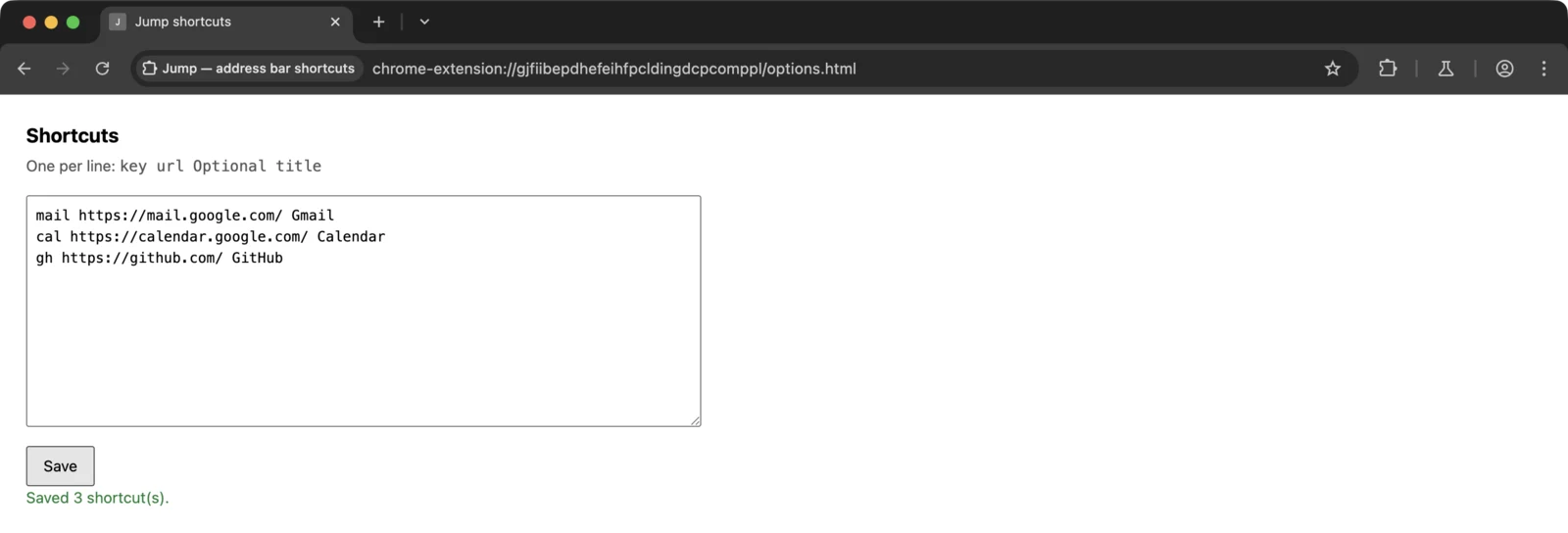
Shortcuts live in chrome.storage.sync, so they follow the user's profile.
Load it and try it
Open chrome://extensions, flip Developer mode on, click Load unpacked, pick the jump folder.
Then click into the address bar and type go — you should see a hint offering keyword mode. Press space (or Tab). The address bar now shows a chip carrying your extension's name, and everything you type after it belongs to your extension.
Type ma; Gmail should appear with the ma highlighted. Press Enter to navigate the current tab, or Ctrl/Cmd+Enter to open it in a new one.
Two things worth trying: type something that matches nothing and hit Enter — you get a web search, because resolve() fell through. Then open the options page (Details → Extension options), add a line, save, and go straight back to the address bar. The new shortcut should be there immediately; if it isn't, your storage.onChanged listener isn't wired up.
If it doesn't work:
- Nothing happens when you type the keyword. You typed
gobut never pressed space or tab, so Chrome is still doing a normal search. Keyword mode is explicit. - The dropdown stays empty. Open the service worker's console from
chrome://extensions→ service worker. An exception thrown insideonInputChangedkills the whole suggestion list without any visible sign in the address bar. - A suggestion disappears when you add punctuation. An unescaped
&or<in the description. That's whatesc()is for — check you didn't skip it on the title. - Enter navigates to a search page instead of your site. Your
contentfield held the display label, not the URL.
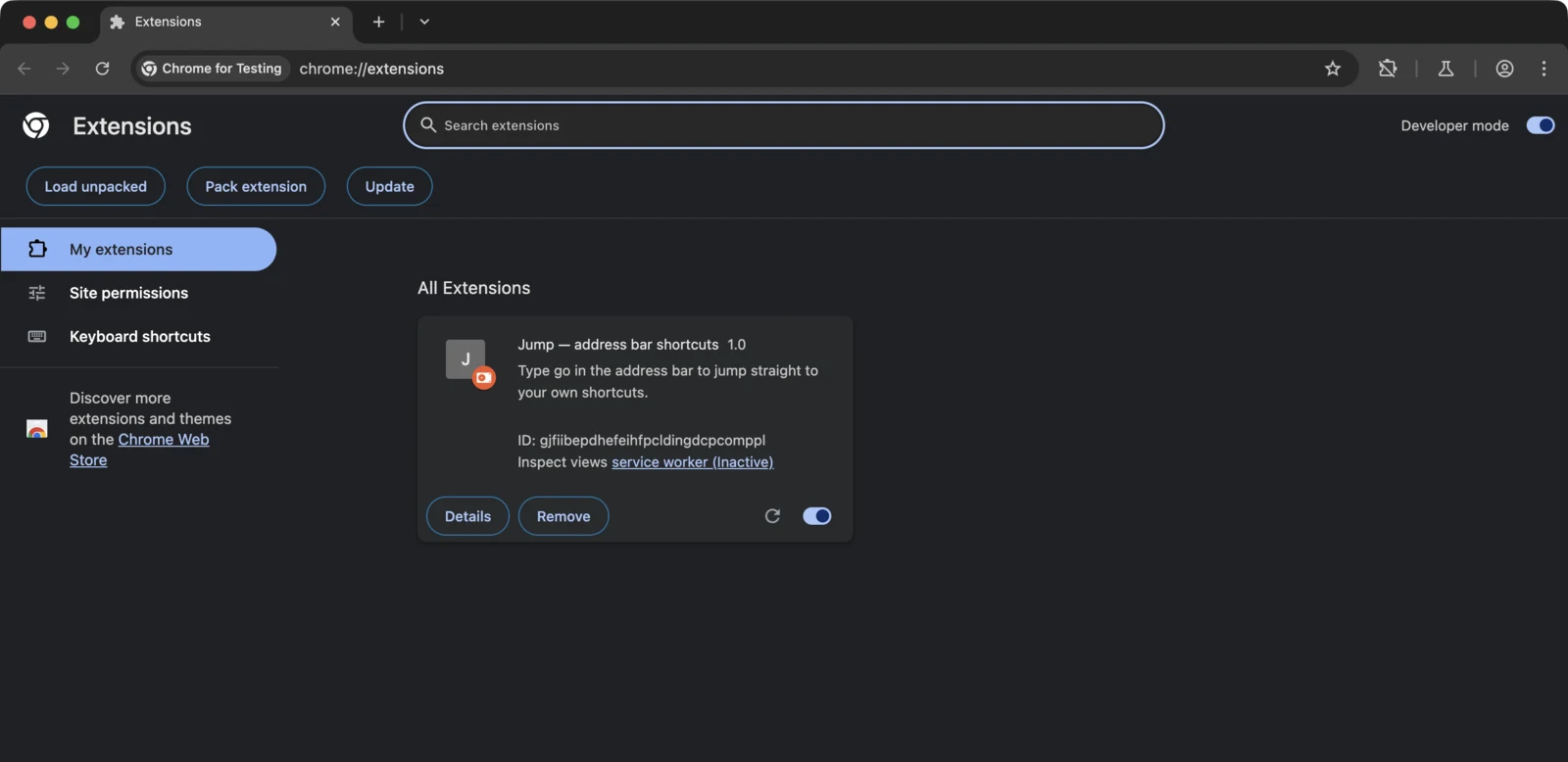
Load unpacked, then use the service worker link when suggestions misbehave.
Can an extension have more than one omnibox keyword?
No, and this is the first thing people go looking for once the first keyword works. "omnibox" takes a single "keyword" string in the manifest — there's no array form, and the API's only method is setDefaultSuggestion(), so there is nothing to register a second keyword at runtime either. One extension, one chip.
That's less limiting than it sounds, because a command palette routes on the first word anyway. Reserve a few leading tokens inside your own keyword space and go gh react becomes "search GitHub for react", while everything unprefixed keeps falling through to resolve():
const VERBS = {
  gh: (q) => `https://github.com/search?q=${encodeURIComponent(q)}`,
  npm: (q) => `https://www.npmjs.com/search?q=${encodeURIComponent(q)}`
};

function verbUrl(text) {
  const [head, ...rest] = text.trim().split(/\s+/);
  const verb = VERBS[head];
  return verb && rest.length ? verb(rest.join(" ")) : null;
}
Call it first in resolve() and return early when it hits. You get as many verbs as you like on one keyword, and they cost nothing extra — the manifest key is still the whole permission story.
Cross-browser note
This one actually ports, which is rare in this series. Firefox implements the same omnibox API with the same manifest key, the same three events and the same <match> / <dim> / <url> markup, so the file above runs there essentially unchanged. Since Chrome 148 the browser.* namespace works in Chrome too — though only on 148 and up, so the polyfill stays until your minimum_chrome_version clears it; I wrote about what that shipped and what it didn't separately.
Edge follows Chromium. Safari doesn't implement omnibox at all, so plan a different entry point there — a toolbar action or a keyboard command.
Before you ship it
Add icons. Chrome shows your 16×16 in the address bar when it offers keyword mode, and it generates a greyscale version from a full-colour one, so ship the colour original in an "icons" block. Without it the keyword hint looks like a placeholder, which is a bad first impression for a feature whose whole pitch is "feels built in".
Then look at what this thing asks for: storage. That's the entire permission footprint of a full command palette, and it's the reason I like this API — you can put real functionality in front of users without spending any of your install-prompt budget. If you do need to touch pages later, ask for that at the moment the user needs it rather than at install.
Worth checking that claim rather than trusting it:
npx @extenshi/cli scan ./jumpThe CLI reports the permissions you actually declared and the warning strings a user will see — useful here specifically, because it's easy to add tabs out of habit when nothing in your code needs it. You get 3 scans and 10 reads free, one-time; past that, prepaid credit packs cover it and never expire. Comparing your manifest against what other extensions in your category declare is a decent sanity check too. To look up a published extension, paste its store URL into the checker.
Next step: act on the current page
Jump navigates to destinations. To highlight text or run another action in the page already open, run an activeTab action from an omnibox command. That follow-up adds activeTab and scripting and explains when accepting a suggestion grants access.
Wrapping up
Four things carry the weight here:
- The manifest key is the permission.
"omnibox"unlocks the API with no warning string attached. contentcomes back,descriptiongets read. Mix them up and Enter does the wrong thing.- Register listeners at the top level. The worker dies between keystrokes and comes back to nothing otherwise.
- Escape your descriptions. The markup is real markup, and an unescaped
&eats the row.
Swap tabs.update() for a message to a side panel and the same keyword becomes a search box for your own UI. Swap it for a fetch() and you have an address-bar client for your API. The three events don't change.
Shipping something on top of this? Once it's live, installs, retention and the reviews landing on your listing become their own problem. Explore extension analytics → and claim your extension to get verified data next to the security scan.
Sources
- chrome.omnibox API reference — Chrome for Developers (Google)
- chrome.tabs API reference — Chrome for Developers (Google)
- activeTab permission — Chrome for Developers (Google)
- Declare permissions — Chrome for Developers (Google)
- omnibox — WebExtensions API reference — MDN Web Docs (Mozilla)
- api-samples/omnibox/simple-example — GoogleChrome/chrome-extensions-samples (Apache-2.0)
- api-samples/omnibox/new-tab-search — GoogleChrome/chrome-extensions-samples (Apache-2.0)
- r3bl-org/shortlink — a shipped MV3 extension built around an omnibox keyword
- Build a Chrome Extension using Manifest V3 — Shortlink — developerlife.com (community walkthrough of the extension above)
- Register a Keyword in Chrome's Omnibox in Your Extension — DEV Community (community walkthrough)
Further reading
📚 Building Browser Extensions, 2nd Edition by Matt Frisbie — Amazon | Apress. Chapter 5 walks the manifest property by property, including where short_name gets substituted for name; Chapter 10 has the permissions catalogue that lists accepting an omnibox suggestion among the gestures that grant activeTab.
This article is a hands-on tutorial based on the official Chrome Extensions documentation and Google's Apache-2.0 sample code. Code is provided as-is for educational purposes; verify API behavior against the current developer.chrome.com reference before shipping. If you believe anything here is inaccurate, contact [email protected] and we'll review and update.
Related Articles

Optional permissions in Chrome extensions: ask at the click, not at install
Chrome extension optional permissions, end to end: install with no warning, then request topSites and a single host at runtime. Full MV3 code, ~25 minutes.

activeTab permission explained: the host access that skips Chrome's warning
The activeTab permission lets browser extensions touch the page you're on — only when you click, with no scary install warning. Here's what it grants.

The `storage` permission explained: what browser extensions keep, and where it actually lives
The storage permission is the most-requested thing extensions ask for — 62% claim it, with no install warning. Here's what it keeps, where, and how to check.
Chrome extension side panels: build a UI that stays open while you browse
A hands-on Manifest V3 tutorial: build a Chrome extension side panel that persists across tabs, then make it per-site. Full runnable code, ~25 minutes.