chrome_url_overrides in browser extensions: a fast new-tab dashboard, with a real opt-out
Build a Chrome new tab override with chrome_url_overrides and topSites: instant-paint dashboard, local favicons, optional history strip, and a real opt-out.
For a lot of people, the page they see most in their browser isn't a homepage. It's the new tab page — opened every time they start something new. That's why "new tab dashboard" is such a crowded extension category, and also, let's be honest, one of the most distrusted: search hijackers and ad injectors live here. As I showed in the user-side companion piece, what a new tab override can really see, the mechanism isn't a permission you request — it's a manifest key. Chrome adds a single install-time line for it, "Replace the page you see when opening a new tab", and that line says nothing about what the page can read.
The mechanism being neutral doesn't make the reputation unfair — it makes the well-behaved version worth building carefully, so good extensions aren't lumped in with the hijackers. Today I'm building that version: a dashboard that paints instantly, asks for the minimum, and hands the user their real new tab back with one toggle — no uninstall required.
What we're building
Home Tab, an extension of six files and three permissions:
- A custom new tab page: a big clock and an eight-tile grid of the user's most-visited sites, with icons from Chrome's own local cache.
- Zero network requests. The whole page is static HTML, CSS and vanilla JS — no framework, no build step, no third-party favicon service.
- A real opt-out: a toolbar popup (and a footer link) that turns the override off, so new tabs go straight back to Chrome's own page.
- An optional "recently visited" strip, with an honest conversation about whether it's worth the
historypermission warning.
Difficulty: beginner — you need Chrome and a text editor, nothing else. Time: ~25 minutes (~35 with the optional step).
How chrome_url_overrides actually works
The chrome_url_overrides manifest key substitutes your own HTML page for a browser-owned page. There are exactly three candidates — newtab, bookmarks and history — and each extension may override exactly one of them. As Matt Frisbie explores in Building Browser Extensions (Apress, 2025), the manifest models this as a single-slot object: one page, one extension.
Your replacement is what Frisbie calls a managed page: ordinary HTML served from the extension's own origin, with full access to whichever extension APIs its permissions allow. Unlike a popup or side panel — browser-controlled containers that come and go — it's a real document that stays open as long as the tab does. More room, more responsibility.
Three constraints from Google's override guide shape everything below:
- No incognito. The override doesn't apply in incognito windows — those keep Chrome's own (incognito-flavored) new tab.
- Performance is the feature. The official guidance is blunt: keep the page small and fast. Every kilobyte of your bundle lands in the user's most frequent interaction with your product.
- The key is unconditional. There is no
"newtab": {"when": "user_wants_it"}. Once declared, every new tab is yours — which is exactly the complaint the category deserves. Step 3 is the escape hatch: making it conditional from the inside.
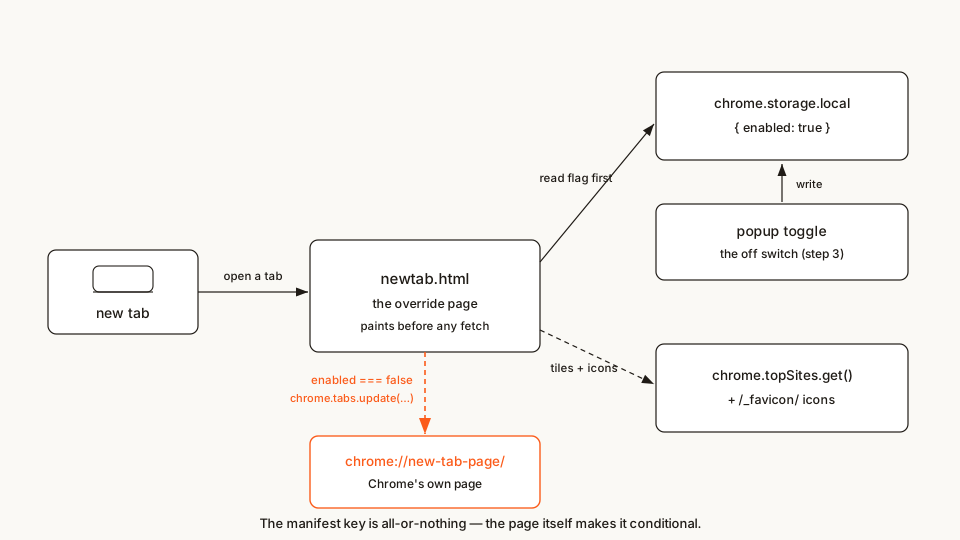 The whole loop: tab opens → flag check → tiles, or straight back to Chrome. The popup writes the flag; the page reads it first.
home-tab/
├── manifest.json
├── newtab.html
├── newtab.css
├── newtab.js
├── popup.html   (added in step 3)
└── popup.js     (added in step 3)
Step 1: the manifest — one key, three permissions
manifest.json
{
	"name": "Home Tab",
	"description": "A fast custom new tab page: most-visited tiles, locally served favicons, and a real opt-out.",
	"version": "1.0",
	"manifest_version": 3,
	"chrome_url_overrides": {
		"newtab": "newtab.html"
	},
	"permissions": ["topSites", "favicon", "storage"]
}
Three permissions, each earning its place:
topSites— one method,get(), returning the most-visited list behind Chrome's own shortcuts (one honest caveat from the API reference: it excludes shortcuts the user customized).favicon— unlocks the_favicon/endpoint, Chrome's local favicon server for extension pages. Step 2 explains why this matters more than it sounds.storage— the opt-out flag. Declared now because step 2's page reads it first, even though the toggle that writes it arrives in step 3.
What's not here: no action key yet (step 3), no icons block (Chrome generates a placeholder letter icon for the toolbar while developing; the store wants a real 128px one before you submit — see "Before you ship it"), and deliberately no history (step 4).
Scaffolding a real project instead of typing along? My manifest generator builds an MV3 manifest from the kind of extension you pick, and its new-tab override switch previews the install warnings that key adds.
Step 2: the shell and the tiles
The performance constraint is design, not advice. Users feel a sluggish new tab page as the browser being slow — and they're not wrong to. So the rule here: HTML and CSS paint a complete, calm page with zero JavaScript; JS only fills what the browser must be asked for — the clock, the tiles.
newtab.html
<!doctype html>
<html lang="en">
<head>
	<meta charset="utf-8" />
	<title>New Tab</title>
	<link rel="stylesheet" href="newtab.css" />
</head>
<body>
	<header>
		<div id="clock">--:--</div>
		<h1>Home Tab</h1>
	</header>

	<main>
		<section id="tiles" aria-label="Most visited sites"></section>
		<section id="recents" hidden aria-label="Recently visited"></section>
	</main>

	<footer>
		<button id="opt-out" type="button">Prefer Chrome's own new tab? Turn Home Tab off</button>
	</footer>

	<script src="newtab.js"></script>
</body>
</html>
That <title>New Tab</title> is what the tab strip shows — keep it boring; the user's tabs are not your billboard. The empty #recents section sits hidden until step 4. The footer button is live from the start — but don't click it yet; the switch that turns it back on arrives in step 3.
newtab.css
:root {
	--paper: #faf9f5;
	--ink: #1f1b16;
	--muted: #8a857e;
	--accent: #fb5b1a;
	--hairline: #e4e0d6;
}

* { box-sizing: border-box; }

body {
	margin: 0;
	min-height: 100vh;
	display: flex;
	flex-direction: column;
	align-items: center;
	padding: 12vh 24px 24px;
	background: var(--paper);
	color: var(--ink);
	font-family: system-ui, sans-serif;
}

header { text-align: center; margin-bottom: 48px; }

#clock {
	font-size: 56px;
	font-weight: 200;
	letter-spacing: 2px;
	font-variant-numeric: tabular-nums;
}

h1 {
	margin: 8px 0 0;
	font-size: 13px;
	font-weight: 500;
	text-transform: uppercase;
	letter-spacing: 3px;
	color: var(--muted);
}

main { width: 100%; max-width: 720px; }

#tiles {
	display: grid;
	grid-template-columns: repeat(auto-fill, minmax(150px, 1fr));
	gap: 12px;
}

#tiles a {
	display: flex;
	align-items: center;
	gap: 10px;
	padding: 12px;
	border: 1px solid var(--hairline);
	border-radius: 10px;
	background: #ffffff;
	color: var(--ink);
	text-decoration: none;
	font-size: 13px;
}

#tiles a:hover { border-color: var(--accent); }

#tiles img { width: 16px; height: 16px; flex: none; }

#tiles span {
	overflow: hidden;
	white-space: nowrap;
	text-overflow: ellipsis;
}

#recents { margin-top: 40px; }

#recents h2 {
	margin: 0 0 12px;
	font-size: 12px;
	font-weight: 500;
	text-transform: uppercase;
	letter-spacing: 2px;
	color: var(--muted);
}

#recents ul { list-style: none; margin: 0; padding: 0; }

#recents li + li { border-top: 1px solid var(--hairline); }

#recents a {
	display: block;
	padding: 8px 4px;
	color: var(--ink);
	font-size: 13px;
	text-decoration: none;
	overflow: hidden;
	white-space: nowrap;
	text-overflow: ellipsis;
}

#recents a:hover { color: var(--accent); }

footer { margin-top: auto; padding-top: 48px; }

#opt-out {
	border: none;
	background: none;
	padding: 0;
	color: var(--muted);
	font-size: 12px;
	text-decoration: underline;
	cursor: pointer;
}

#opt-out:hover { color: var(--accent); }
Now the page script. Three jobs, in order: check the opt-out flag, start the clock, fill the tiles.
newtab.js
// Home Tab — the new tab page itself.
//
// Two rules shape this file:
//   1. Paint first, fetch later. The HTML/CSS shell is a complete page on
//      its own; the script only fills in what the browser must be asked for.
//   2. The manifest override is unconditional, so the opt-out lives here:
//      read the flag before anything else and hand the tab back to Chrome
//      when the user turned Home Tab off.

const clockEl = document.getElementById('clock');
const tilesEl = document.getElementById('tiles');
const optOutBtn = document.getElementById('opt-out');

init();

async function init() {
	// Step 3 explains the escape hatch; the check ships from day one.
	const { enabled = true } = await chrome.storage.local.get('enabled');
	if (!enabled) {
		await handBack();
		return;
	}

	startClock();
	optOutBtn.addEventListener('click', optOut);
	await renderTiles();
}

async function optOut() {
	// Await the write BEFORE navigating, or the flag may not land.
	await chrome.storage.local.set({ enabled: false });
	await handBack();
}

// Send this tab to Chrome's own new tab page. Two obvious routes fail:
// a page can't navigate itself to a chrome:// URL ("Not allowed to load
// local resource"), and chrome://newtab/ resolves straight back to this
// override. tabs.update() may open chrome:// pages and needs no permission.
async function handBack() {
	const tab = await chrome.tabs.getCurrent();
	await chrome.tabs.update(tab.id, { url: 'chrome://new-tab-page/' });
}

function startClock() {
	const tick = () => {
		clockEl.textContent = new Date().toLocaleTimeString([], {
			hour: '2-digit',
			minute: '2-digit'
		});
	};
	tick();
	setInterval(tick, 15000); // minute precision; 15s keeps drift invisible
}

// Chrome serves favicons to its own extension pages from a local cache at
// the special /_favicon/ path — the "favicon" permission (Chrome 104+) is
// what unlocks it. No third-party favicon service, no network request.
function faviconUrl(pageUrl, size = 32) {
	const url = new URL(chrome.runtime.getURL('/_favicon/'));
	url.searchParams.set('pageUrl', pageUrl); // URL-encodes as it sets
	url.searchParams.set('size', String(size));
	return url.toString();
}

async function renderTiles() {
	const sites = await chrome.topSites.get();
	for (const site of sites.slice(0, 8)) {
		const a = document.createElement('a');
		a.href = site.url;

		const img = document.createElement('img');
		img.src = faviconUrl(site.url, 32); // fetch 32px, display 16px = crisp on HiDPI
		img.width = 16;
		img.height = 16;
		img.alt = '';

		const label = document.createElement('span');
		// Page titles come from the open web. They are data, never markup:
		// textContent keeps a title like "<img onerror=...>" inert.
		label.textContent = site.title || site.url;

		a.append(img, label);
		tilesEl.appendChild(a);
	}
}
Two details worth lingering on — homegrown new-tab pages get both wrong constantly:
- Favicons through
_favicon/, never hotlinked. The lazy version of this page points each tile's icon at a third-party favicon proxy: a network request per tile, on every single new tab, handing some stranger the user's most-visited list — timestamped, on the most-opened page in their browser. Google's owntopSitessamples use_favicon/too (Apache-2.0). Local cache, zero requests, nothing leaks. - Titles are untrusted input.
site.titleis whatever some web server put in its<title>tag. Building tiles withinnerHTMLturns a hostile title into script execution on a page that holds extension permissions.textContentcosts nothing and ends that whole class of bug.
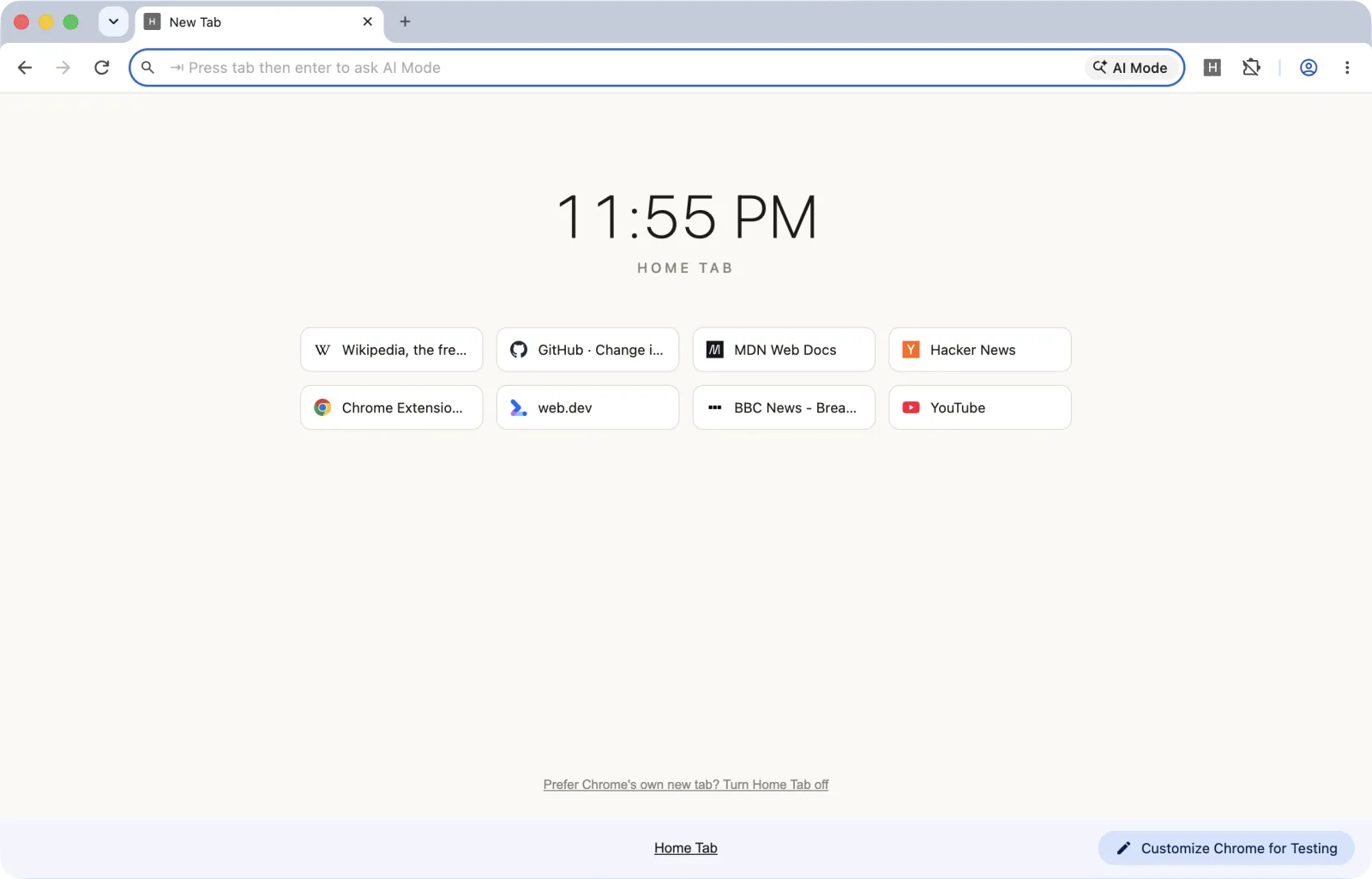 The shell paints instantly; topSites fills the tiles a moment later. The bar at the bottom is Chrome's own, naming the extension that controls the page
Step 3: the opt-out — making an unconditional override conditional
Here's the part many new-tab extensions skip. The manifest key has no conditions: declare newtab and every new tab is yours, forever, for every user. Chrome's own off-switches are all-or-nothing: the "Change back to Google?" prompt (its Change it back button disables the whole extension), the toggle on chrome://extensions, or uninstall — a blunt trade for someone who liked your clock but wants their old shortcuts back today.
The fix is client-side: keep the override declared, store an enabled flag, and have the page step aside when the flag is off. Kushagra Gour wrote up this conditional-override idea in a dev.to walkthrough, redirecting with location.replace('chrome://newtab/'). That redirect no longer works. I ran it in Chrome 136 and 156: the page logs "Not allowed to load local resource: chrome://newtab/" and the user is left on your blank shell. Web-style navigation can't reach chrome:// pages, and chrome://newtab/ would resolve back to your override anyway.
What does work in both versions is chrome.tabs.update() with chrome://new-tab-page/, the address Chrome's own new tab page loads from — that's the handBack() function in step 2. It needs no permission, and the tab lands on Chrome's page without bouncing back. One caveat I haven't tested: that URL is Chrome's default, Google-search new tab page, so a user who switched their default search engine may see a different page than they're used to. One honest wart either way: the flag read is async, so with Home Tab off your shell can flash for a frame before Chrome's page lands. I'll take one frame over slowing the 99% case where it's on.
The flag itself already ships in step 2's code — including the footer button's handler. What step 3 adds is the way back on: a toolbar popup with one checkbox. That means the manifest grows an action key, so here it is again in full:
manifest.json
{
	"name": "Home Tab",
	"description": "A fast custom new tab page: most-visited tiles, locally served favicons, and a real opt-out.",
	"version": "1.0",
	"manifest_version": 3,
	"chrome_url_overrides": {
		"newtab": "newtab.html"
	},
	"action": {
		"default_title": "Home Tab settings",
		"default_popup": "popup.html"
	},
	"permissions": ["topSites", "favicon", "storage"]
}
popup.html
<!doctype html>
<html lang="en">
<head>
	<meta charset="utf-8" />
	<title>Home Tab</title>
	<style>
		body {
			width: 240px;
			margin: 0;
			padding: 14px;
			font-family: system-ui, sans-serif;
			font-size: 13px;
			color: #1f1b16;
			background: #ffffff;
		}
		h1 { margin: 0 0 10px; font-size: 15px; }
		label { display: flex; align-items: center; gap: 8px; cursor: pointer; }
		p { margin: 10px 0 0; color: #8a857e; font-size: 12px; line-height: 1.5; }
	</style>
</head>
<body>
	<h1>Home Tab</h1>
	<label>
		<input id="enabled" type="checkbox" />
		Replace Chrome's new tab page
	</label>
	<p>Off? New tabs go straight back to Chrome's own page — no uninstall needed.</p>
	<script src="popup.js"></script>
</body>
</html>
popup.js
// The popup is the switch. The manifest key is all-or-nothing, so "off"
// means: the override page loads for a moment, sees the flag, and hands
// the tab to Chrome's own new tab page.

const toggle = document.getElementById('enabled');

chrome.storage.local.get('enabled').then(({ enabled = true }) => {
	toggle.checked = enabled;
});

toggle.addEventListener('change', () => {
	chrome.storage.local.set({ enabled: toggle.checked });
});
Note what the popup does not do: it owns no state. It reads the flag, writes the flag, dies on blur — the page and the storage area are the source of truth. (Same rule as my chrome.action tutorial.)
One deliberate choice: storage.local, not storage.sync. "Do I want this extension on my new tab" is a per-device answer — some people want vanilla Chrome on the work laptop. When a setting genuinely should follow the user, that's what storage.sync is for.
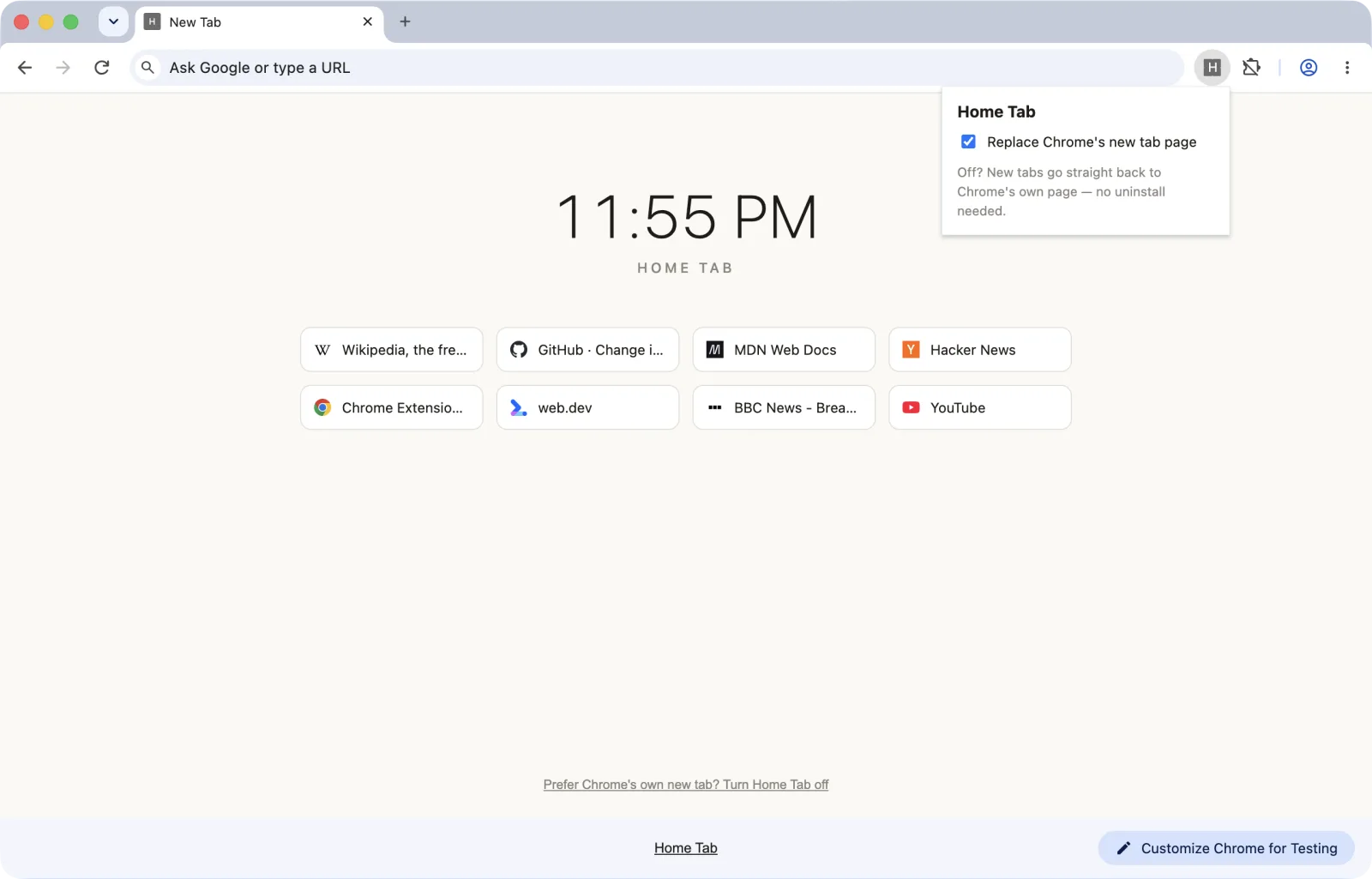 One checkbox is the whole settings surface — and the off-switch the category usually forgets
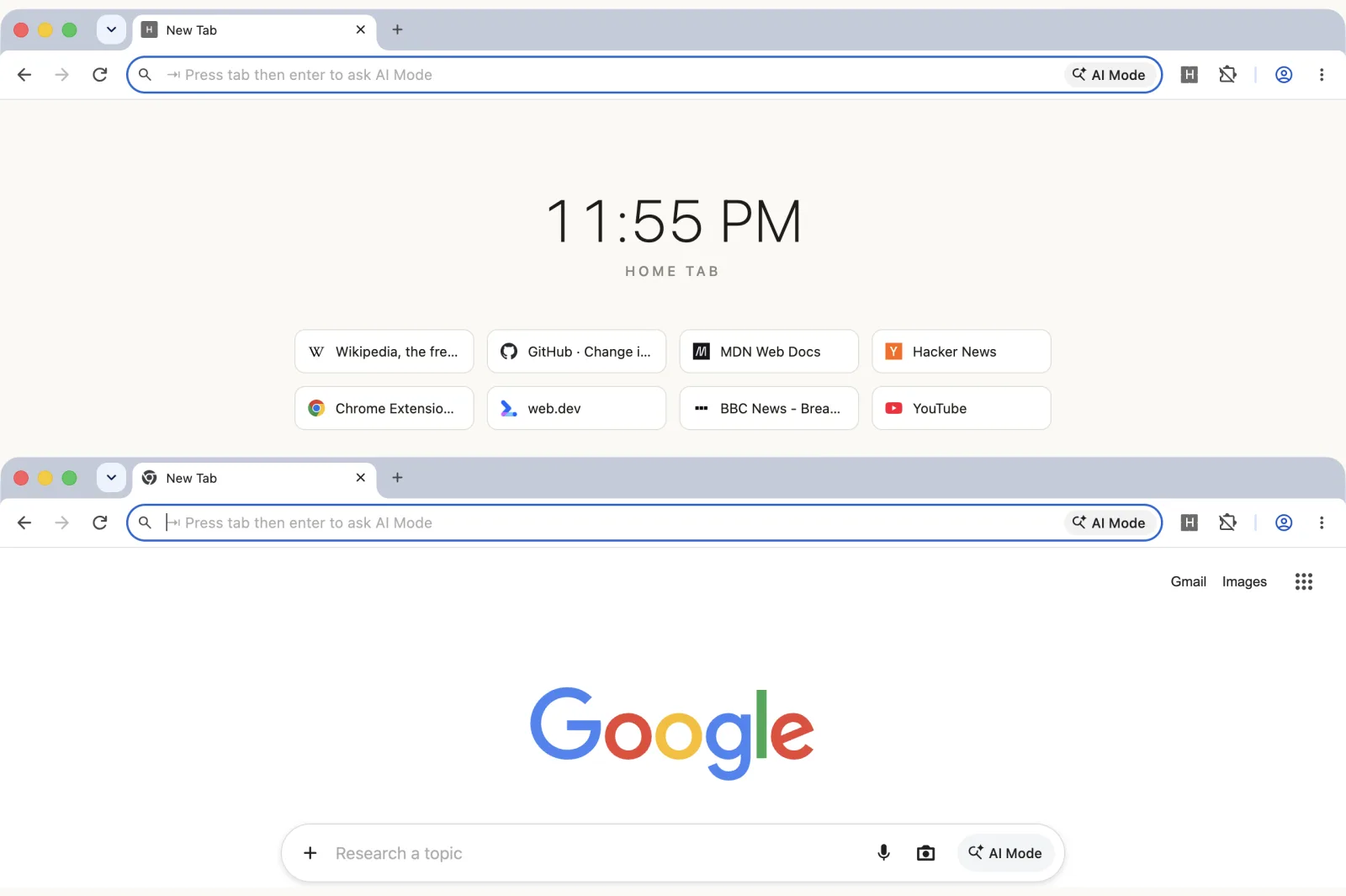 Toggle off and the next new tab is Chrome's own again (bottom) — no uninstall, no settings dive
Step 4 (optional): a recents strip — and whether it earns the permission
The dashboard has one obvious next feature: "recently visited" under the tiles. It's one call to chrome.history.search(). It also costs the history permission, whose install warning tells the user the extension can read and change your browsing history on all signed-in devices — one of the heaviest sentences in the permission system. Six links under a tile grid do not obviously earn it. That asymmetry is the whole decision; the code is easy.
If you decide it's worth it, add history to the permissions array:
"permissions": ["topSites", "favicon", "storage", "history"]…and merge this into newtab.js, calling renderRecents() at the end of init(), after renderTiles():
async function renderRecents() {
	const recentsEl = document.getElementById('recents');
	const items = await chrome.history.search({
		text: '', // empty = all pages; result order isn't documented
		startTime: Date.now() - 24 * 60 * 60 * 1000,
		maxResults: 6
	});
	if (items.length === 0) return;

	const heading = document.createElement('h2');
	heading.textContent = 'Recently visited';

	const list = document.createElement('ul');
	for (const item of items) {
		const li = document.createElement('li');
		const a = document.createElement('a');
		a.href = item.url;
		a.textContent = item.title || item.url; // untrusted input, again
		li.appendChild(a);
		list.appendChild(li);
	}

	recentsEl.append(heading, list);
	recentsEl.hidden = false;
}
search() returns one entry per URL, most-recent-first in my testing — but if your UI depends on order, sort on lastVisitTime yourself rather than trusting an implementation detail (API reference). Google's historyOverride sample shows the same call powering a full history-page replacement (Apache-2.0).
The softer path: ship without history, and request it at runtime the first time the user clicks a "show recents" button — an optional permission grant is a conversation, an install-time warning is a mugging. My optional-permissions tutorial builds that flow, and my history-permission deep dive is what your users see on the other side of that warning.
Load it and try it
- Create a
home-tab/folder with the files from steps 1–3 (plus step 4's merges if you want recents). - Open
chrome://extensions, flip Developer mode on (top right), click Load unpacked, pick the folder. - Press Ctrl+T (Cmd+T on Mac). Your dashboard: clock ticking, tiles filling a beat later.
- Click a tile — it opens in the same tab, like Chrome's own shortcuts.
- Click the toolbar icon and untick the checkbox. Press Cmd/Ctrl+T again: Chrome's own new tab page. Tick it back: Home Tab returns. That round trip is the feature this category often leaves out.
- Open an incognito window and press Cmd/Ctrl+T: the incognito new tab, untouched.
- Right-click the toolbar icon: the popup's checkbox is a lighter exit than Remove from Chrome or disabling the whole extension. That sentence belongs in your store listing.
If it doesn't work, it's nearly always one of these:
- New tabs still show Chrome's page → the manifest key is misspelled (
chrome_url_overrides,newtab— exact strings), you edited the manifest without hitting reload on the extension card, or another new-tab extension is fighting yours — disable the rest and reload. - The tiles grid is empty →
topSitesis built from real visit data. On a fresh profile there is none yet; browse a few sites and reopen. - Tiles render but icons are blank → the
"favicon"permission is missing from the manifest (and it needs Chrome 104+). - The toggle does nothing →
"storage"missing, or you addedpopup.htmlwithout theaction.default_popupkey from step 3's manifest. - After turning off, new tabs still show Home Tab → the flag write didn't land before the navigation.
awaittheset()beforehandBack(), asoptOut()does. - Turned off, but new tabs show a blank Home Tab page → you redirected with
location.replace()orlocation.href. Pages can't openchrome://URLs; the console says "Not allowed to load local resource". Usechrome.tabs.update(). - New tabs went back to Chrome and the extension shows as disabled → you clicked Change it back in Chrome's "Change back to Google?" prompt. Re-enable it on
chrome://extensionsand pick Keep it next time. - Turned off, but Home Tab keeps coming back → you sent the tab to
chrome://newtab/, which Chrome resolves to your override again. Usechrome://new-tab-page/.
Cross-browser: overrides beyond Chrome
The mechanism is cross-browser at the manifest level: MDN documents chrome_url_overrides with the same three keys, but its compat table shows Firefox supports only newtab (since Firefox 54); bookmarks and history are Chromium-only, and Firefox for Android supports none of them.
- Firefox has
browser.topSites, and MDN keeps a runnable top-sites example showing the API's shape there._favicon/is Chromium-only: Firefox has nofaviconpermission or_favicon/endpoint. There,browser.topSites.get({ includeFavicon: true })returns each icon as a data URL. As a zero-dependency fallback, a letter avatar (domain initial on a tinted circle) renders anywhere. The opt-out needs a Firefox path too: its own new tab page isabout:newtab, notchrome://new-tab-page/. - Edge, Brave, and the rest of the Chromium family load the same files unchanged — but re-test the opt-out there, since their own new tab pages live at different internal URLs.
- Namespace: everything here uses
chrome.*, and Firefox accepts it too; Chrome has shipped thebrowser.*alias natively since 148 — see my notes on the namespace going GA if you want one codebase spelling.
Common pitfalls and best practices
- Treat every new tab as a pageview you pay for. A 2 MB framework bundle here is worse than anywhere else on the web — this page loads on the user's most frequent interaction. Eight tiles and a clock need no framework.
- Ask for what you use, and nothing "while you're in there."
topSites+favicon+storageis a manifest a reviewer — human or automated — can bless in seconds. Addinghistoryfor a feature you might ship someday is how good extensions end up wearing a scary warning. - If you add a search box, be honest about where queries go. A box that silently routes searches to your partner engine is the hijacker pattern that earned this category its reputation. Make the destination visible and configurable, or skip the box.
- Titles and URLs are untrusted input.
textContenteverywhere;innerHTMLnever. Your page runs with extension permissions — an XSS here is not a defaced page, it's a breached extension. - Promise only what
topSitesdelivers. The API returns most-visited sites, not the shortcuts the user customized on Chrome's own page. Don't market "your shortcuts" and ship "sites you visit a lot." - Incognito stays Chrome's. Don't build a feature that assumes the override applies there; it never does.
Before you ship it
Home Tab loads unpacked without an icons block, but the Chrome Web Store requires a real 128px icon before you submit. Add it, then run the same checks I run on every build: the Extenshi CLI (npx @extenshi/cli) scans your manifest and permission footprint — 3 scans and 10 reads free with a free account, one-time, then prepaid credit packs that stay valid until you spend them. For a new-tab extension, that permission report is your storefront honesty check: everything it lists should survive a store-review reply.
Curious what the category you just joined ships? Browse new-tab extensions in the catalog to see the permission spread across the field, or check any single extension before you install it yourself.
Sources
- Override Chrome pages — Chrome for Developers (constraints: one page per extension, incognito behavior, performance guidance)
- chrome.topSites API reference — Chrome for Developers
- chrome.history API reference — Chrome for Developers
- Fetching favicons and What's new in Chrome extensions — Chrome for Developers (the
faviconpermission and_favicon/endpoint, Chrome 104) - Permissions list — Chrome for Developers (install-warning text per permission)
- chrome_url_overrides manifest key — MDN Web Docs (Mozilla)
- api-samples/topSites/magic8ball — GoogleChrome/chrome-extensions-samples (Apache-2.0); new-tab override with
topSites+_favicon/ - api-samples/favicon — GoogleChrome/chrome-extensions-samples (Apache-2.0); the
_favicon/URL pattern - api-samples/history/historyOverride — GoogleChrome/chrome-extensions-samples (Apache-2.0);
history.search()in an override page - mdn/webextensions-examples — top-sites — MDN's Firefox-compatible
topSitesexample - Overriding new tab page in Chrome extension, conditionally! — Kushagra Gour, dev.to (2017, MV2-era code; the idea of a user-controlled new tab, which this tutorial implements with
tabs.update()after testing the redirect in Chrome 136 and 156)
Further reading
📚 Building Browser Extensions, 2nd Edition by Matt Frisbie — Amazon | Apress. Chapter 5 covers the manifest surface including chrome_url_overrides' one-page rule; chapter 7 explains managed pages and how they differ from the browser-controlled UI containers (popups, side panel) — the mental model behind why an override page behaves like a real document.
This article is a hands-on tutorial based on the official Chrome and Mozilla extension documentation and Google's Apache-2.0 sample code. Code is provided as-is for educational purposes; verify API behavior against the current developer.chrome.com reference before shipping. Extenshi does not independently verify all claims made by third-party authors, and references to specific products reflect cited documentation, not accusations of wrongdoing. If you believe any information is inaccurate, contact [email protected] and we will review and update.
Related Articles
New tab overrides explained: what an extension that replaces your new tab can really see
Replacing your new tab page takes no permission at all. Here's what a new tab override extension can really see, when it's fine, and how to check yours.
The `history` permission explained: what an extension can dig out of your past
The history permission lets a browser extension read every site you visited — even before you installed it. Here's what it exposes and how to check yours.
Optional permissions in Chrome extensions: ask at the click, not at install
Chrome extension optional permissions, end to end: install with no warning, then request topSites and a single host at runtime. Full MV3 code, ~25 minutes.
chrome.storage.sync in browser extensions: settings that follow the user to every device
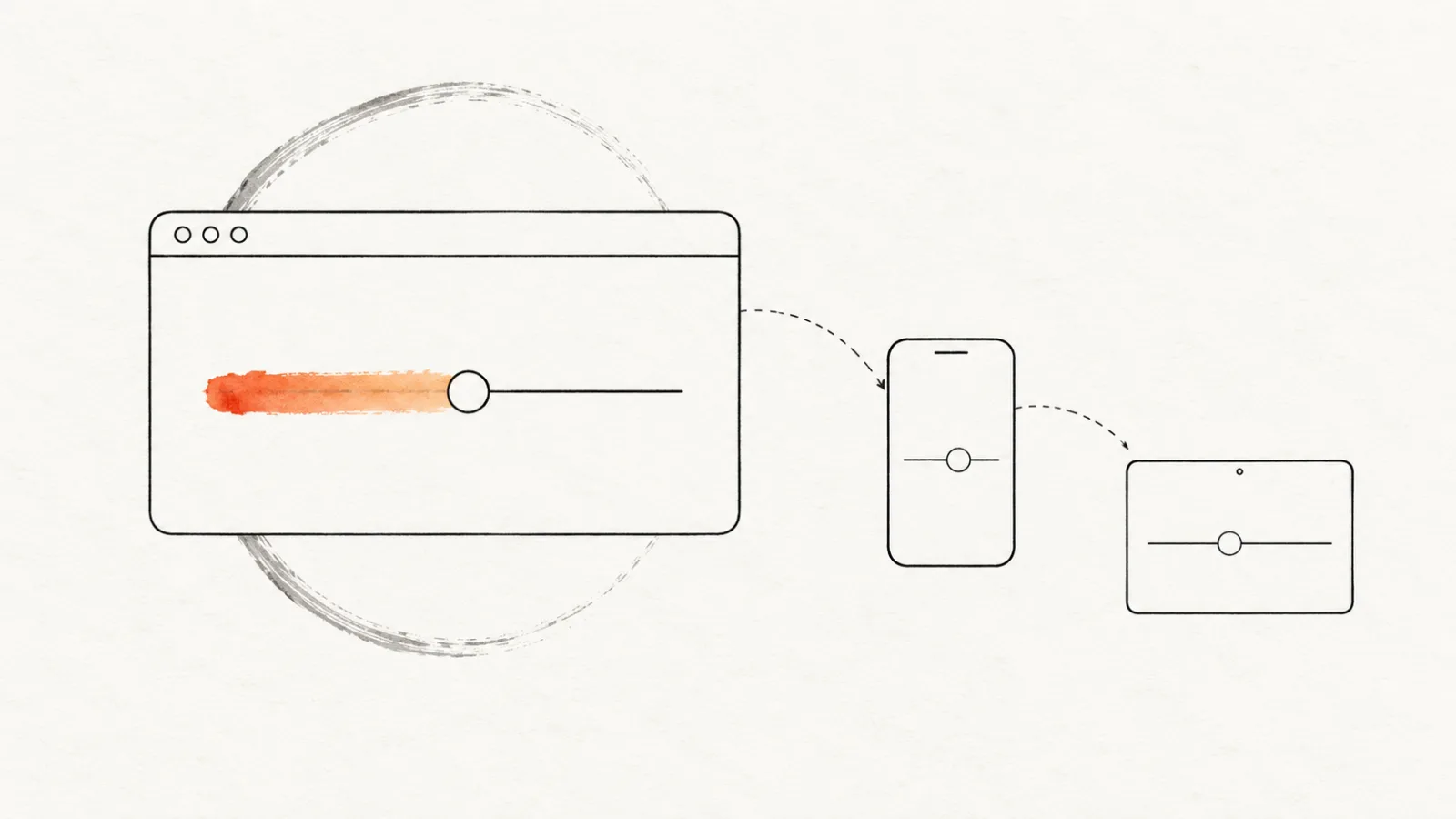
Build an MV3 extension whose settings follow the user to every device — chrome.storage.sync quotas, onChanged, and the sync vs local split, with full code.