chrome.privacy in browser extensions: build a panel that admits what it can't change
Build a Chrome privacy API panel that checks levelOfControl before changing settings. Add optional permissions and browsing-data controls with full MV3 code.
Install five privacy extensions and flip the same switch in each one. Four of them will show you a satisfying little toggle sliding to "off". At most one of them is telling the truth.
That's not a bug in those extensions. It's what happens when you write chrome.privacy.services.searchSuggestEnabled.set({ value: false }) and never look at what came back from get(). Chrome resolves settings by precedence: policies outrank extensions, and among extensions setting the same value scope, the most recently installed has priority. Calling set() later does not jump that queue. Your call can succeed while a higher-priority setting overrides it, as the ChromeSetting reference explains.
The API tells you this. It's a field called levelOfControl, it comes back on every get(), and the overwhelming majority of tutorials skip straight past it.
What you'll build: "Clean Slate" — a popup with three panels: clear browsing data over a time range, toggle Chrome's own privacy switches (greyed out honestly when you don't own them), and see what the current site is allowed to do. Difficulty: intermediate — you should have loaded an unpacked extension before. Time: ~30 minutes, no build step, no dependencies.
The permission problem this feature has
Three APIs, three separate permission conversations. And they are not equal.
Chrome's permissions list gives contentSettings the warning "Change your settings that control websites' access to features such as cookies, JavaScript, plugins, geolocation, microphone, camera etc", and privacy the shorter "Change your privacy-related settings". Both land in the install dialog before your extension has run a single line.
browsingData has no warning at all. None. An extension that can wipe every cookie and every saved password in the profile installs as quietly as a theme.
I'd rather not editorialise about whether that's the right call, but it does shape the design: put browsingData in permissions where it costs nothing, and make the two loud ones optional, requested at the click of the panel that needs them.
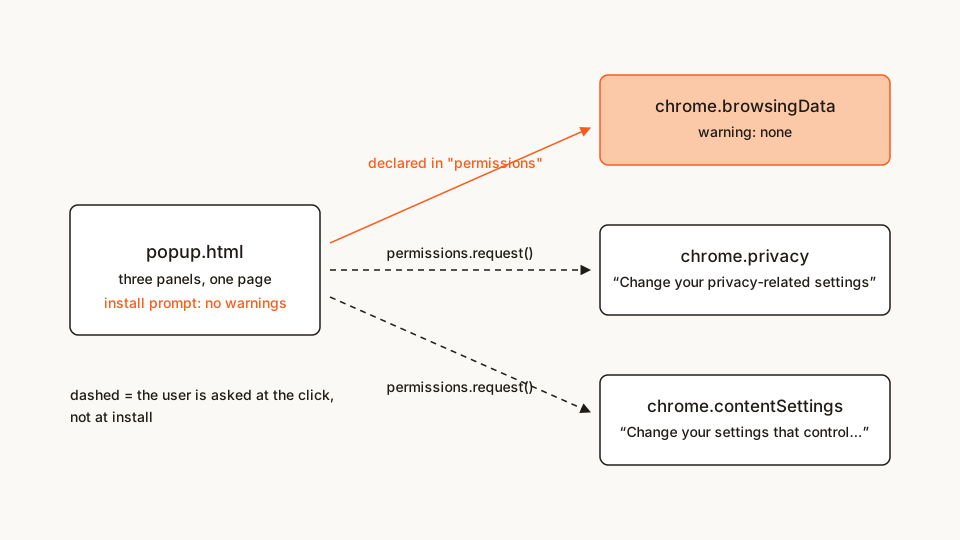
There's a second, sharper reason to get this right the first time. As Matt Frisbie points out in Building Browser Extensions, 2nd Edition (Apress, 2025), a required permission added in an update doesn't prompt the way an install does — Chrome silently disables the extension and waits for the user to find a toolbar notification and accept. Ship privacy in permissions in v1.1 and you have switched your entire installed base off until each user clicks through. Optional permissions don't do that, which is reason enough to prefer them even when you're sure you need the access. I wrote up the general runtime-request pattern separately; here I'll stay on the privacy-specific parts.
The file tree
Five files. No service worker — everything lives in the popup, because everything here is a response to the user opening it.
clean-slate/
├── manifest.json   # two permissions required, two optional
├── popup.html      # all three panels + styles
├── clear.js        # panel 1 — chrome.browsingData
├── toggles.js      # panel 2 — chrome.privacy and levelOfControl
└── site.js         # panel 3 — chrome.contentSettings for the active tab
Rather clone than type? The finished extension lives in our public samples repo — load it, then read on with this tutorial as the guided tour.
Make a folder called clean-slate and let's fill it in.
Step 1: the manifest
manifest.json
{
  "manifest_version": 3,
  "name": "Clean Slate",
  "version": "1.0",
  "description": "Clear browsing data, see which privacy switches you actually control, and check what the current site is allowed to do.",
  "permissions": ["browsingData", "activeTab"],
  "optional_permissions": ["privacy", "contentSettings"],
  "action": {
    "default_title": "Clean Slate",
    "default_popup": "popup.html"
  }
}
activeTab is the interesting one. Panel 3 needs the current tab's URL, and reading tab.url normally requires the tabs permission — which shows "Read your browsing history". activeTab hands you the same sensitive tab properties for the one tab you invoked the extension on, and opening this popup is that invocation. Frisbie's framing of activeTab is that it grants nothing you couldn't get from <all_urls>; what it buys you is the absence of the warning that <all_urls> would have earned. That trade is the whole reason to reach for it.
So the install dialog for this extension says nothing at all. Two panels stay dark until the user turns them on. (If you write manifests often, our free in-browser Manifest V3 generator scaffolds the permission blocks — no sign-up.)
Step 2: the popup shell
One page, three sections, a few dozen lines of CSS so it doesn't look like 1998. Note that two of the three scripts don't exist yet — the console will complain until Step 5, and that's expected.
popup.html
<!doctype html>
<html lang="en">
  <head>
    <meta charset="utf-8" />
    <title>Clean Slate</title>
    <style>
      body { width: 340px; margin: 0; padding: 12px; color: #1f1b16;
             font: 13px/1.45 system-ui, sans-serif; }
      h1 { font-size: 15px; margin: 0 0 8px; }
      h2 { font-size: 13px; margin: 18px 0 6px; }
      section + section { border-top: 1px solid #e6e2da; padding-top: 4px; }
      label { display: block; margin: 3px 0; }
      label.locked { opacity: 0.5; }
      .why { display: block; font-size: 11px; color: #6b6459; margin-left: 20px; }
      .status { min-height: 16px; font-size: 11px; color: #6b6459; }
      .row { display: flex; justify-content: space-between; gap: 8px; }
      .row span:last-child { color: #6b6459; }
      button { margin-top: 10px; padding: 6px 10px; border: 0; border-radius: 6px;
               background: #fb5b1a; color: #fff; font: inherit; cursor: pointer; }
      button[disabled] { background: #d6d1c8; cursor: default; }
    </style>
  </head>
  <body>
    <section>
      <h1>Clear browsing data</h1>
      <label>
        Time range
        <select id="range">
          <option value="hour">Last hour</option>
          <option value="day">Last 24 hours</option>
          <option value="week">Last 7 days</option>
          <option value="everything">Everything</option>
        </select>
      </label>
      <div id="types"></div>
      <button id="clear-run">Clear now</button>
      <p class="status" id="clear-status" role="status"></p>
    </section>

    <section>
      <h2>Browser privacy switches</h2>
      <p class="status" id="privacy-status"></p>
      <button id="privacy-grant" hidden>Turn this panel on</button>
      <div id="privacy-list"></div>
    </section>

    <section>
      <h2>What this site is allowed to do</h2>
      <p class="status" id="site-status"></p>
      <button id="site-grant" hidden>Turn this panel on</button>
      <div id="site-list"></div>
    </section>

    <script type="module" src="clear.js"></script>
    <script type="module" src="toggles.js"></script>
    <script type="module" src="site.js"></script>
  </body>
</html>
Step 3: clear data with chrome.browsingData
chrome.browsingData.remove() takes two objects: when to clear from, and what to clear. The since value trips people up constantly — it is a moment in time, milliseconds since the epoch, not a duration. "Last hour" is Date.now() - 3600e3. "Everything" is 0.
The part almost nobody wires up is chrome.browsingData.settings(). It reports what Chrome's own "Clear browsing data" dialog is currently set to, split across two fields: dataToRemove (what the user has ticked there) and dataRemovalPermitted (what this profile is even allowed to remove — enterprise policy can forbid a type outright). Pre-filling from the first means your UI opens agreeing with the browser instead of arguing with it. Honouring the second means you never render a checkbox that would fail.
clear.js
// Clean Slate — the "clear now" panel.
// Runs on the `browsingData` permission declared at install.

const DATA_TYPES = [
  { key: "cache", label: "Cached files" },
  { key: "history", label: "Browsing history" },
  { key: "downloads", label: "Download list", note: "the list, not the files" },
  { key: "formData", label: "Saved form entries" },
  { key: "cookies", label: "Cookies and site data", note: "signs you out of everything" },
  { key: "localStorage", label: "Local storage" },
  { key: "indexedDB", label: "IndexedDB" },
  { key: "serviceWorkers", label: "Service workers" },
  { key: "passwords", label: "Saved passwords", note: "no undo, ever" }
];

const SPANS = {
  hour: 60 * 60 * 1000,
  day: 24 * 60 * 60 * 1000,
  week: 7 * 24 * 60 * 60 * 1000
};

// A point in time, not a length of time. 0 means "since the epoch".
function since(range) {
  return SPANS[range] ? Date.now() - SPANS[range] : 0;
}

const list = document.getElementById("types");
const status = document.getElementById("clear-status");
const runButton = document.getElementById("clear-run");

async function render() {
  const { dataToRemove = {}, dataRemovalPermitted = {} } =
    await chrome.browsingData.settings();

  list.replaceChildren(
    ...DATA_TYPES.map((type) => {
      const permitted = dataRemovalPermitted[type.key] !== false;

      const box = document.createElement("input");
      box.type = "checkbox";
      box.value = type.key;
      box.checked = permitted && dataToRemove[type.key] === true;
      box.disabled = !permitted;

      const label = document.createElement("label");
      if (!permitted) label.classList.add("locked");
      label.append(box, ` ${type.label}`);

      const why = document.createElement("small");
      why.className = "why";
      why.textContent = permitted
        ? type.note ?? ""
        : "blocked by policy on this profile";
      if (why.textContent) label.append(why);

      return label;
    })
  );
}

runButton.addEventListener("click", async () => {
  const selected = {};
  for (const box of list.querySelectorAll("input:checked")) {
    selected[box.value] = true;
  }
  if (Object.keys(selected).length === 0) {
    status.textContent = "Nothing selected.";
    return;
  }

  runButton.disabled = true;
  status.textContent = "Clearing… don't click away, this can take a while.";

  try {
    await chrome.browsingData.remove(
      {
        since: since(document.getElementById("range").value),
        // The default, spelled out: normal sites only. Never hosted apps,
        // never other extensions' storage.
        originTypes: { unprotectedWeb: true }
      },
      selected
    );
    status.textContent = "Done.";
  } catch (error) {
    status.textContent = `Chrome refused: ${error.message}`;
  } finally {
    runButton.disabled = false;
  }
});

render();
Two things in there earn their keep. Spelling out originTypes: { unprotectedWeb: true } is redundant — it's the default — but the alternatives are protectedWeb and extension, and the docs are blunt that those irreversibly destroy installed-app and extension data. Writing the safe one explicitly makes the dangerous ones a deliberate act rather than a forgotten default.
And that "don't click away" message is not decoration. Chrome's own reference warns that a removal does a lot of background work and can take tens of seconds. A popup closes the instant it loses focus, so the sequence "click Clear, click the page, wonder what happened" is a real user story. If your extension clears more than a token amount, do the work in a service worker and let the popup subscribe to progress.
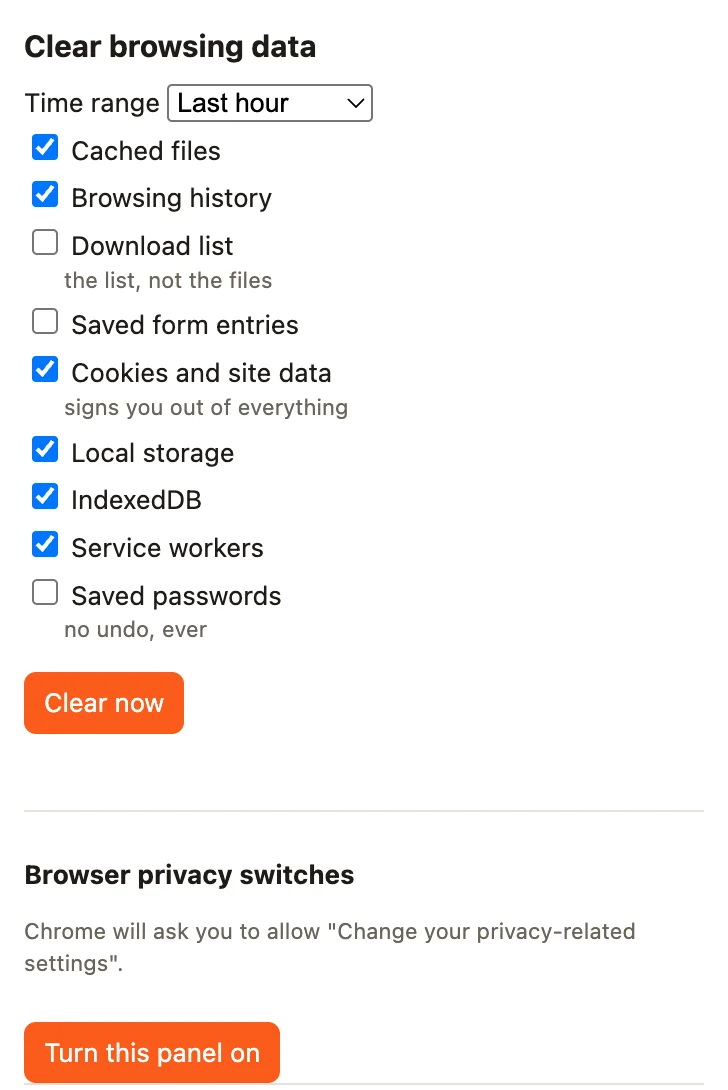
The checkboxes open already agreeing with Chrome's own "Clear browsing data" dialog
Step 4: why does chrome.privacy set() not change the setting?
chrome.privacy doesn't hand you plain values. Each entry under privacy.network, privacy.services and privacy.websites is a ChromeSetting object with get(), set(), clear() and an onChange event. And get() returns two things you care about: value, and levelOfControl.
There are exactly four levels, and only two of them are yours:
levelOfControl |
Meaning | What the panel should do |
|---|---|---|
controllable_by_this_extension |
This extension can take control. | Enable the switch. |
controlled_by_this_extension |
This extension already controls it. | Enable the switch and offer a reset with clear(). |
controlled_by_other_extensions |
Another extension has higher precedence. | Disable the switch and explain who controls it, if known. |
not_controllable |
This setting cannot be controlled here, for example because of policy. | Disable the switch and show the restriction. |
Chrome's own documentation is unusually direct about the consequence: the set() call succeeds, the setting is immediately overridden, and it advises warning the user rather than letting them believe otherwise. So the rule for this panel is: get() first, render the level, and only then decide whether a switch is a switch or a disabled row with an explanation.
toggles.js
// Clean Slate — the browser-privacy panel.
// `privacy` is OPTIONAL: this panel stays dark until the user asks for it.

const SETTINGS = [
  { group: "services", name: "searchSuggestEnabled",
    label: "Send address-bar keystrokes to your search engine" },
  { group: "services", name: "autofillCreditCardEnabled",
    label: "Offer to autofill credit cards" },
  { group: "websites", name: "hyperlinkAuditingEnabled",
    label: "Send <a ping> tracking pings" },
  { group: "websites", name: "referrersEnabled",
    label: "Send Referer headers" },
  { group: "network", name: "networkPredictionEnabled",
    label: "Pre-resolve DNS and pre-open connections" },
  { group: "websites", name: "topicsEnabled",
    label: "Topics ad-interest groups", offOnly: true }
];

// Why a switch might be dead. Four values; two of them are yours.
const CONTROL_NOTE = {
  controllable_by_this_extension: "",
  controlled_by_this_extension: "currently set by Clean Slate",
  controlled_by_other_extensions: "another extension owns this — your change would lose",
  not_controllable: "locked by enterprise policy or this Chrome build"
};

const list = document.getElementById("privacy-list");
const status = document.getElementById("privacy-status");
const grantButton = document.getElementById("privacy-grant");

const settingOf = ({ group, name }) => chrome.privacy[group][name];

async function render() {
  const rows = await Promise.all(
    SETTINGS.map(async (spec) => ({ spec, ...(await settingOf(spec).get({})) }))
  );

  list.replaceChildren(
    ...rows.map(({ spec, value, levelOfControl }) => {
      const mine =
        levelOfControl === "controllable_by_this_extension" ||
        levelOfControl === "controlled_by_this_extension";

      const box = document.createElement("input");
      box.type = "checkbox";
      box.checked = value;
      box.disabled = !mine;
      box.addEventListener("change", () => write(spec, box.checked));

      const label = document.createElement("label");
      if (!mine) label.classList.add("locked");
      label.append(box, ` ${spec.label}`);

      const note = CONTROL_NOTE[levelOfControl];
      if (note) {
        const why = document.createElement("small");
        why.className = "why";
        why.textContent = note;
        label.append(why);
      }
      return label;
    })
  );
}

async function write(spec, value) {
  // Topics, Fledge, ad measurement and Related Website Sets are one-way:
  // an extension may switch them off, and gets an error trying to switch
  // them back on.
  if (spec.offOnly && value === true) {
    status.textContent =
      `Chrome won't let an extension re-enable ${spec.name}. Undo it in chrome://settings.`;
    render();
    return;
  }

  try {
    await settingOf(spec).set({ value });
    status.textContent = "";
  } catch (error) {
    status.textContent = `Chrome refused: ${error.message}`;
  }
  render();
}

function watch() {
  for (const spec of SETTINGS) {
    // Control can be taken from you mid-session — a newly installed
    // extension, or a policy landing on the profile.
    settingOf(spec).onChange.addListener(render);
  }
}

async function start() {
  const granted = await chrome.permissions.contains({ permissions: ["privacy"] });

  if (!granted) {
    status.textContent =
      'Chrome will ask you to allow "Change your privacy-related settings".';
    grantButton.hidden = false;
    return;
  }

  if (!chrome.privacy) {
    status.textContent = "Granted — reopen the popup to use this panel.";
    return;
  }

  grantButton.hidden = true;
  status.textContent = "";
  watch();
  render();
}

grantButton.addEventListener("click", async () => {
  // request() only works inside a user gesture. This click is the gesture.
  const granted = await chrome.permissions.request({ permissions: ["privacy"] });
  if (granted) start();
});

start();
topicsEnabled deserves its own note, because it's the kind of asymmetry you only discover from a rejected promise at 1am. Chrome lets an extension disable the Privacy Sandbox settings — Topics, Fledge, ad measurement, Related Website Sets — and throws if you try to set them back to true. The reasoning is sound (an extension shouldn't be able to re-enable ad targeting the user turned off), but it means a naive checkbox is broken in one direction. Say so in the UI instead of swallowing the error.
The onChange listeners matter more than they look. levelOfControl isn't a constant: install another privacy extension while yours is open and it can take a setting straight out from under you. Re-rendering on the event is the difference between a panel that stays honest and one that was honest once.
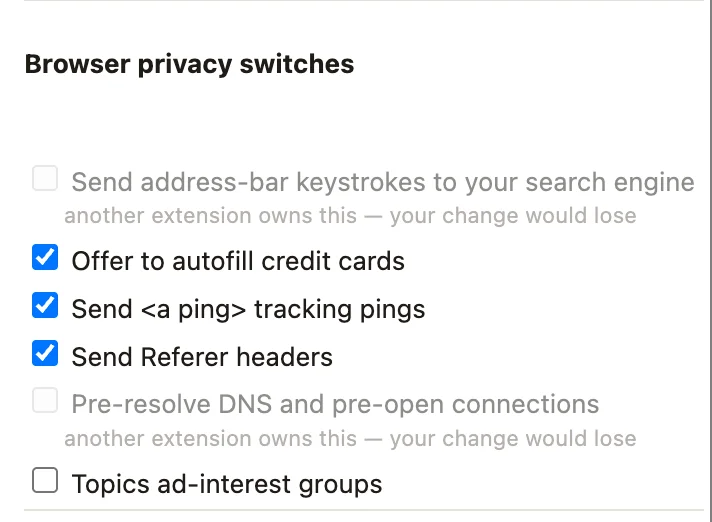
The greyed-out rows are the honest part — levelOfControl said no before the switch was drawn
Step 5: what is this site allowed to do?
chrome.contentSettings is the per-origin half of the picture: cookies, JavaScript, images, pop-ups, notifications, location, camera, microphone, automatic downloads. You read it with get({ primaryUrl }) and it answers "allow", "block", "session_only" or "ask" depending on the type.
Patterns are the fiddly bit. Content-setting patterns look like match patterns with two differences: for http/https the path must be exactly /*, and unlike match patterns they may carry a port. For reading you can pass a plain URL and skip all of that.
site.js
// Clean Slate — the per-site panel.
// `contentSettings` is optional too. The tab URL comes from `activeTab`,
// which Chrome granted the moment you opened this popup.

const TYPES = [
  ["cookies", "Set cookies"],
  ["javascript", "Run JavaScript"],
  ["images", "Load images"],
  ["popups", "Open pop-ups"],
  ["notifications", "Show notifications"],
  ["location", "Read your location"],
  ["camera", "Use the camera"],
  ["microphone", "Use the microphone"],
  ["automaticDownloads", "Download files automatically"]
];

const list = document.getElementById("site-list");
const status = document.getElementById("site-status");
const grantButton = document.getElementById("site-grant");

async function activeUrl() {
  const [tab] = await chrome.tabs.query({ active: true, currentWindow: true });
  return tab?.url ?? "";
}

async function render() {
  const url = await activeUrl();

  if (!/^https?:/.test(url)) {
    status.textContent = "Content settings only apply to http and https pages.";
    list.replaceChildren();
    return;
  }

  status.textContent = new URL(url).host;

  const rows = await Promise.all(
    TYPES.map(async ([type, label]) => {
      // Deprecated types (plugins, fullscreen, mouselock) can be missing
      // outright on current Chrome. Never assume the namespace is there.
      if (!chrome.contentSettings[type]) return null;
      const { setting } = await chrome.contentSettings[type].get({ primaryUrl: url });
      return { label, setting };
    })
  );

  list.replaceChildren(
    ...rows.filter(Boolean).map(({ label, setting }) => {
      const row = document.createElement("div");
      row.className = "row";
      const name = document.createElement("span");
      name.textContent = label;
      const value = document.createElement("span");
      value.textContent = setting;
      row.append(name, value);
      return row;
    })
  );
}

async function start() {
  const granted = await chrome.permissions.contains({
    permissions: ["contentSettings"]
  });

  if (!granted) {
    status.textContent =
      "Chrome will ask for permission to change what websites are allowed to do.";
    grantButton.hidden = false;
    return;
  }

  if (!chrome.contentSettings) {
    status.textContent = "Granted — reopen the popup to use this panel.";
    return;
  }

  grantButton.hidden = true;
  render();
}

grantButton.addEventListener("click", async () => {
  const granted = await chrome.permissions.request({
    permissions: ["contentSettings"]
  });
  if (granted) start();
});

start();
I kept this panel read-only on purpose. Writing a content setting is a bigger commitment than it looks: your rule persists after the popup closes, and when several rules match a URL the more specific pattern wins, so a broad rule you set today quietly loses to a narrow one tomorrow. If you do want to write, the shape is small —
await chrome.contentSettings.javascript.set({
  primaryPattern: "https://*.example.com/*",
  setting: "block"
});
— and chrome.contentSettings.javascript.clear({}) removes every rule your extension set, which is the undo button your users will eventually need. Ship the read view first and earn the write.
Load it and try it
- Open
chrome://extensions. - Turn on Developer mode (top right).
- Click Load unpacked and pick your
clean-slatefolder. - Open a normal website and click the extension icon.
The first panel is live immediately, with checkboxes matching whatever Chrome's own clear-data dialog is set to. The other two show a button. Click "Turn this panel on" under Browser privacy switches and Chrome asks about changing your privacy-related settings; accept, and the switches appear with their real state.
Two things worth trying:
- Install a second privacy extension — any one that touches
chrome.privacy— and reopen the popup. Rows it grabbed now say "another extension owns this". That'slevelOfControldoing its job. - Tick "Topics ad-interest groups" back on after switching it off. Chrome refuses, and the status line tells you why instead of silently lying.
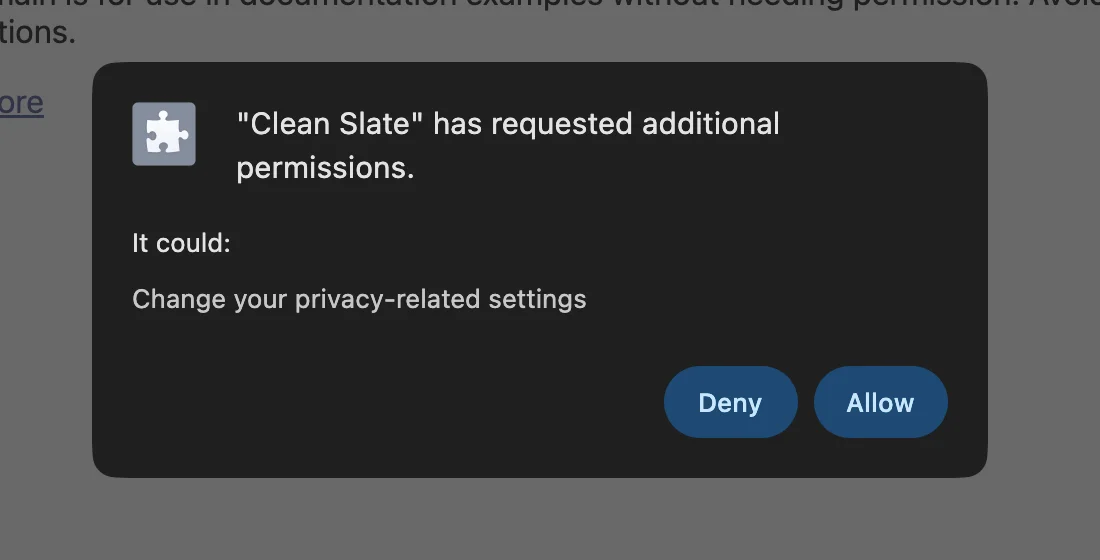
The warning the install dialog never showed — asked at the click that needs it
If it doesn't work, check these first:
Cannot read properties of undefined (reading 'services').chrome.privacyisn't there because the optional permission hasn't been granted in this context yet. Reopen the popup after granting.- The site panel says "http and https pages only". You're on
chrome://extensionsor the Web Store. Content settings don't apply there. Try any ordinary site. tab.urlisundefined. TheactiveTabgrant follows the invocation. If you opened the popup from a page Chrome protects, or droppedactiveTabfrom the manifest, there's nothing to read.- Nothing happens when you click "Turn this panel on".
permissions.request()must run inside a user gesture. Calling it fromrender()or a timer fails silently. - The Clear button seems to hang. It probably didn't. Big removals genuinely take tens of seconds — and if the popup lost focus it closed and took the promise with it.
Cross-browser note
Two of these three port, with edits.
Firefox implements browsingData and privacy, both modelled on the Chromium originals, so clear.js and toggles.js are close to portable. Three differences will bite:
- Fewer data types. MDN documents
removeCache,removeCookies,removeDownloads,removeFormData,removeHistory,removeLocalStorage,removePasswords,removePluginDataandsettings()— noindexedDB,serviceWorkersorcacheStorage. Filter your list per browser rather than trusting the keys to be ignored. - A different settings menu. Firefox's
privacy.websitescarriescookieConfig,resistFingerprinting,trackingProtectionModeandfirstPartyIsolate, which Chrome has no equivalent for; Chrome'stopicsEnabled,fledgeEnabledandadMeasurementEnableddon't exist there. OnlyhyperlinkAuditingEnabled,referrersEnabledandthirdPartyCookiesAllowedare common ground. - No scope. Firefox's
BrowserSettingkeepsget(),set(),clear()andonChange— thelevelOfControllesson holds — but it doesn't distinguish normal from private windows, so thescopeoption simply isn't implemented.
contentSettings doesn't port at all: it's Chromium-only, so Edge inherits it and Firefox has no counterpart. Feature-detect rather than polyfill:
if (!chrome.contentSettings) {
  // Firefox: hide the per-site panel instead of shimming it.
}
Before you publish
Look at what this extension asks for at install: nothing. Two panels earn their permissions at the click, and the whole thing declares no host permissions at all. That's an unusual shape for the privacy category — scanning what comparable privacy tools actually declare in the catalog is a quick way to see how unusual.
It matters more here than in most categories. A privacy extension that over-collects is the worst look on the store, and reviewers know it. So scan your own build before anyone else does:
npx @extenshi/cli scan ./clean-slateThe CLI flags permission bloat, risky API usage and known-bad patterns. You get 3 scans and 10 reads free, one-time; past that, prepaid credit packs cover it and never expire. To look up a published extension, paste its store URL into the checker.
Wrapping up
The clearing part of a privacy panel is one API call. Everything interesting is in the asking:
get()beforeset().levelOfControlis the difference between a control panel and a decorative one.dataRemovalPermittedis the same idea for data. Policy can forbid a type; don't draw a checkbox that can't fire.- Loud permissions belong at the click. Especially since adding one in an update silently disables your extension until every user accepts.
- Some switches are one-way. Privacy Sandbox settings go off and stay off. Surface the error, don't eat it.
Swap the toggle list for a per-site profile and you have a site-specific privacy manager. Swap the clear panel for a scheduled job and you have an auto-cleaner. The get()-then-decide pattern doesn't change.
Shipping something on top of this? Once it's live, installs, retention and the reviews landing on your listing become their own problem. Explore extension analytics → and claim your extension to get verified data next to the security scan.
Sources
- chrome.privacy API reference — Chrome for Developers (Google)
- chrome.browsingData API reference — Chrome for Developers (Google)
- chrome.contentSettings API reference — Chrome for Developers (Google)
- chrome.types — ChromeSetting and LevelOfControl — Chrome for Developers (Google)
- chrome.permissions API reference — Chrome for Developers (Google)
- Permissions list and their warning strings — Chrome for Developers (Google)
- activeTab permission — Chrome for Developers (Google)
- browsingData — WebExtensions API — MDN Web Docs (Mozilla)
- browsingData.settings() — MDN Web Docs (Mozilla)
- privacy — WebExtensions API — MDN Web Docs (Mozilla)
- privacy.websites — MDN Web Docs (Mozilla)
- types.BrowserSetting — MDN Web Docs (Mozilla)
- api-samples/browsingData — GoogleChrome/chrome-extensions-samples (Apache-2.0)
- api-samples/privacy — GoogleChrome/chrome-extensions-samples (Apache-2.0)
- api-samples/contentSettings — GoogleChrome/chrome-extensions-samples (Apache-2.0)
Further reading
📚 Building Browser Extensions, 2nd Edition by Matt Frisbie — Amazon | Apress. Chapter 9 walks the browser API surface this panel sits on; Chapter 10 is the one to read before you decide which permissions go in permissions and which go in optional_permissions — including what happens to an extension that adds a warning-bearing permission in an update.
This article is a hands-on tutorial based on the official Chrome Extensions documentation, MDN's WebExtensions reference, and Google's Apache-2.0 sample code. Code is provided as-is for educational purposes; verify API behavior against the current developer.chrome.com reference before shipping. If you believe anything here is inaccurate, contact [email protected] and we'll review and update.
Related Articles

Optional permissions in Chrome extensions: ask at the click, not at install
Chrome extension optional permissions, end to end: install with no warning, then request topSites and a single host at runtime. Full MV3 code, ~25 minutes.
chrome.management in browser extensions: build a permission audit popup
A hands-on Manifest V3 tutorial: use the chrome.management API and Chrome's own permission warnings to audit every extension installed. Full runnable code.
The `cookies` permission explained: what browser extensions can really access in your sessions
The cookies permission lets extensions read, write, and delete cookies — including session tokens. Here's what that means for your accounts and how to check.

Extension permissions by the numbers: what 308,000 browser extensions actually request
I mapped browser extension permissions across 308,210 live listings: 62% claim storage, 7.4% can read every site you visit. Here's what to pause on.