Act on the current page from Chrome's address bar: omnibox + activeTab
Use Chrome omnibox and activeTab to highlight or count text on the current page. Follow runnable MV3 code and troubleshoot script injection without host access.
Last week's tutorial built a command palette in Chrome's address bar: type a keyword, get live suggestions, press Enter, land somewhere. It navigates. What it never does is touch the page you were already looking at — and it mentioned, in passing, that it could.
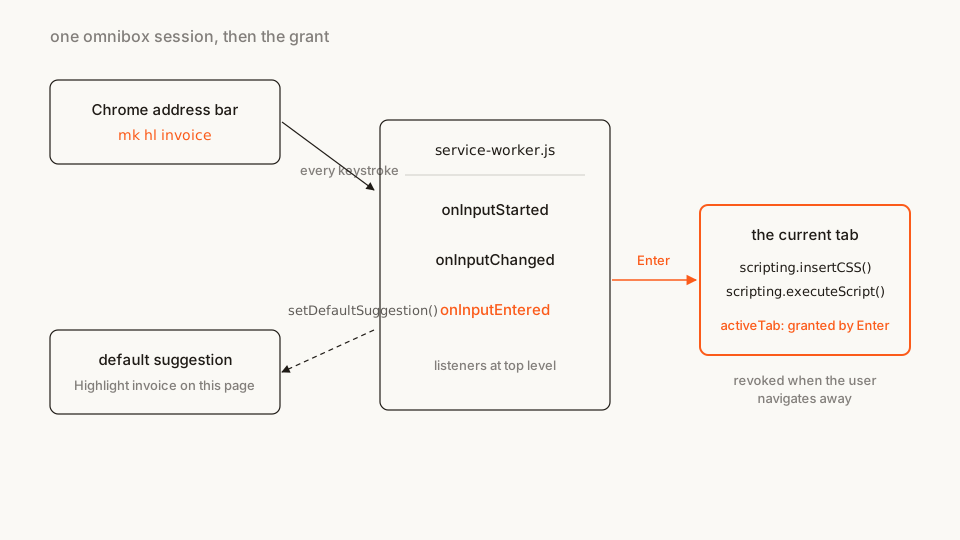
That aside is the whole of this tutorial. Chrome's activeTab documentation lists four user gestures that hand an extension temporary access to the current tab, and the fourth one is accepting a suggestion from the omnibox. Press Enter on your row, and your extension may inject scripts and styles into that tab while the grant remains valid. No host permission, no "read and change all your data" line, nothing in the install dialog.
What you'll build: Marker — type mk, space, then hl invoice to paint every occurrence of "invoice" on the current page, count invoice to put the number of matches on the toolbar badge, and clear to undo it. Two files, no build step. Difficulty: intermediate — you should have loaded an unpacked extension before; the first tutorial covers the omnibox basics this one moves through quickly. Time: ~20 minutes.
When does an omnibox suggestion grant activeTab?
Chrome draws a line between what an extension declares and what the user invokes. Host permissions are declarations: they are granted at install, they cover every matching page forever, and Chrome warns about them for exactly that reason. activeTab is the other model. The extension gets access to one tab, only after the user did something deliberate with the extension, and only until they navigate to a different origin or close the tab. A same-origin navigation can preserve the grant, although a new document does not preserve injected highlights.
The four gestures, per the concept page: running the toolbar action, running a context-menu item, firing a keyboard shortcut from the commands API, and accepting an omnibox suggestion. The last one is the interesting one for a command palette, because the user has already typed what they want done. There's no second click to ask for.
The sequence is: accept the extension's omnibox suggestion → receive a temporary activeTab grant → call chrome.scripting.executeScript() on that tab. Merely typing into the address bar doesn't grant access. The manifest still needs both activeTab and scripting.
The file tree
marker/
├── manifest.json
└── service-worker.js
Rather clone than type? The finished extension lives in our public samples repo — load it, then read on with this tutorial as the guided tour.
Step 1: the manifest, and the two permissions that don't warn
manifest.json
{
  "manifest_version": 3,
  "name": "Marker",
  "short_name": "Marker",
  "version": "1.0",
  "description": "Type mk in the address bar to highlight, count or clear words on the current page.",
  "omnibox": { "keyword": "mk" },
  "permissions": ["activeTab", "scripting"],
  "action": {},
  "background": { "service_worker": "service-worker.js" }
}
Three things to notice.
activeTab and scripting are both in the permissions list as warning-free. activeTab exists so you can avoid the all-sites warning; scripting is only the key to the API — the access to any given page still has to come from the gesture. Load this extension and the install dialog is empty.
The empty "action": {} is there so the extension has a toolbar badge to write a number into. It's a manifest key, not a permission, and an action with no popup and no icon is perfectly legal — it just renders as a grey initial. We only need the badge.
And "omnibox": { "keyword": "mk" } is the same key as last time. The keyword arms after space or Tab, and the user has to type it at the start of the bar. Keep it short and unlike anything that looks like a destination.
Step 2: the listeners, and a dropdown row that silently vanishes
The three omnibox events need to be registered at the top level of the service worker — synchronously, not after an await — or the respawned worker won't receive them. That rule was covered in the first tutorial and it hasn't changed. Here's the skeleton:
chrome.omnibox.onInputStarted.addListener(() => {
  /* set the default suggestion: the menu */
});

chrome.omnibox.onInputChanged.addListener((text, suggest) => {
  /* preview what Enter will do */
});

chrome.omnibox.onInputEntered.addListener(async (text, disposition) => {
  /* do it */
});
Now the trap, which I hit while building this. The obvious way to preview a command is to hand suggest() one row with content: text — "the thing you've typed, described nicely". Chrome drops that row. The default suggestion already is the text the user has typed, so a second row with identical content is treated as a duplicate and never rendered. You get a dropdown with only the default line in it, and nothing in the console says why.
The way through is the one Google's own new-tab-search sample uses: call setDefaultSuggestion() from inside onInputChanged and restyle the default row itself. Use suggest() only for rows whose content differs from what's in the bar — in our case, the menu of verbs while the user is still choosing one.
const VERBS = [
  { key: 'hl', hint: 'highlight a word on this page' },
  { key: 'count', hint: 'count a word, show it on the badge' },
  { key: 'clear', hint: 'remove highlights and badge' }
];

function parse(text) {
  const trimmed = text.trim();
  const space = trimmed.indexOf(' ');
  const verb = (space === -1 ? trimmed : trimmed.slice(0, space)).toLowerCase();
  const arg = space === -1 ? '' : trimmed.slice(space + 1).trim();
  return { verb, arg };
}

chrome.omnibox.onInputChanged.addListener((text, suggest) => {
  const { verb, arg } = parse(text);
  const known = VERBS.find((v) => v.key === verb);

  if (known) {
    chrome.omnibox.setDefaultSuggestion({ description: preview(known.key, arg) });
    suggest([]);
    return;
  }

  chrome.omnibox.setDefaultSuggestion({ description: MENU });
  suggest(
    VERBS.filter((v) => v.key.startsWith(verb)).map((v) => ({
      content: `${v.key} `,
      description: `<match>${v.key}</match> <dim>— ${v.hint}</dim>`
    }))
  );
});
Descriptions take <match>, <dim> and <url> — an omnibox-specific markup, not HTML — and the five XML entities in user text must be escaped before interpolation or the row renders wrong. The escapeXml() helper in the finished file does that; preview() builds strings like Highlight <match>invoice</match> <dim>on this page</dim> through it.
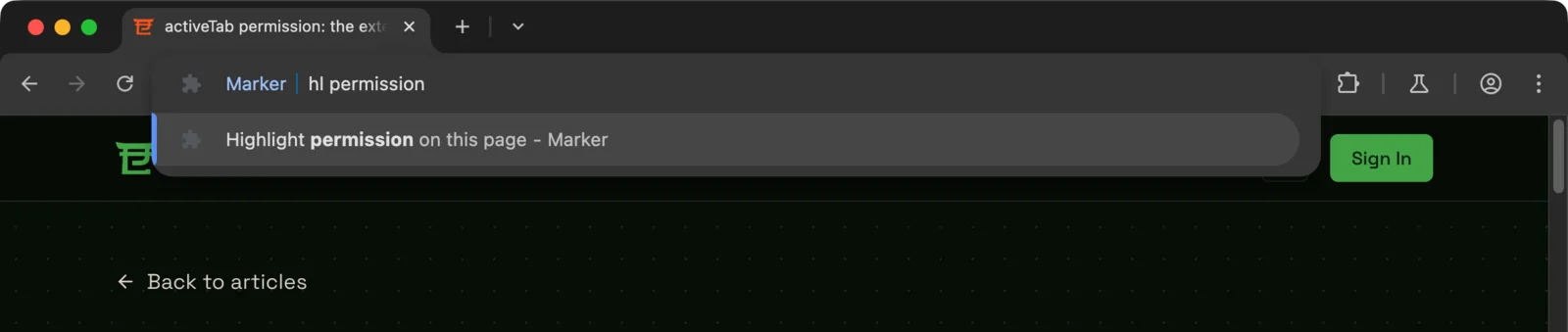
The preview lives in the default row; a suggest() row with the same content would never be drawn
Step 3: Enter, and spending the grant
onInputEntered fires when the user commits. At that instant Chrome has granted activeTab for the tab the user is on, so the worker can find it and inject into it.
async function currentTab() {
  const [tab] = await chrome.tabs.query({ active: true, currentWindow: true });
  return tab?.id;
}

async function highlight(tabId, needle) {
  await chrome.scripting.insertCSS({
    target: { tabId },
    css: '::highlight(marker) { background-color: #FB5B1A; color: #fff; }'
  });
  const [{ result }] = await chrome.scripting.executeScript({
    target: { tabId },
    func: markInPage,
    args: [needle]
  });
  return result; // number of ranges painted
}
Two details that matter more than they look.
tabs.query() works without the tabs permission. That permission gates reading tab metadata — URL, title, favicon — and a query without it still returns the tab, just with those fields stripped. All we need is tab.id, which is always present. (Right after the gesture, Chrome actually fills in url and title for the granted tab too; we don't rely on it.)
executeScript() returns an array of results, one per frame, each carrying whatever the injected function returned. That's how count gets its number back: the function counts ranges in the page and the worker reads result. No messaging, no content script registration, no runtime.onMessage — for a one-shot action this is the entire round trip.
The injected function has one constraint: it's serialised, shipped to the page and re-created there, so it can't close over anything in the worker's scope. Everything it needs arrives through args. If you want the full story on worlds and argument passing, I wrote up runtime injection separately.
Step 4: painting without touching the DOM
The classic way to highlight text is to wrap each hit in a <mark>. It works, and it breaks things: it splits text nodes, invalidates the page's own references, and on a React or Vue page it hands the framework a DOM it didn't render. Undoing it cleanly is its own project.
The CSS Custom Highlight API paints Range objects through a ::highlight() pseudo-element without changing a single node. MDN lists it as Baseline since June 2025 — Chrome, Edge, Safari and Firefox 140+ all ship it — and it's the right tool for anything an extension paints onto someone else's page.
// Runs in the page, not in the worker: no closures, everything via args.
function markInPage(needle) {
  if (!CSS.highlights) return -1;
  CSS.highlights.delete('marker');
  if (!needle) return 0;

  const lower = needle.toLowerCase();
  const walker = document.createTreeWalker(document.body, NodeFilter.SHOW_TEXT);
  const ranges = [];

  for (let node = walker.nextNode(); node; node = walker.nextNode()) {
    const text = node.nodeValue.toLowerCase();
    let at = text.indexOf(lower);
    while (at !== -1) {
      const range = new Range();
      range.setStart(node, at);
      range.setEnd(node, at + lower.length);
      ranges.push(range);
      at = text.indexOf(lower, at + lower.length);
    }
  }

  CSS.highlights.set('marker', new Highlight(...ranges));
  return ranges.length;
}
clear is the same function called with an empty needle: it deletes the registry entry and returns zero. The page's DOM is byte-for-byte what it was before.
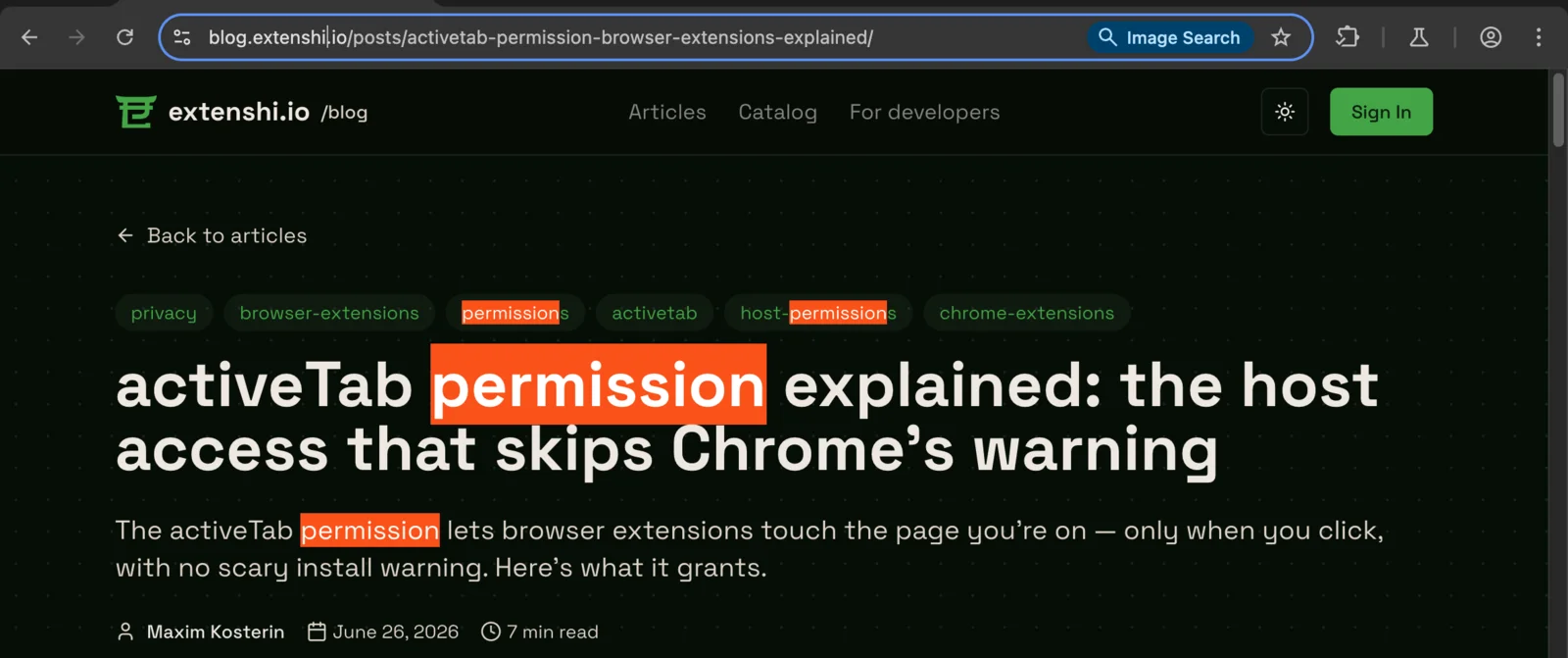
The activeTab grant, spent the instant the user pressed Enter
Step 5: what the grant does not give you
Worth being precise, because the whole point of activeTab is its limits.
- It's one tab, one origin. Chrome keeps the grant while the user stays on the same origin —
example.comtoexample.com/foois fine — and revokes it the moment they navigate somewhere else or close the tab. I checked this with the finished extension: after a cross-origin navigation,executeScript()from the worker rejects with "Cannot access contents of the page. Extension manifest must request permission to access the respective host." A secondmk hlon the new site needs a second Enter. That's the design, not a bug to work around. - Only your rows count. Typing a URL into the bar and pressing Enter is not an acceptance. Neither is picking a Google suggestion. The gesture is specifically choosing a suggestion your extension owns — including the default one.
- Some pages are off limits regardless.
chrome://pages, the Web Store and the New Tab page reject injection from any extension.executeScript()throws there; the finished file catches it and writes!to the badge instead of failing silently. - The badge is not the page.
action.setBadgeText()needs no permission and no grant; it writes to your own toolbar icon. That's whycountcan report a number even though the omnibox session ended the moment Enter was pressed.
The finished service worker
This is the whole file. Copy this one.
service-worker.js
const VERBS = [
{ key: 'hl', hint: 'highlight a word on this page' },
{ key: 'count', hint: 'count a word, show it on the badge' },
{ key: 'clear', hint: 'remove highlights and badge' }
];
const MENU =
'Marker: <match>hl</match> · <match>count</match> <dim>then a word, or</dim> <match>clear</match>';
// Suggestion descriptions are XML-ish, not HTML: escape before interpolating.
function escapeXml(value) {
return value
.replace(/&/g, '&')
.replace(/</g, '<')
.replace(/>/g, '>')
.replace(/"/g, '"')
.replace(/'/g, ''');
}
function parse(text) {
const trimmed = text.trim();
const space = trimmed.indexOf(' ');
const verb = (space === -1 ? trimmed : trimmed.slice(0, space)).toLowerCase();
const arg = space === -1 ? '' : trimmed.slice(space + 1).trim();
return { verb, arg };
}
function preview(verb, arg) {
const word = arg ? `<match>${escapeXml(arg)}</match>` : '<dim>a word</dim>';
if (verb === 'hl') return `Highlight ${word} <dim>on this page</dim>`;
if (verb === 'count') return `Count ${word} <dim>and show it on the badge</dim>`;
return 'Clear highlights <dim>and the badge</dim>';
}
// Runs in the page, not in the worker: no closures, everything via args.
function markInPage(needle) {
if (!CSS.highlights) return -1;
CSS.highlights.delete('marker');
if (!needle) return 0;
const lower = needle.toLowerCase();
const walker = document.createTreeWalker(document.body, NodeFilter.SHOW_TEXT);
const ranges = [];
for (let node = walker.nextNode(); node; node = walker.nextNode()) {
const text = node.nodeValue.toLowerCase();
let at = text.indexOf(lower);
while (at !== -1) {
const range = new Range();
range.setStart(node, at);
range.setEnd(node, at + lower.length);
ranges.push(range);
at = text.indexOf(lower, at + lower.length);
}
}
CSS.highlights.set('marker', new Highlight(...ranges));
return ranges.length;
}
async function currentTab() {
const [tab] = await chrome.tabs.query({ active: true, currentWindow: true });
return tab?.id;
}
async function mark(tabId, needle) {
await chrome.scripting.insertCSS({
target: { tabId },
css: '::highlight(marker) { background-color: #FB5B1A; color: #fff; }'
});
const [{ result }] = await chrome.scripting.executeScript({
target: { tabId },
func: markInPage,
args: [needle]
});
return result;
}
chrome.omnibox.onInputStarted.addListener(() => {
chrome.omnibox.setDefaultSuggestion({ description: MENU });
});
chrome.omnibox.onInputChanged.addListener((text, suggest) => {
const { verb, arg } = parse(text);
const known = VERBS.find((v) => v.key === verb);
if (known) {
chrome.omnibox.setDefaultSuggestion({ description: preview(known.key, arg) });
suggest([]);
return;
}
chrome.omnibox.setDefaultSuggestion({ description: MENU });
suggest(
VERBS.filter((v) => v.key.startsWith(verb)).map((v) => ({
content: `${v.key} `,
description: `<match>${v.key}</match> <dim>— ${v.hint}</dim>`
}))
);
});
chrome.omnibox.onInputEntered.addListener(async (text) => {
const { verb, arg } = parse(text);
const tabId = await currentTab();
if (!tabId) return;
try {
if (verb === 'clear') {
await mark(tabId, '');
await chrome.action.setBadgeText({ tabId, text: '' });
} else if (verb === 'hl' && arg) {
await mark(tabId, arg);
} else if (verb === 'count' && arg) {
const n = await mark(tabId, arg);
await chrome.action.setBadgeText({ tabId, text: n < 0 ? '?' : String(n) });
}
} catch (err) {
// chrome://, the Web Store and the New Tab page refuse injection.
console.warn('Marker could not reach this page:', err.message);
await chrome.action.setBadgeText({ tabId, text: '!' });
}
});Because every verb here acts on the current tab, disposition — the argument that tells you whether the user pressed plain Enter, Ctrl+Enter or Alt+Enter — is ignored on purpose. The first tutorial honours it for navigation commands, where it matters; here there is nothing to open in a new tab.
Load it and try it
- Open
chrome://extensions. - Flip Developer mode on, top right.
- Load unpacked, pick the
marker/folder. Note the install dialog: nothing to accept. - Open any ordinary article. Click into the address bar, type
mk, press space. The "Marker" chip appears and the default row lists the three verbs. - Type
hl theand press Enter. Every "the" on the page turns orange, and the address bar shows the page URL again. - Type
mk, space,count the, Enter — the number of matches appears on the toolbar badge.mk clearremoves both. - Navigate to a different site and run
mk hlthere: it works, because that Enter is itself the gesture. Reload the page and the highlights are gone — the highlight registry lives in the document, not in the extension.
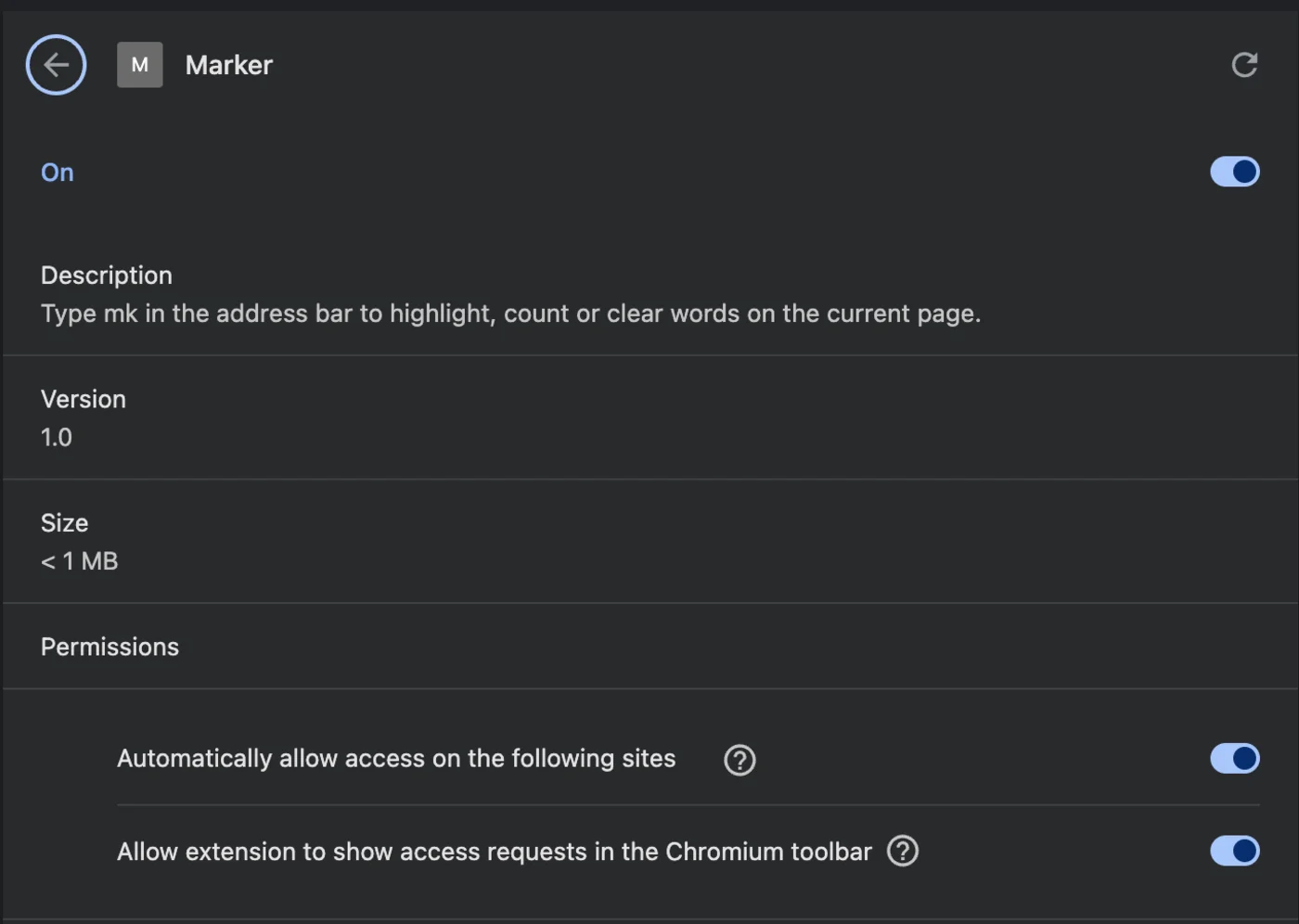
activeTab and scripting, and nothing for the install dialog to say
Why does activeTab injection fail?
Check the invocation and the destination before changing permissions:
- The chip never appears. You didn't press space or Tab after
mk. And if you changed the keyword in the manifest, reload the extension — that key is read at load time only. - The badge says
!. You're on a page extensions can't inject into. Try an ordinary web page instead. - Enter does nothing and the badge is blank. Open the "service worker" link on the extension's card and look at its console. A typo in the injected function surfaces there as an
executeScriptrejection, not in the page. - Highlights look right, but
countshows?. The page's browser doesn't implementCSS.highlights. That's the-1return; on a current Chrome it shouldn't happen.
Cross-browser note
Firefox supports both halves of this. Per MDN, selecting an omnibox suggestion grants activeTab there from Firefox 142 onward — earlier builds only grant it for the toolbar button, context menu and keyboard shortcut, so on those the hl step will throw. The Custom Highlight API landed in Firefox 140. Swap chrome.* for browser.* — Chrome exposes that namespace natively from 148, older builds still want the polyfill — and the rest of the file ports as-is. Edge follows Chromium and needs no changes.
Before you publish
An extension that injects into pages from the address bar is exactly the kind of thing a store reviewer reads twice, so make the manifest say what the code does and nothing more. Two things I'd run before submitting:
npx @extenshi/cli scan ./markerThe CLI flags permission bloat and risky API usage in the packaged folder — here it's mainly a check that a host permission didn't sneak in while you were debugging. Three scans and ten reads are free, one-time; past that, prepaid credit packs cover it and never expire. If you'd rather not hand-write the manifest, the free Manifest V3 generator scaffolds the omnibox, action and permissions keys in the browser.
Then compare yourself to the field. Browsing the catalog for tools that touch the current page shows quickly how many of them reach for <all_urls> where activeTab would have done. To look up a published extension, paste its store URL into the checker.
Wrapping up
Four things carry this build:
- Enter is a gesture. Accepting your suggestion is one of the four
activeTabtriggers — the user typed the intent, so there's nothing left to ask. activeTab+scriptingcost nothing at install. The access comes from the gesture, not the manifest, and it ends when the page does.- Preview in the default row. A
suggest()row whosecontentequals the typed text is dropped as a duplicate;setDefaultSuggestion()insideonInputChangedis the idiom. - Paint ranges, not markup. The Custom Highlight API leaves the page's DOM untouched, so there's nothing to undo and nothing for the page's framework to trip over.
Swap markInPage for anything you'd otherwise have built a popup around — scroll to a heading, copy a selector, toggle a stylesheet — and the address bar becomes the fastest UI your extension has, with no install-time permission warnings for the activeTab and scripting permissions used here.
Shipping something on top of this? Once it's live, installs, retention and the reviews landing on your listing become their own problem. Explore extension analytics → and claim your extension to get verified data next to the security scan.
Sources
- The "activeTab" permission — Chrome for Developers (Google)
- chrome.omnibox API reference — Chrome for Developers (Google)
- chrome.scripting API reference — Chrome for Developers (Google)
- chrome.action API reference — Chrome for Developers (Google)
- Permissions list — Chrome for Developers (Google)
- permissions — manifest.json (activeTab section) — MDN Web Docs (Mozilla)
- CSS Custom Highlight API — MDN Web Docs (Mozilla)
- api-samples/omnibox/new-tab-search — GoogleChrome/chrome-extensions-samples (Apache-2.0)
This article is a hands-on tutorial based on the official Chrome Extensions documentation and Google's Apache-2.0 sample code. Code is provided as-is for educational purposes; verify API behavior against the current developer.chrome.com reference before shipping. If you believe anything here is inaccurate, contact [email protected] and we'll review and update.
Related Articles
Omnibox keywords in Chrome extensions: a command palette without permission warnings
Build a Chrome extension omnibox command palette with one keyword, live suggestions and saved shortcuts. Get full MV3 code with no install permission warnings.
activeTab permission explained: the host access that skips Chrome's warning
The activeTab permission lets browser extensions touch the page you're on — only when you click, with no scary install warning. Here's what it grants.
Runtime script injection in Chrome extensions: ISOLATED vs MAIN world
chrome.scripting.executeScript end to end: inject on click with activeTab, pass args safely, and choose ISOLATED or MAIN world. Full MV3 code, ~25 min.
Optional permissions in Chrome extensions: ask at the click, not at install
Chrome extension optional permissions, end to end: install with no warning, then request topSites and a single host at runtime. Full MV3 code, ~25 minutes.