chrome.readingList in browser extensions: save pages to Chrome's own Reading List
Build an MV3 save-for-later extension with the chrome.readingList API: toolbar popup, right-click menu, and live sync with Chrome's own Reading List panel.

Every read-it-later extension keeps a list of its own: its own storage schema, its own sync, its own account or its own chrome.storage silo. If that list lives only in the extension's storage, uninstalling the extension takes the saved articles with it. Since Chrome 120 (December 2023) there has been another option: the browser ships a read-later store of its own, and extensions are allowed to write into it.
chrome.readingList is the API, and the pitch is simple: your extension saves a page, and the item shows up in Chrome's own Reading List side panel, syncs to the user's other signed-in devices, and survives your extension being uninstalled. Before the API existed, a read-it-later extension had no choice but to keep that list itself. Today it can hand the list to the browser, and that costs almost nothing in permissions.
The API in two minutes
As Matt Frisbie explores in Building Browser Extensions (Apress, 2025), Chrome's browser-state APIs — cookies, bookmarks, history — all share one shape: a CRUD interface over data the browser already owns, plus change events so you can watch it. readingList is the smallest complete member of that family. It has the same shape as the chrome.bookmarks tree I walked through earlier, just flat instead of hierarchical:
- Four methods, all returning promises:
addEntry(),query(),updateEntry(),removeEntry()(API reference). - Three events:
onEntryAdded,onEntryUpdated,onEntryRemoved. Your extension isn't the only writer: the user edits the same list from Chrome's side panel, and sync brings in changes from their other devices. - One permission:
"readingList". No host permissions, notabs. - Entries are keyed by URL, query string and hash included. Adding a URL that's already there fails with
Duplicate URL.instead of updating it, so the correct save pattern isquery()first, then add or update. - No guaranteed order. The docs are blunt about this, and they mean it: in Chrome 157,
query({})handed back entries in alphabetical URL order, not newest first. If your UI says "newest first", you sort bycreationTimeyourself. - Chrome 120+, MV3 only. That floor is why
minimum_chrome_versionbelongs in the manifest below.
One more behavior to internalize before writing code: the Reading List only accepts http and https URLs. A chrome:// page, an extension page or a local file:// document gets rejected with URL is not supported. (the error strings live in Chromium's source). A "save this page" button needs a graceful path for the tabs it can't save, not an unhandled promise rejection.
Here's the whole architecture of what we're building:
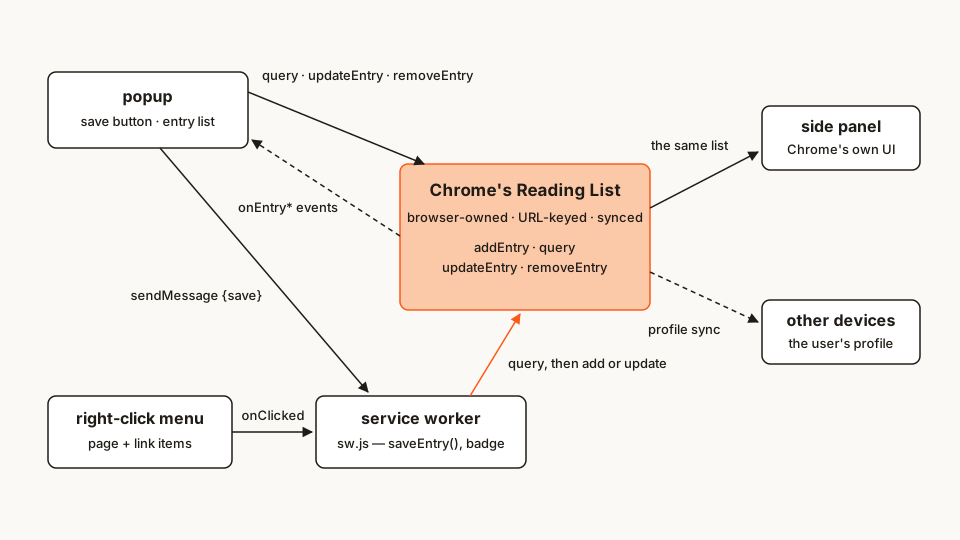 One list, several doors. Your extension writes through the worker or directly from the popup; Chrome's side panel writes to the same store; the events keep every view honest.
park-it/
├── manifest.json
├── sw.js
├── popup.html
├── popup.css
└── popup.js
Rather clone than type? The finished extension lives in our public samples repo — load it, then read on with this tutorial as the guided tour.
Difficulty: beginner — promises and basic DOM scripting. Time: ~20 minutes with Chrome 120+ and a text editor, nothing else.
Step 1: the manifest — three permissions and one floor
manifest.json
{
	"name": "Park It",
	"description": "Save the current page — or any link you right-click — into Chrome's own Reading List.",
	"version": "1.0",
	"manifest_version": 3,
	"minimum_chrome_version": "120",
	"background": {
		"service_worker": "sw.js"
	},
	"permissions": ["readingList", "contextMenus", "activeTab"],
	"action": {
		"default_popup": "popup.html",
		"default_title": "Park It"
	}
}
Three permissions, and I want to sell you on how small that is:
readingList— the whole feature. One line in the install dialog ("Read and change entries in the reading list"), no host permissions anywhere.contextMenus— the right-click entry point in step 2.activeTab— the popup's Save button needs the current tab's URL and title, and activeTab hands them over only when the user actually invokes the extension (clicking the toolbar icon, picking a context-menu item). No install warning at all, and nothing is visible until the user reaches for it.
Note what's not here: no "tabs" permission. We never need to watch tabs or list all of them — just touch the one the user is looking at, at the moment they ask.
Scaffolding a real project instead of typing along? The manifest generator builds an MV3 manifest step by step in your browser and previews the install prompt Chrome will show for it, which helps when you're deciding whether a feature is worth its warning line.
Step 2: the service worker — one save function, two doors
The service worker owns every save. Both entry points — the right-click menu and (in step 4) the popup's button — funnel into the same saveEntry() function, so the query-then-add-or-update logic exists exactly once.
sw.js
// Park It — service worker. Owns every write-through of a save,
// so the query-then-add logic exists exactly once.

const BADGE_MS = 1200;

/**
 * Save a URL into Chrome's Reading List.
 * Entries are keyed by URL and adding an existing one fails,
 * so: query first, then add or update. Returns a status object.
 */
async function saveEntry(url, title) {
	if (!url || !/^https?:/i.test(url)) {
		return { ok: false, message: 'Chrome only saves ordinary web pages' };
	}
	try {
		const existing = await chrome.readingList.query({ url });
		if (existing.length > 0) {
			await chrome.readingList.updateEntry({ url, title });
			return { ok: true, message: 'Already parked — title refreshed' };
		}
		await chrome.readingList.addEntry({ url, title, hasBeenRead: false });
		return { ok: true, message: 'Parked in your Reading List' };
	} catch (e) {
		return { ok: false, message: e.message || 'Could not save this page' };
	}
}

// Context-menu saves happen with no UI open, so the badge is the receipt.
function flashBadge(ok) {
	chrome.action.setBadgeBackgroundColor({ color: ok ? '#2e7d32' : '#c62828' });
	chrome.action.setBadgeText({ text: ok ? '✓' : '✕' });
	setTimeout(() => chrome.action.setBadgeText({ text: '' }), BADGE_MS);
}

// The popup's Save button delegates here — same function, same badge.
chrome.runtime.onMessage.addListener((message, sender, sendResponse) => {
	if (message?.type !== 'save') return;
	saveEntry(message.url, message.title).then((result) => {
		flashBadge(result.ok);
		sendResponse(result);
	});
	return true; // the channel must stay open for the async response
});

// Two right-click items: the page you're on, or a link you haven't opened.
chrome.runtime.onInstalled.addListener(() => {
	chrome.contextMenus.create({
		id: 'park-page',
		title: 'Park this page in your Reading List',
		contexts: ['page']
	});
	chrome.contextMenus.create({
		id: 'park-link',
		title: 'Park this link in your Reading List',
		contexts: ['link']
	});
});

chrome.contextMenus.onClicked.addListener(async (info, tab) => {
	const isLink = info.menuItemId === 'park-link';
	const url = isLink ? info.linkUrl : info.pageUrl;
	const title = isLink ? info.linkUrl : tab?.title || info.pageUrl;
	const result = await saveEntry(url, title);
	flashBadge(result.ok);
});
A few things worth pausing on:
- The scheme guard comes first. Not every tab holds a web page. Click Park this page on a local
file://document and the popup can read its address, so the URL reachessaveEntry(), andaddEntry()would only answerURL is not supported.The guard turns that into a sentence the user understands. - Duplicate saves update instead of failing. Re-parking a page refreshes its title and leaves its read status alone (
updateEntry()keeps any field you don't pass). That's the query-then-branch pattern the API's URL-keyed identity forces on you. - Links get the URL as the title. Chrome's
OnClickDatacarries the link'slinkUrlbut neither its text nor the target page's title, so a link is parked under its own URL. If the user later opens it and parks the page itself, the query-then-update branch replaces that placeholder with the real title. return truein the message listener keeps the response channel open across theawait. Forget it and the popup'ssendMessageresolves withundefined— the classic MV3 messaging footgun. The menu mechanics themselves (onInstalledcreation,onClickedrouting) follow the same pattern as my context-menu tutorial, so I won't re-teach them here.
Also note what the code doesn't do: no callbacks, no chrome.runtime.lastError checks. Frisbie points out that the WebExtensions API predates async/await and its promise retrofit is uneven — older methods still lean on callbacks. readingList arrived in Chrome 120, after that retrofit: every method returns a promise, so errors live in try/catch. A trailing callback still works if you pass one, but the official API reference documents only the promise form, and nothing here needs the other one.
Step 3: the popup shell
The popup is the management view: a Save button for the current tab on top, the user's parked pages underneath. Static markup first — no framework, no build step.
popup.html
<!doctype html>
<html lang="en">
<head>
	<meta charset="utf-8" />
	<title>Park It</title>
	<link rel="stylesheet" href="popup.css" />
</head>
<body>
	<header>
		<button id="save" type="button">Park this page</button>
		<p id="status" role="status" hidden></p>
	</header>
	<main>
		<ul id="entries"></ul>
		<p id="empty" hidden>Nothing parked yet. Save this page — or right-click any link.</p>
	</main>
	<script src="popup.js"></script>
</body>
</html>
popup.css
body {
	width: 320px;
	margin: 0;
	font: 13px/1.45 system-ui, sans-serif;
	color: #1f1b16;
	background: #faf9f5;
}
header {
	padding: 10px 12px;
	border-bottom: 1px solid #e4e0d8;
}
#save {
	width: 100%;
	padding: 8px;
	font: inherit;
	font-weight: 600;
	color: #fff;
	background: #fb5b1a;
	border: 0;
	border-radius: 6px;
	cursor: pointer;
}
#save:hover {
	background: #e5500f;
}
#status {
	margin: 8px 0 0;
	font-size: 12px;
}
#status.error {
	color: #c62828;
}
main {
	padding: 8px 12px 12px;
}
#entries {
	list-style: none;
	margin: 0;
	padding: 0;
}
#entries li {
	display: flex;
	align-items: center;
	gap: 6px;
	padding: 6px 0;
	border-bottom: 1px solid #eee9df;
}
#entries a {
	flex: 1;
	overflow: hidden;
	text-overflow: ellipsis;
	white-space: nowrap;
	color: inherit;
	text-decoration: none;
}
#entries a:hover {
	text-decoration: underline;
}
#entries li.read a {
	color: #8a8378;
	text-decoration: line-through;
}
#entries button {
	font-size: 11px;
	padding: 2px 6px;
	border: 1px solid #d8d2c6;
	border-radius: 4px;
	background: #fff;
	cursor: pointer;
}
#empty {
	color: #6f675c;
	font-style: italic;
}Step 4: the popup logic — save, list, and stay in sync
popup.js
const saveButton = document.getElementById('save');
const statusEl = document.getElementById('status');
const listEl = document.getElementById('entries');
const emptyEl = document.getElementById('empty');

function showStatus(message, isError = false) {
	statusEl.textContent = message;
	statusEl.classList.toggle('error', isError);
	statusEl.hidden = false;
}

async function render() {
	const entries = await chrome.readingList.query({});
	// query() promises no order — "newest first" is ours to enforce.
	entries.sort((a, b) => b.creationTime - a.creationTime);

	listEl.replaceChildren();
	emptyEl.hidden = entries.length > 0;

	for (const entry of entries) {
		const li = document.createElement('li');
		if (entry.hasBeenRead) li.classList.add('read');

		const a = document.createElement('a');
		a.href = entry.url;
		a.target = '_blank'; // open in a real tab, not inside the popup
		a.rel = 'noopener';
		a.textContent = entry.title; // titles are untrusted input — never innerHTML
		a.title = entry.url;

		const readButton = document.createElement('button');
		readButton.textContent = entry.hasBeenRead ? 'Unread' : 'Read';
		readButton.addEventListener('click', () => {
			chrome.readingList.updateEntry({
				url: entry.url,
				hasBeenRead: !entry.hasBeenRead
			});
		});

		const removeButton = document.createElement('button');
		removeButton.textContent = '✕';
		removeButton.addEventListener('click', () => {
			chrome.readingList.removeEntry({ url: entry.url });
		});

		li.append(a, readButton, removeButton);
		listEl.append(li);
	}
}

saveButton.addEventListener('click', async () => {
	const [tab] = await chrome.tabs.query({ active: true, currentWindow: true });
	if (!tab?.url) {
		showStatus('Chrome hides this page from extensions — nothing to park.', true);
		return;
	}
	const result = await chrome.runtime.sendMessage({
		type: 'save',
		url: tab.url,
		title: tab.title
	});
	showStatus(
		result?.message ?? 'The background worker did not answer — reload the extension.',
		!result?.ok
	);
});

// Every write fires one of these: our own Read/✕ clicks, a save from the
// worker, sync from another device. Re-rendering on all three keeps the
// list honest without any bookkeeping of our own.
chrome.readingList.onEntryAdded.addListener(render);
chrome.readingList.onEntryUpdated.addListener(render);
chrome.readingList.onEntryRemoved.addListener(render);

render();
The design choices that matter:
- Reads and small edits go direct; saves go through the worker. The popup has the
readingListpermission like any extension page, soquery(),updateEntry()andremoveEntry()are called right here — no messaging tax. Only the save is delegated, because that's the logic shared with the context menu, and duplicating the query-then-branch dance in two files is how the two doors drift apart. - No manual re-render after an edit. Mark-read and remove fire
onEntryUpdated/onEntryRemoved, and the listeners callrender(). One data flow, no double-bookkeeping — the same trick Google's ownreadingListsample uses (Apache-2.0 — my code here is a re-explanation, not a copy: their sample is a full-page management table, ours is a save-first popup). !tab?.urlis the graceful refusal. Onchrome://pages (the new tab page included), even a click on the toolbar icon doesn't unlock the address:tabs.queryreturns the tab with nourlat all. That's not a bug to code around — it's Chrome telling you the page is privileged. Say so and stop. The Chrome Web Store is not in that group:activeTabreveals itshttpsaddress, and the store page parks like any other.- Sorting is on you.
creationTimeis milliseconds since the epoch; newest-first is onesort()call. Skip it and the popup shows whatever order Chrome hands back, which in Chrome 157 was alphabetical by URL.
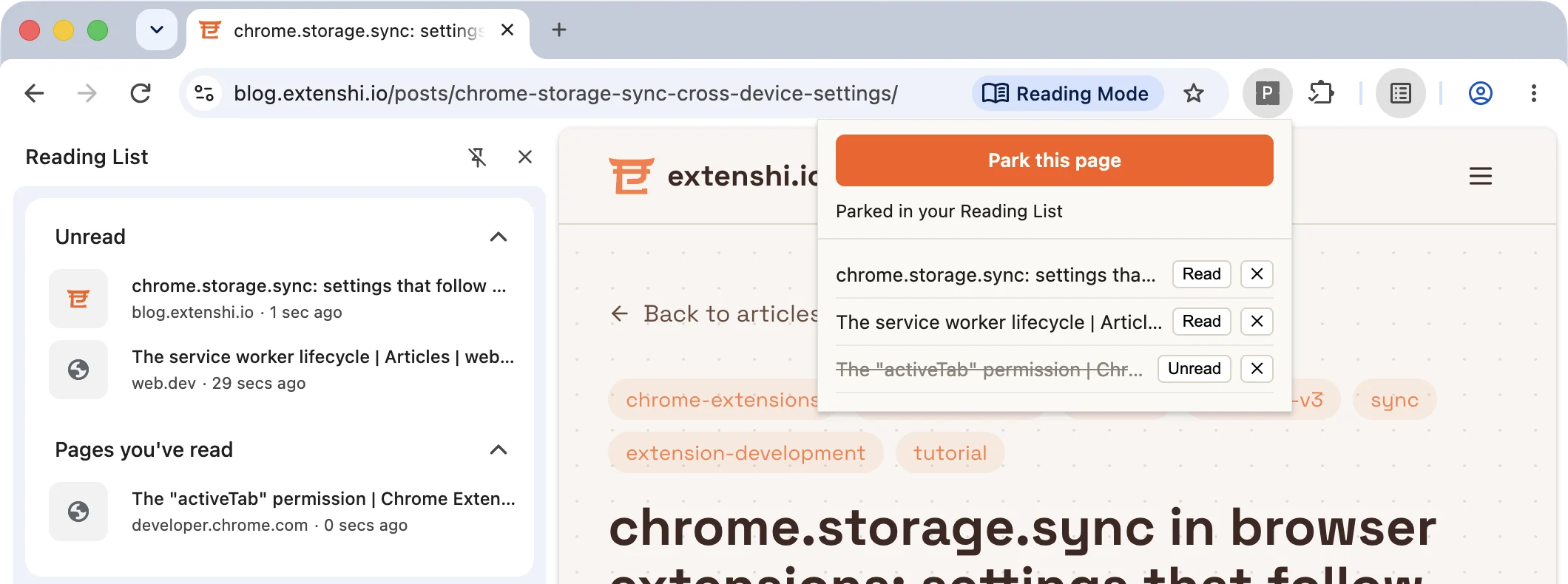 One list, two doors: mark a page read in the popup, and Chrome's own side panel moves it under "Pages you've read".
Load it and try it
- Create a
park-it/folder with the five files above. - Open
chrome://extensions, flip Developer mode on (top right), click Load unpacked, pick the folder. - Pin Park It to the toolbar (puzzle-piece icon → pin), then open any article and click Park this page. Status line says "Parked in your Reading List", the toolbar badge flashes ✓.
- Open Chrome's Reading List: ⋮ menu → Bookmarks and lists → Reading list → Show reading list. It opens in the side panel, and your article is there — put there by your extension, editable by Chrome's own UI.
- Right-click a link you haven't opened → Park this link in your Reading List. Badge flashes ✓; the link appears in the popup under its URL.
- Now the fun one: keep the side panel open, open the popup, and click Read on an entry. The side panel moves it under Pages you've read at the same moment. That's one store with two views, and
onEntryUpdatedis what re-renders the popup's own row. - Park the same article twice from the popup. "Already parked — title refreshed", no duplicate, no crash.
- Open
chrome://extensionsitself, click Park this page: "Chrome hides this page from extensions — nothing to park." Graceful, not a console fire.
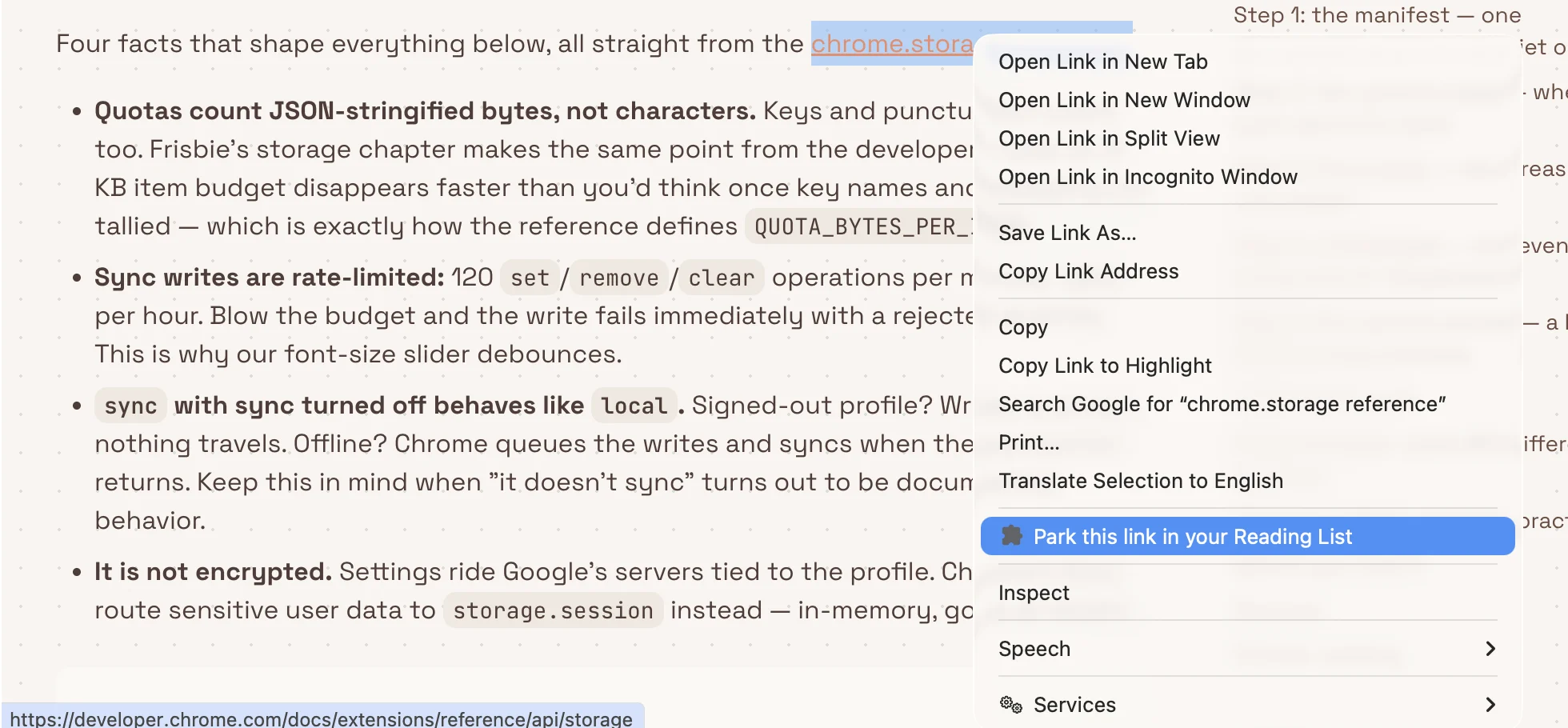 The link entry point parks pages you haven't opened yet. Chrome's own link menu has no reading-list item; Park It adds one.
If it doesn't work, it's nearly always one of these:
Cannot read properties of undefined (reading 'query')in the popup console →"readingList"is missing or misspelled in the manifest, sochrome.readingListdoesn't exist. (A Chrome older than 120 won't load the extension at all, thanks tominimum_chrome_version.)- The Save button does nothing / "did not answer" → you edited
sw.jswithout hitting reload on the extension card, or thereturn truein the message listener got lost — without it the response channel closes before the promise settles. - No right-click items → menus are created in
onInstalled, which fires on load/reload of the extension, not on every service-worker wake. Reload the extension; if they're still missing, look for a "Cannot create item with duplicate id" error in the worker console and remove the stale menus once withchrome.contextMenus.removeAll()inonInstalledbefore creating them.
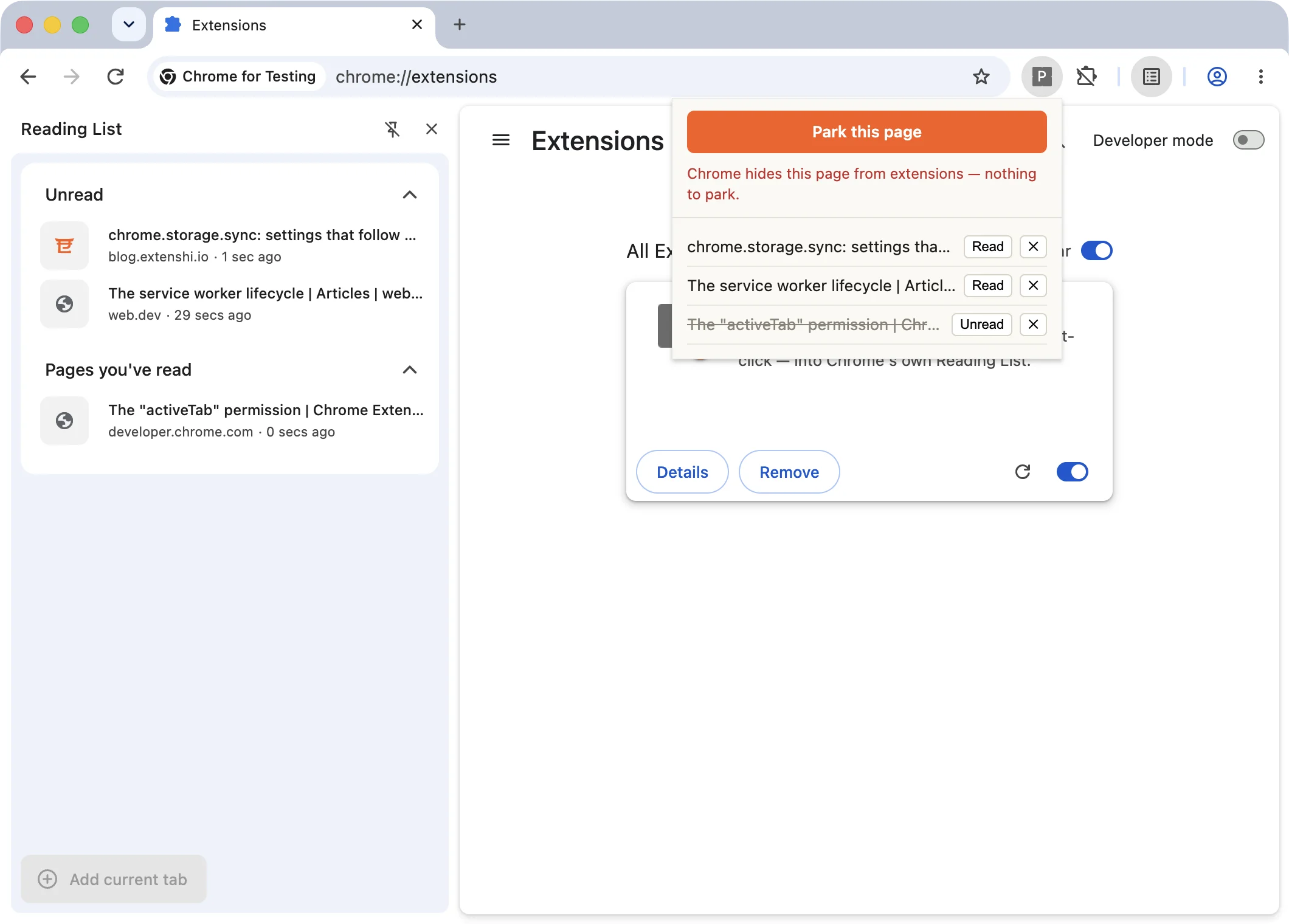 The refusal path on
chrome://extensions. Chrome's own Add current tab button is greyed out on this page too.
What you give up by using the browser's list
Honest trade-offs, because this API is deliberately small:
- No custom fields. An entry is
url,title,hasBeenRead, two timestamps. Tags, notes, "why I saved this" — none of it fits. If you need metadata, keep it in chrome.storage.sync keyed by URL, and treat the Reading List as the canonical list. - No folders. The side panel is flat. Bookmarks remain the hierarchical sibling.
- URL identity is literal. Query string and hash included:
example.com/postandexample.com/post#commentsare two entries, and utm-laden duplicates will pile up unless you normalize URLs before saving. - No control over presentation. It's Chrome's panel, Chrome's rules. Your extension is a door into it, not its owner.
For a "save for later" feature, I think that's a great trade: the user's articles outlive your extension, follow them to every signed-in device, and you shipped it with three permissions. If your product is the list itself — folders, tagging, sharing — a private store is still the right call, and readingList becomes an optional export target.
Cross-browser: Chrome's list stays Chrome's
chrome.readingList is Chromium-only. Firefox has no readingList WebExtensions API, and Safari keeps a Reading List of its own but gives extensions no API to write into it. (Since Chrome 148 the same API is also reachable as browser.readingList in Chrome, but that's Chrome adopting the browser namespace, not other browsers adopting the API.) The portable fallback is browser.storage.sync: your own cross-device list, minus the browser-UI integration. One codebase, two backends behind a typeof chrome.readingList === 'undefined' check — no pretending there's parity.
Other Chromium builds (Edge, Brave, Opera) may expose the same API where their build includes the underlying Reading List feature; feature-detect before you rely on it rather than assuming the engine version is enough.
Common pitfalls and best practices
- Always query before you add. URL-keyed identity means
addEntry()on an existing URL fails. Query-then-branch, or eat rejections. - Sort explicitly. "No guaranteed order" is a documented contract, not a quirk — today's Chrome may look sorted, tomorrow's may not.
- Listen to all three events. The side panel, other extensions, and Chrome sync all write to the same list. A popup closes the moment you click outside it, but an options page or your own side panel stays open while those writes land — and a view that only refreshes on its own writes lies to the user.
- Never render titles with
innerHTML. Entry titles come from arbitrary web pages. Your popup runs with extension privileges — an injected title is an XSS with your permissions on the trigger. - Give headless saves a receipt. A context-menu save has no UI to report into; a 1.2-second badge flash is the cheapest honest feedback there is.
- Normalize URLs if duplicates annoy your users. Strip utm parameters before saving — but do it consistently, or the same page parks under two identities anyway.
Before you ship it
Park It's permission footprint — readingList, contextMenus, activeTab — is about as small as a genuinely useful extension gets, and that's a selling point worth proving in your store listing, not just claiming. Before you submit, run the packaged build through the Extenshi CLI (npx @extenshi/cli scan): security findings, the manifest signals stores reject for, and a store-review prediction in one report. You get 3 scans and 10 reads free with a free account (one-time); after that, prepaid credit packs that never expire.
Curious what the read-it-later extensions you'd be competing with ask for? Browse them in the catalog and compare their permission lists with these three. And before you install any of them to study it, check it first.
Sources
- chrome.readingList API reference — Chrome for Developers (methods, events, URL-keyed uniqueness, no guaranteed order, Chrome 120+/MV3)
- reading_list_api_constants.cc — Chromium source (the
Duplicate URL.andURL is not supported.errors) - activeTab concept guide — Chrome for Developers (when the current tab's URL and title become visible)
- chrome.contextMenus API reference — Chrome for Developers (OnClickData fields:
pageUrl,linkUrl,menuItemId) - Save pages to read later in Chrome — Google support (the user-facing Reading List this API writes into)
- api-samples/readingList — GoogleChrome/chrome-extensions-samples (Apache-2.0); the official management-table demo this tutorial re-explains as a save-first popup
- browser.storage — MDN Web Docs — Mozilla (the portable cross-browser fallback)
Further reading
📚 Building Browser Extensions, 2nd Edition by Matt Frisbie — Amazon | Apress. Chapter 9 maps the whole WebExtensions API surface, including the browser-state CRUD pattern readingList belongs to and the promises-vs-callbacks split that makes this API pleasant to write.
This article is a hands-on tutorial based on the official Chrome extension documentation and Google's Apache-2.0 sample code. Code is provided as-is for educational purposes; verify API behavior against the current developer.chrome.com reference before shipping. Extenshi does not independently verify all claims made by third-party authors, and references to specific products reflect cited documentation, not accusations of wrongdoing. If you believe any information is inaccurate, contact [email protected] and we will review and update.
Related Articles
chrome.contextMenus in browser extensions: build a right-click clip saver
Build a Chrome extension context menu with selected text, saved links and a popup. Get full MV3 code, real screenshots and fixes for missing or duplicate menus.
Chrome extension side panels: build a UI that stays open while you browse
A hands-on Manifest V3 tutorial: build a Chrome extension side panel that persists across tabs, then make it per-site. Full runnable code, ~25 minutes.
chrome.storage.sync in browser extensions: settings that follow the user to every device
Build an MV3 extension whose settings follow the user to every device — chrome.storage.sync quotas, onChanged, and the sync vs local split, with full code.

chrome.bookmarks in browser extensions: search and de-duplicate the user's bookmark tree
Build an MV3 popup with the Chrome bookmarks API: flatten the whole bookmark tree, search it live as you type, and de-duplicate URLs behind a safe preview step.